---
title: "Excel vs CMMS for Maintenance: What a Spreadsheet Can't Do — FixAhead"
description: "A spreadsheet can't make a PM's work order, catch a request sent by WhatsApp, or warn when stock runs low. See each job side by side; we move your sheet in free."
---
# Move from Excel to CMMS software for free
Fill the asset template from your spreadsheet and see each row's errors before import, or our support team loads it for you.
[Get Started Free](https://app.fixahead.com/signup) [Explore Features](/features/)
## A second technician, location, or PM schedule
Add a second technician, a second location, or a preventive schedule, and a spreadsheet can't make the PM work orders or show who did each work order.
## Each work order, row by row
Each row puts one maintenance job in Excel beside FixAhead.
| Feature | FixAhead | Spreadsheets |
| --- | --- | --- |
| Preventive maintenance schedulingCreates work orders before they are due |
| Work orders tracked through each status |
| MTBF / MTTR reliability analytics |
| QR code public issue reportingAnyone scans to report — no account needed |
| Four user roles, each with its own permissions |
| Inventory and parts tracking |
| Multiple locationsUnlimited depth. Filter by the full location path. |
| Push notifications to technicians |
| 11 built-in report types |
| Custom fields (9 types per category) |
| Procedure checklists with photo proof |
| Technician skill matching |
| Bulk import from CSV or ExcelFixAhead checks every row and reports each error |
| Export to PDF, Excel, CSV |
| Free to start |
| Native mobile app (Android)Technicians manage work orders from the floor. iOS coming soon |
| Zero learning curve |
Preventive maintenance scheduling
FixAhead
Spreadsheets
Creates work orders before they are due
Work orders tracked through each status
FixAhead
Spreadsheets
MTBF / MTTR reliability analytics
FixAhead
Spreadsheets
QR code public issue reporting
FixAhead
Spreadsheets
Anyone scans to report — no account needed
Four user roles, each with its own permissions
FixAhead
Spreadsheets
Inventory and parts tracking
FixAhead
Spreadsheets
Multiple locations
FixAhead
Spreadsheets
Unlimited depth. Filter by the full location path.
Push notifications to technicians
FixAhead
Spreadsheets
11 built-in report types
FixAhead
Spreadsheets
Custom fields (9 types per category)
FixAhead
Spreadsheets
Procedure checklists with photo proof
FixAhead
Spreadsheets
Technician skill matching
FixAhead
Spreadsheets
Bulk import from CSV or Excel
FixAhead
Spreadsheets
FixAhead checks every row and reports each error
Export to PDF, Excel, CSV
FixAhead
Spreadsheets
Free to start
FixAhead
Spreadsheets
Native mobile app (Android)
FixAhead
Spreadsheets
Technicians manage work orders from the floor. iOS coming soon
Zero learning curve
FixAhead
Spreadsheets
## Preventive maintenance generates its own work orders
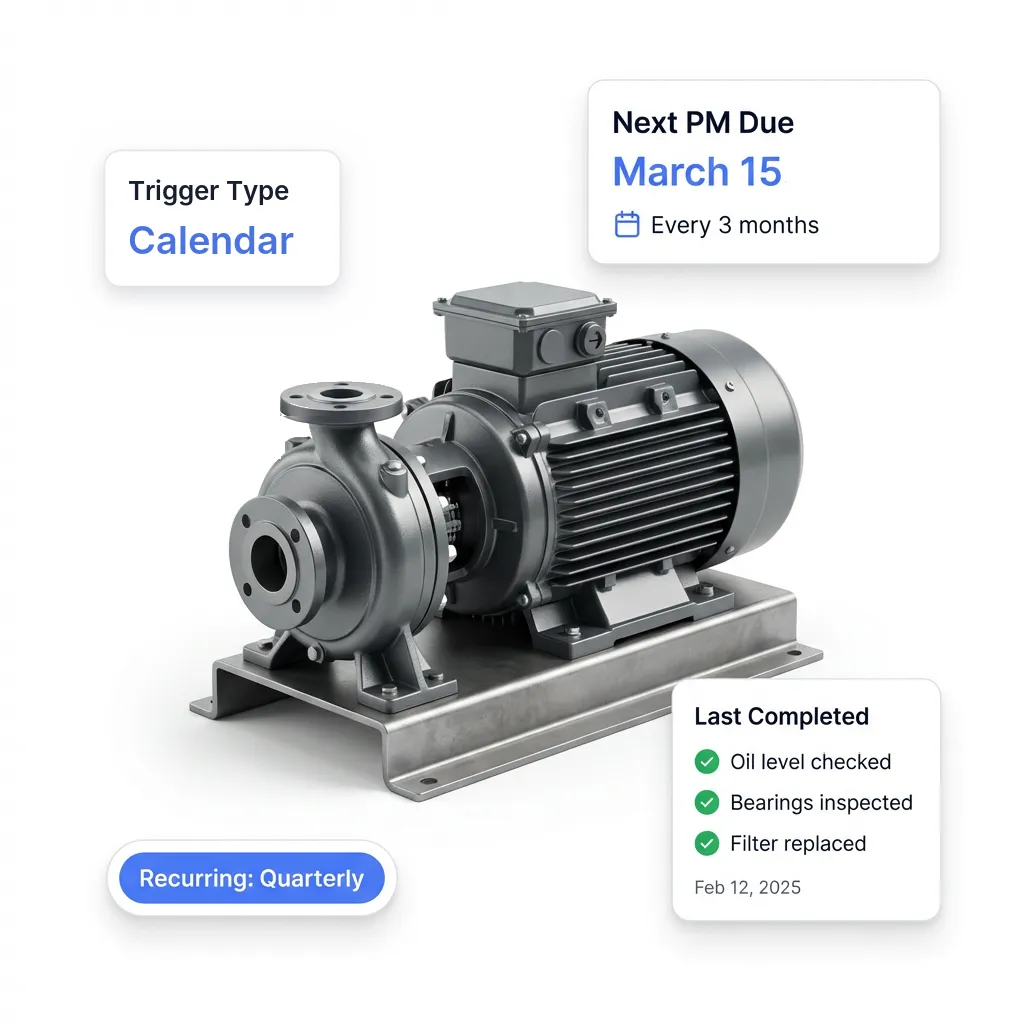
A spreadsheet doesn't make the work order. FixAhead makes each PM's work order before it falls due, by calendar or hour meter.
- Recurring schedules, daily, weekly, monthly, or yearly
- Work orders created days before the due date
- Procedure checklists (Pro), with a photo on any task
- PM compliance tracked per asset
[Learn more about Preventive Maintenance](/features/preventive-maintenance/)
Close
## Requests from calls and WhatsApp land in one queue
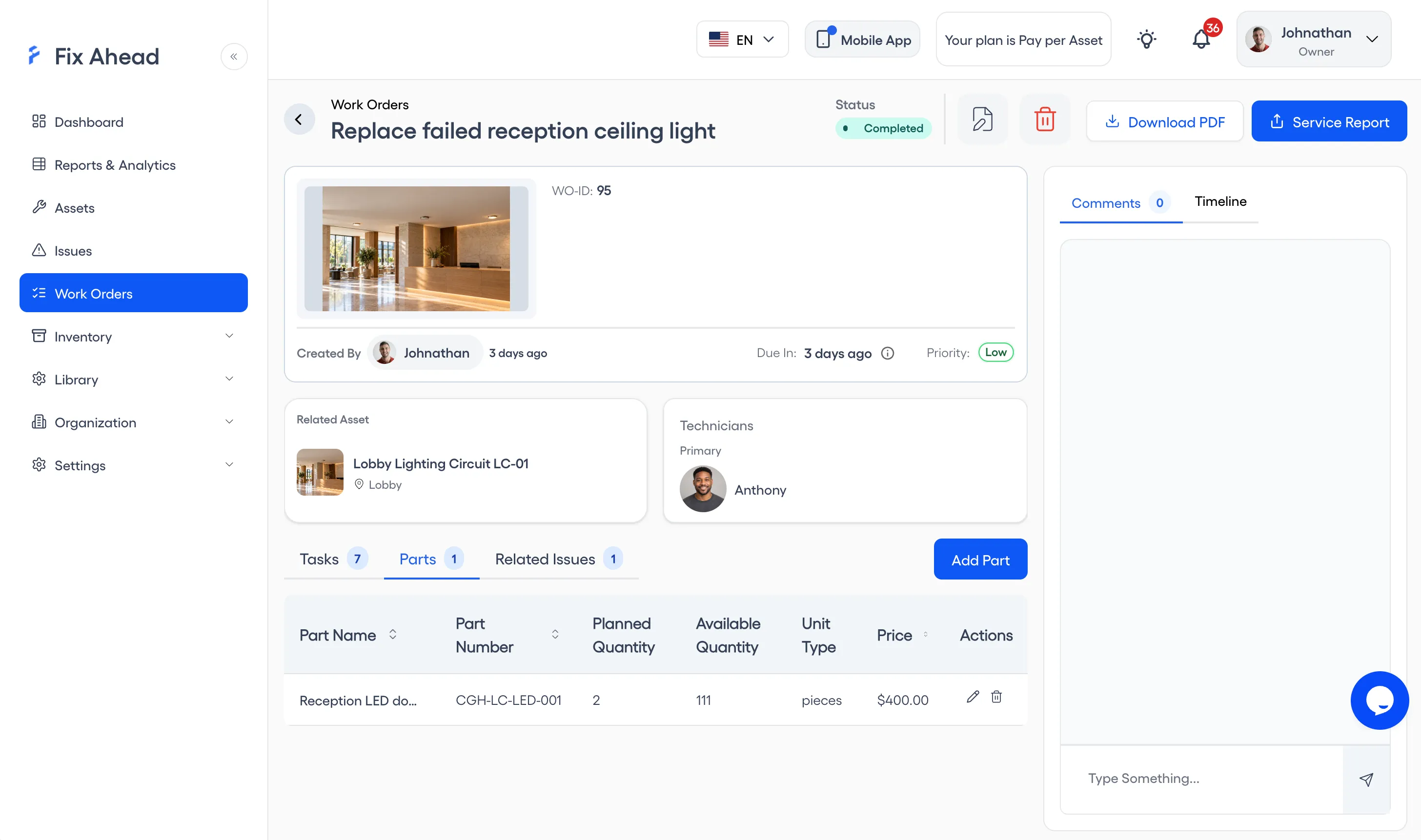
A request by call or WhatsApp never reaches a spreadsheet. In FixAhead, each one becomes a work order with a timeline from assigned to closed.
- Status timeline shows each status change and timestamp
- Assign technicians by skill (Pro) and availability
- Attach procedure checklists with photo proof
- Parts used and costs recorded per work order
[Learn more about Work Orders](/features/work-orders/)
Close
## What the 11 built-in reports (Pro) tell you
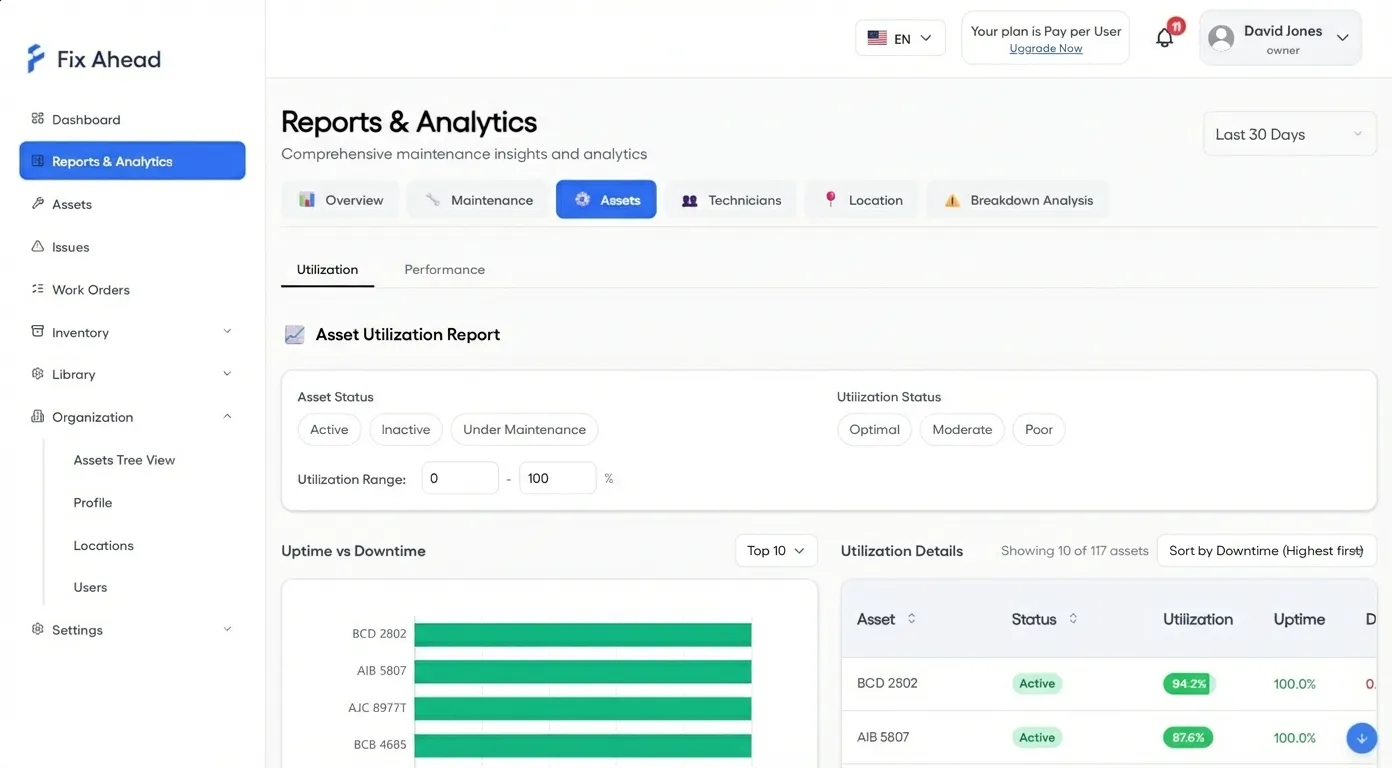
Pro's 11 reports show which assets fail most, what maintenance costs, whether PMs are on time, and each technician's workload.
- MTBF and MTTR reliability metrics per asset
- PM compliance tracking per asset
- Cost analysis by asset, location, or time period
- Export any report to PDF, Excel, or CSV
[Explore Reports & Analytics](/features/reporting/)
Close
## Who created, was assigned, and completed each work order
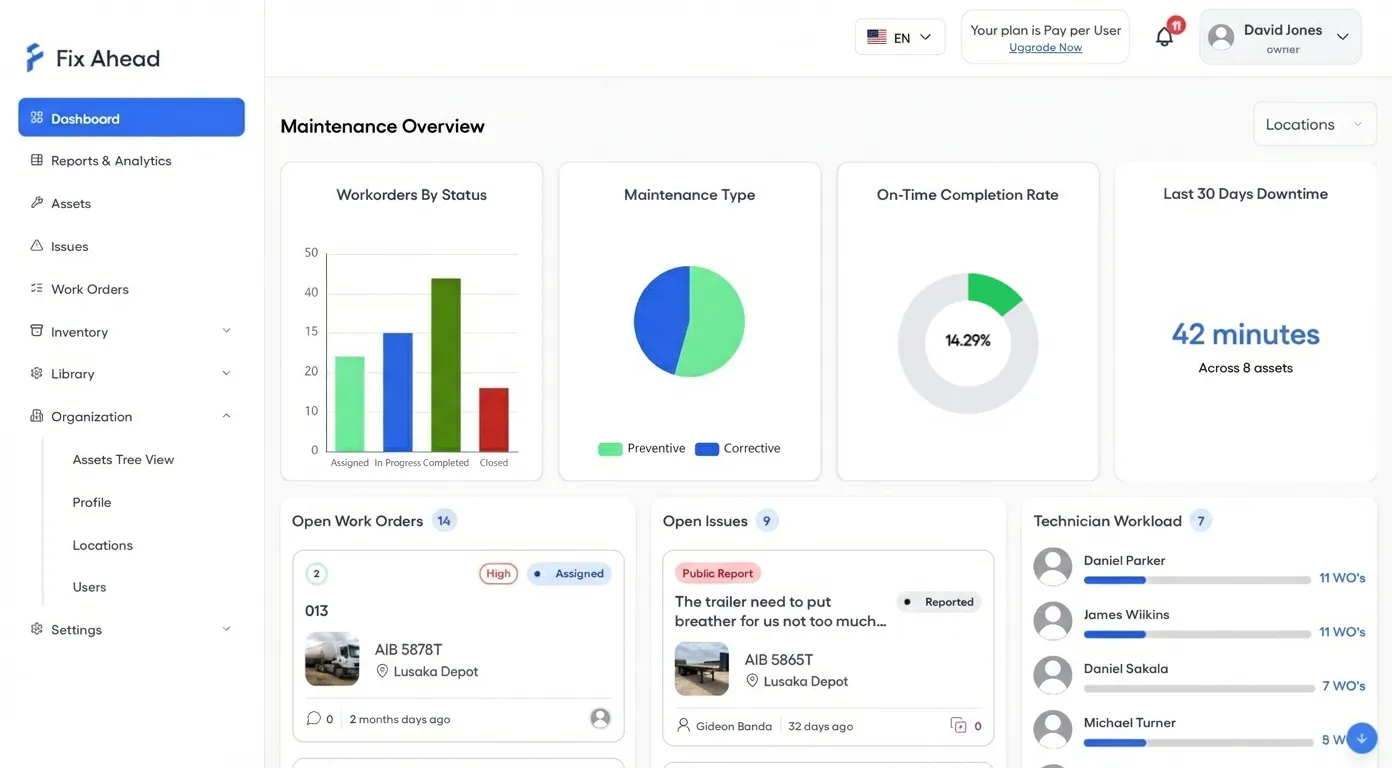
Each work order records who created it, who was assigned, and who completed it, with a time on each step. The dashboard shows status by location.
- Work order status on the dashboard
- Technician workload and completion rates
- On-time maintenance rate tracked automatically
- Filter everything by location for multi-site ops
Close
## Track every spare part and supplier (Pro)
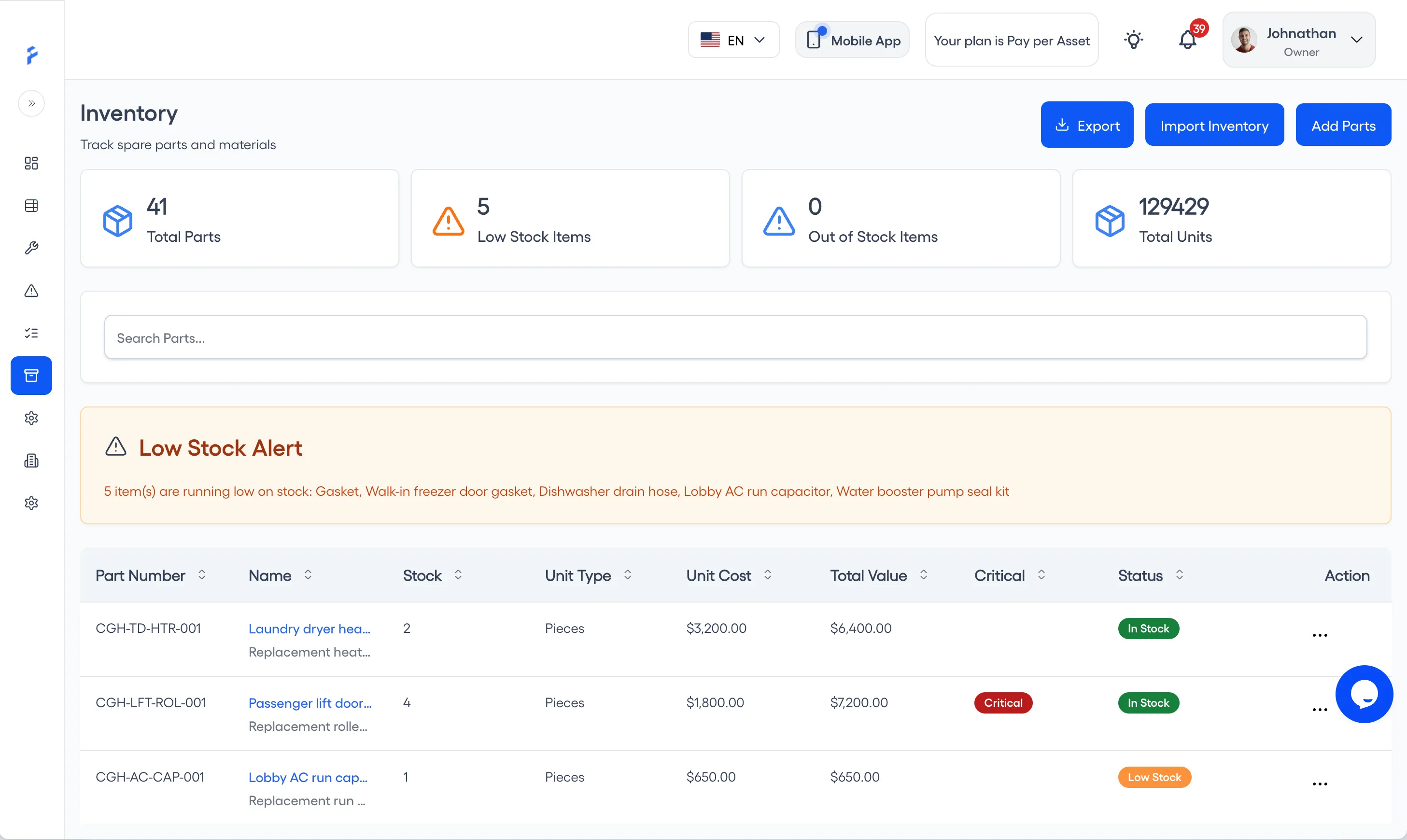
A spreadsheet can't alert you when stock runs low. FixAhead tracks parts with 25 unit types, links suppliers, logs every transaction, and ties each part to the work order that used it.
- Stock levels with low-stock alerts
- Full transaction history per part
- Supplier management with contact details
- Parts automatically linked to work order costs
[Learn more about Inventory](/features/inventory/)
Close
## Anyone reports by QR code with no account
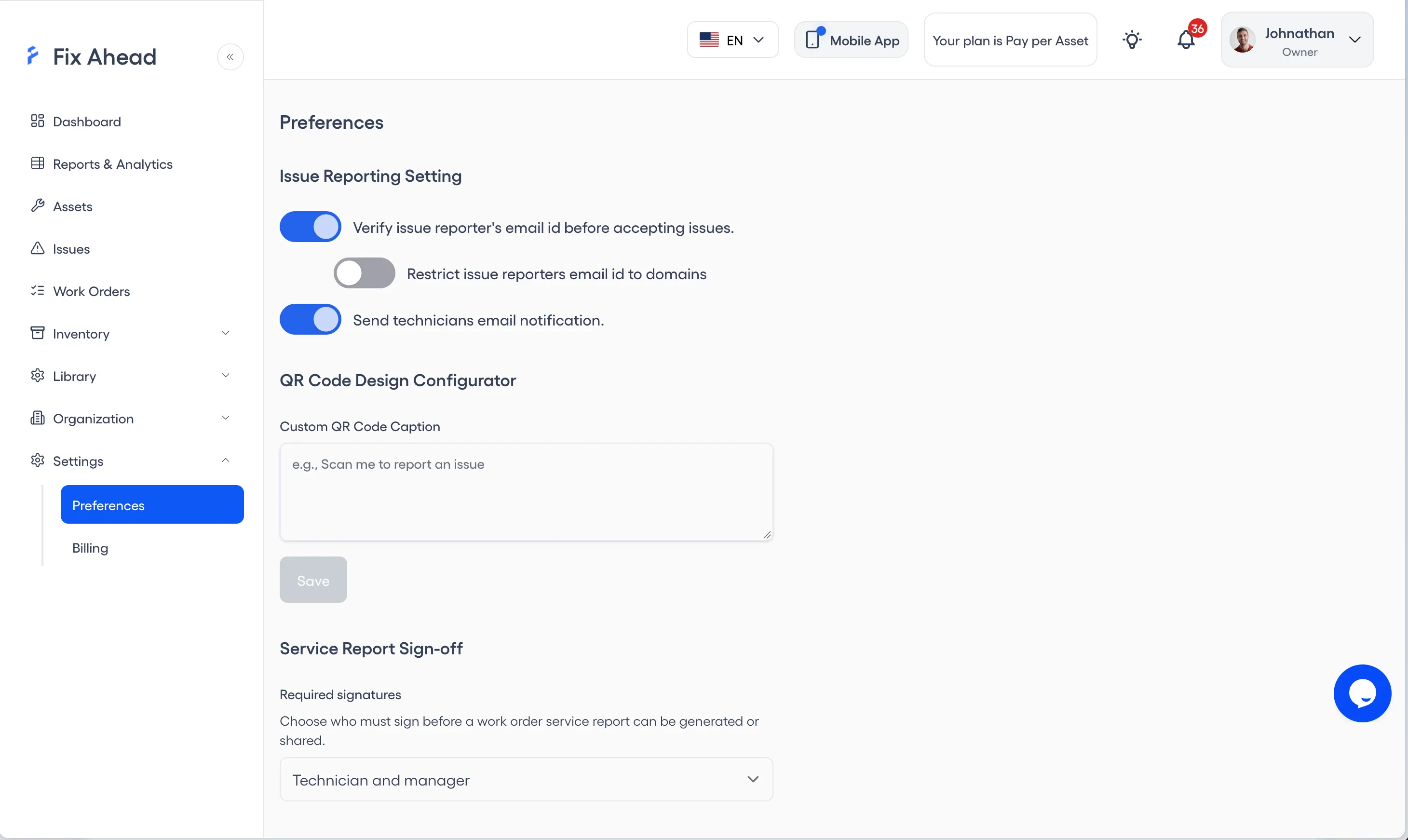
With a spreadsheet, only people with access log issues. In FixAhead, tenants, guests, and floor workers scan a QR code and send a report.
- Scan a QR code to report an issue
- Email verification and domain restriction for control
- Turn an issue into a work order from its card menu with Create Work Order
- Configure the public form
[Learn more about Issue Tracking](/features/issue-tracking/)
Close
## What technicians do from their phones
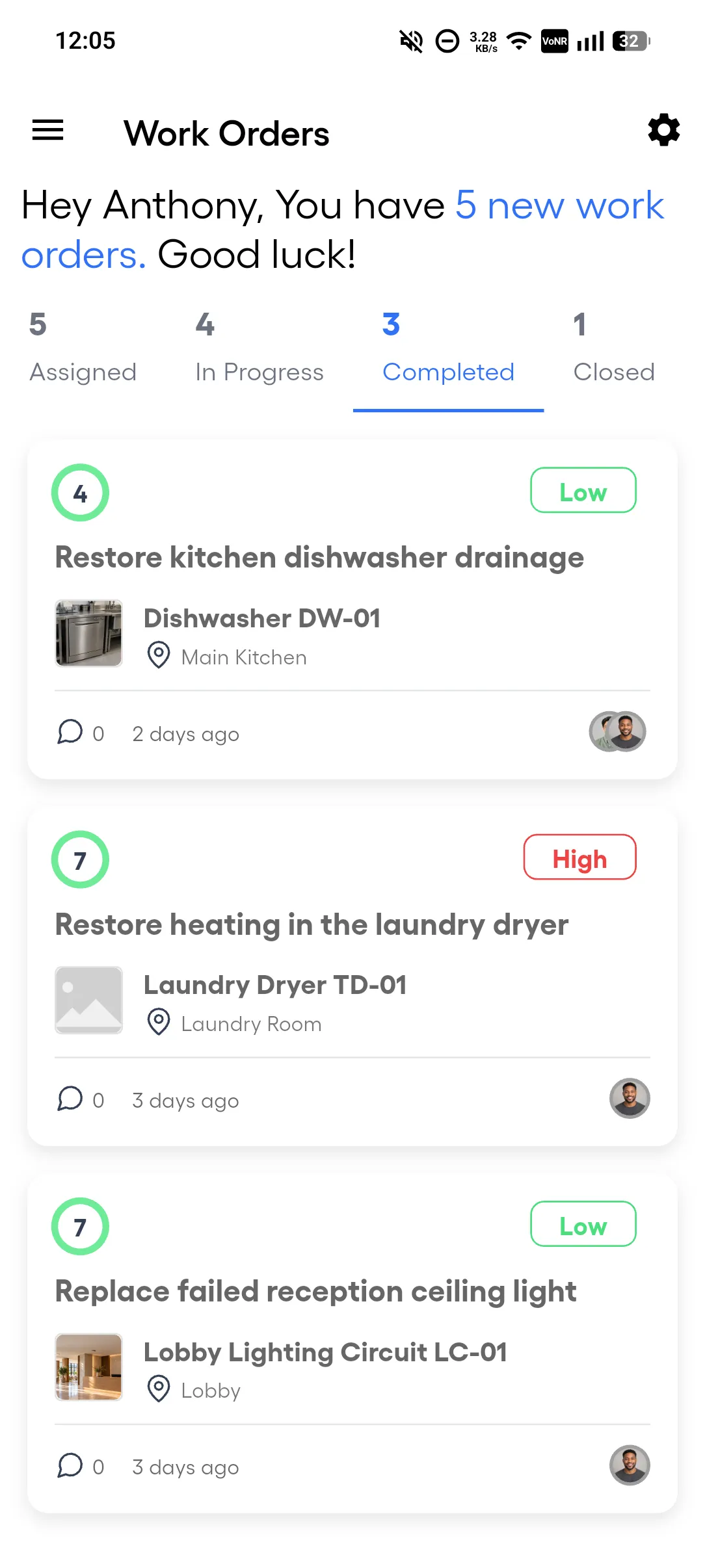
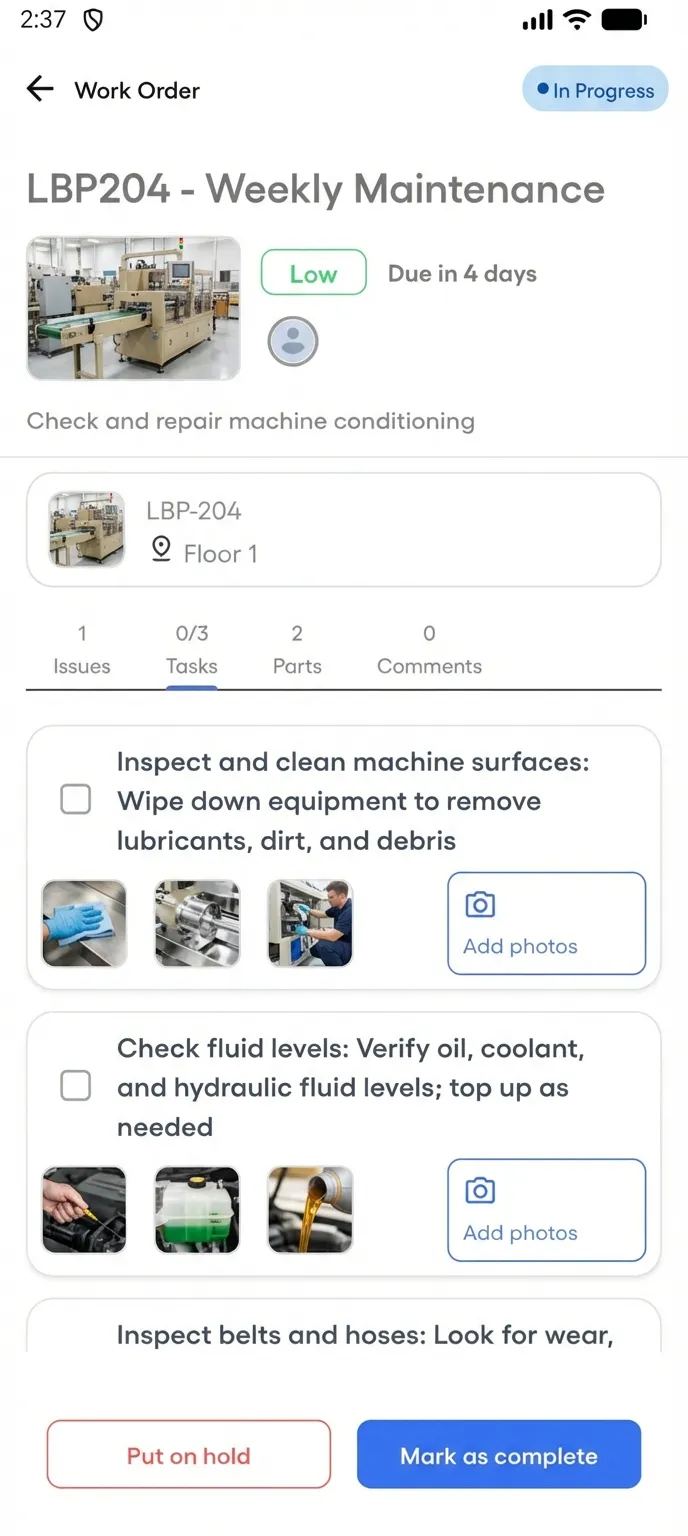
Your spreadsheet stays on the desktop. In the Android app, technicians open assigned work orders, follow checklists, add photos, and complete the work order, even with no signal.
- Push notifications the moment a work order is assigned
- Procedure checklists with photo proof capture
- Update status from the floor, and the change applies at once
- Android app on every plan, offline included
- The Android app works offline for assigned work orders, and the work syncs when the connection returns
[Learn more about the Mobile App](/features/mobile-app/)
[Get it on Google Play](https://play.google.com/store/apps/details?id=com.evencloud.fixahead_mobile&hl=en_IN)
Download on the
App StoreComing Soon
Close
Close
## Import your assets into FixAhead
FixAhead imports assets in bulk from CSV and Excel files and checks every row, flagging errors. Match your export to the columns of the [asset register template](/templates/asset-register/).
### 1. Export your assets from your spreadsheet
Save the assets as a CSV or Excel file, with one row for each asset. Every asset needs a name, a location and a category.
### 2. Match your file to the import columns
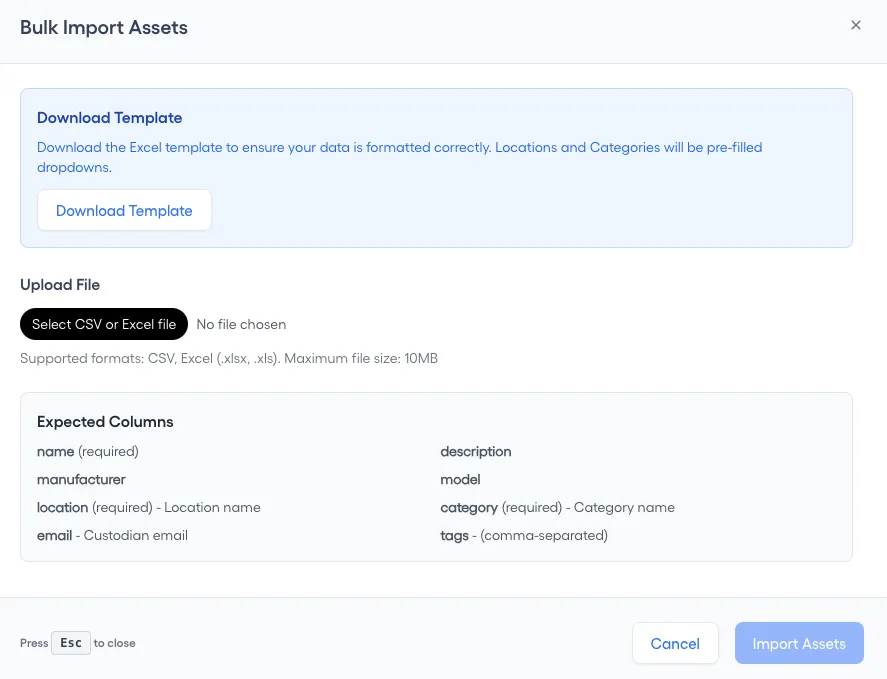
On the Assets page, press Import Assets, then match your file to Expected Columns: name, location and category are required. Download Template gives you the Excel file to fill in.
Close
*Bulk Import Assets: Download Template, and Expected Columns with name, location and category required.*
### 3. Create the locations your file names
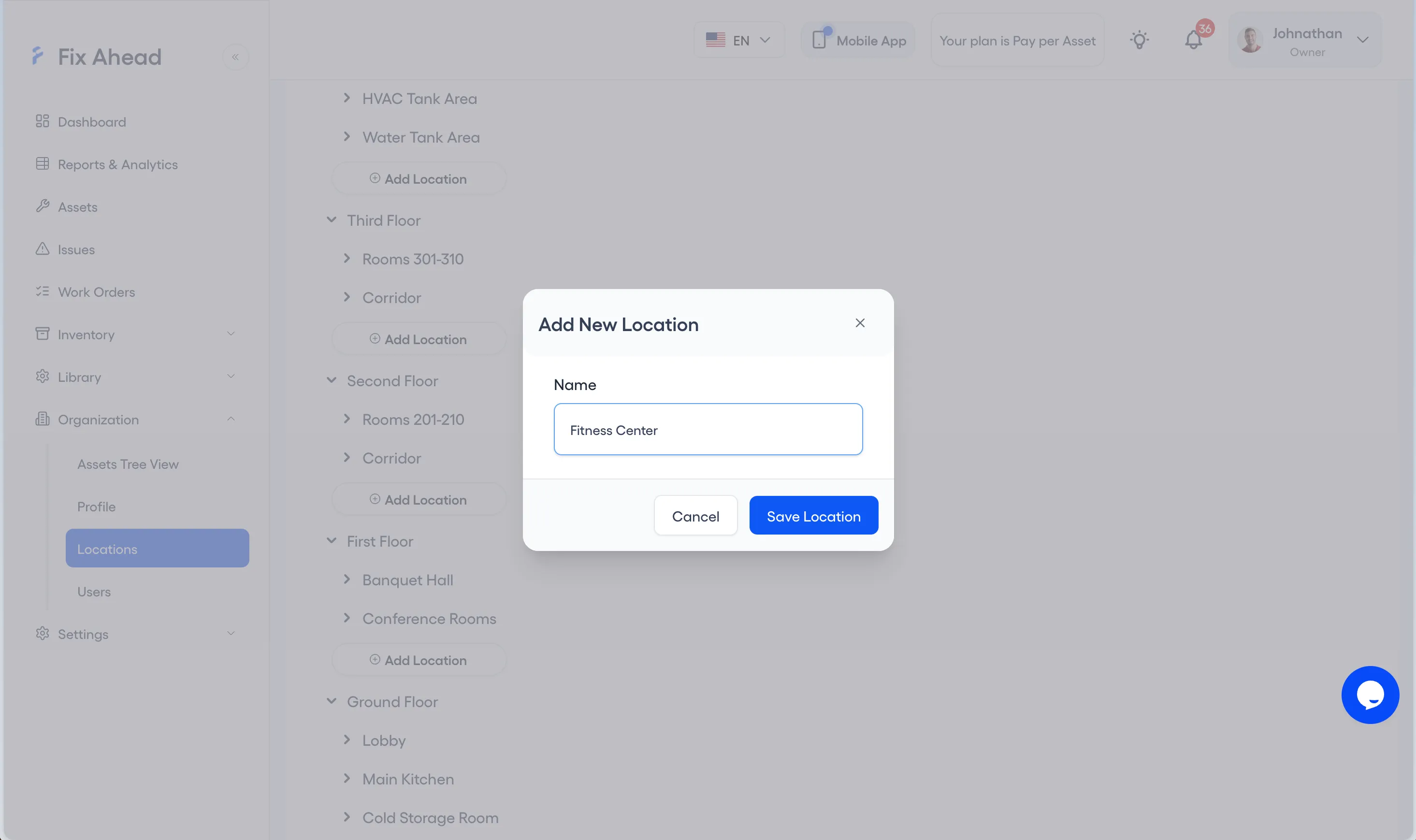
Each location in your file must exist in FixAhead first. Under Organization, Locations, press Add Location, enter the Name and press Save Location.
Close
*Add New Location: a Name, then Save Location.*
### 4. Create the categories your file names
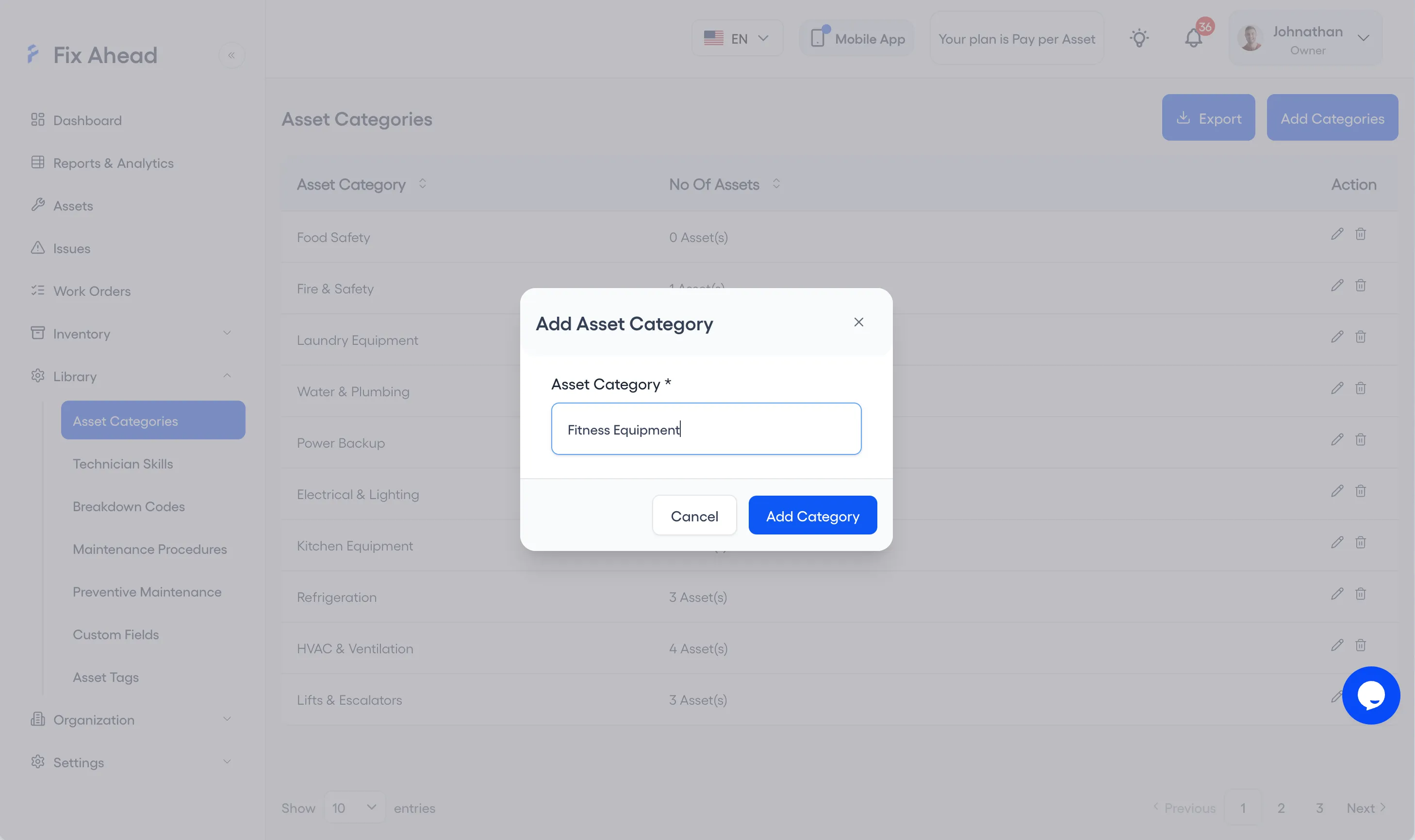
Each category in your file must exist too. Under Library, Asset Categories, press Add Categories, enter the Asset Category and press Add Category.
Close
*Add Asset Category: a name, then Add Category.*
### 5. Upload your file
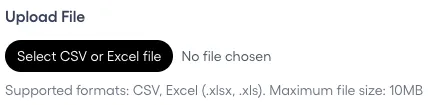
In Import Assets, press Select CSV or Excel file and choose your file. FixAhead reads CSV, .xlsx and .xls files up to 10MB.
Close
*Upload File: Select CSV or Excel file, with the supported formats and the size limit.*
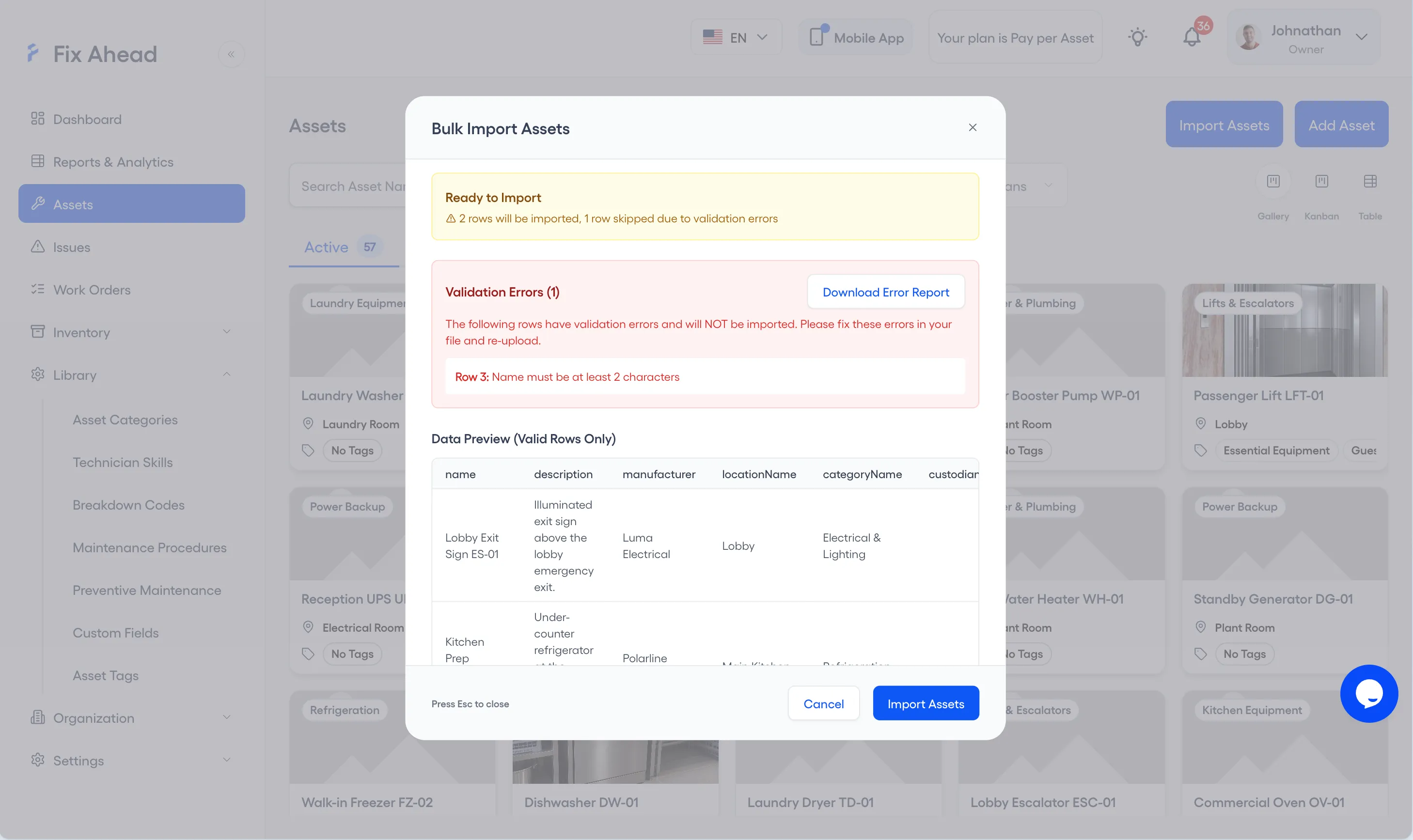
### 6. Fix the flagged rows
Ready to Import counts the rows that will be imported and the rows skipped for errors. Validation Errors lists each flagged row, and Download Error Report saves them so you can correct them in your file.
Close
*Ready to Import, Validation Errors with Download Error Report, and Data Preview (Valid Rows Only).*
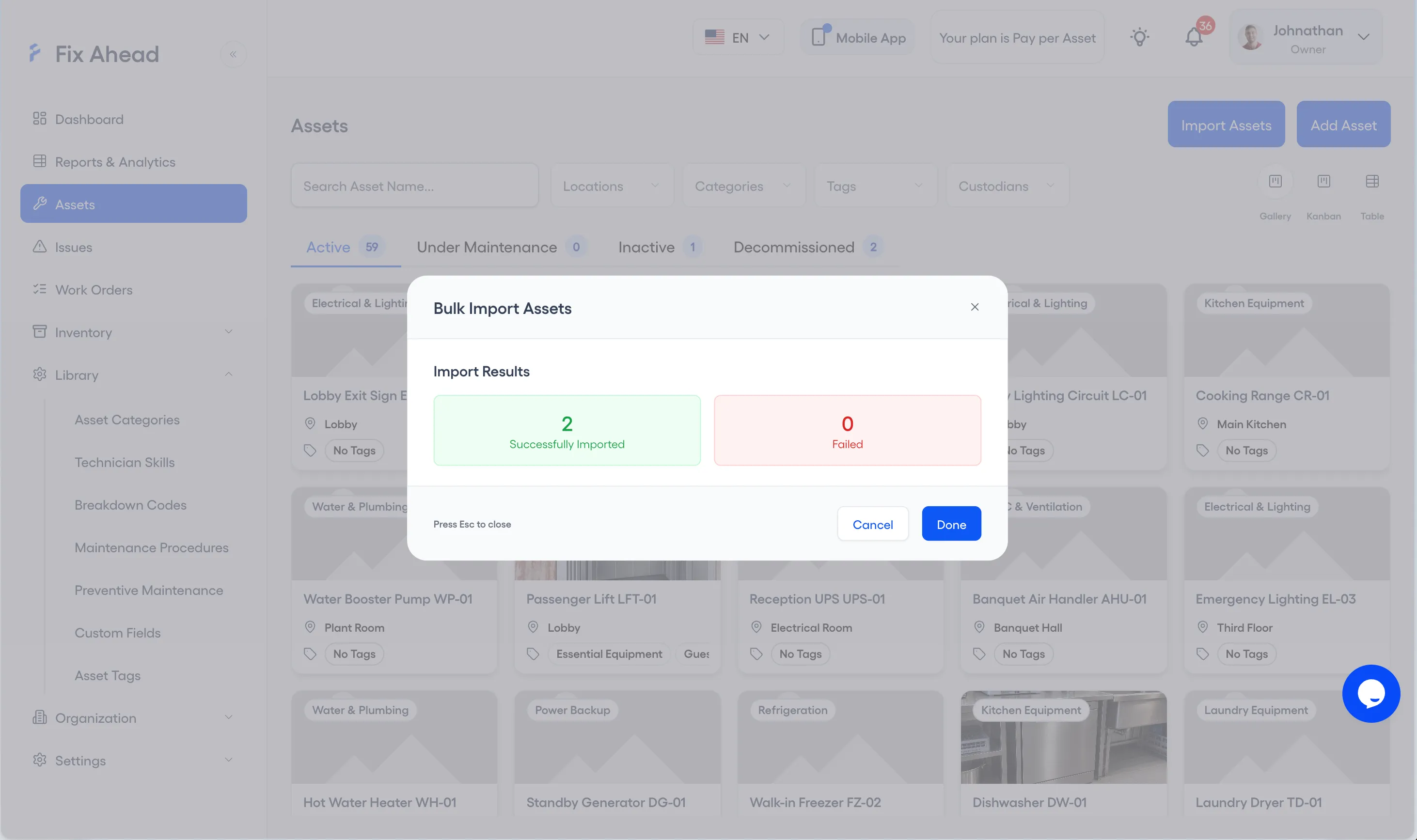
### 7. Confirm the import
Press Import Assets. Import Results shows how many assets were Successfully Imported and how many Failed; press Done to close it.
Close
*Import Results: Successfully Imported, Failed, and Done.*
See what FixAhead connects to on the [integrations page](/integrations/).
## Questions about moving off Excel
What moving your spreadsheet to FixAhead takes.
How steep is the learning curve compared to spreadsheets?+
You create work orders in a guided wizard and bring assets in from a template, with no formulas or macros.
Is FixAhead worth it for a small team?+
The Free plan includes 2 users with unlimited assets, or 50 assets with unlimited users, and unlimited work orders — with no time limit. Small teams get preventive maintenance scheduling, issue reporting, and a real dashboard at zero cost.
Can I still export data to Excel?+
Absolutely. Every report, asset list, and work order summary can be exported to Excel, CSV, or PDF. Your data is never locked in.
How does FixAhead compare to Google Sheets or Airtable?+
Google Sheets and Airtable are general-purpose tools. FixAhead is built specifically for maintenance: PM scheduling, work order workflows, reliability analytics, and QR-based issue reporting are built in — not bolted on with formulas and add-ons.
### Also compare
[vs Legacy CMMS Upgrade from outdated tools](/compare/legacy-cmms/) [vs Enterprise CMMS Enterprise features, fair pricing](/compare/enterprise/)
## Free plan, then Pro from $99 a month
Pro covers 10 users or 100 assets, billed on whichever costs less. Free covers 2 users or 50 assets, with no card.
[Get Started Free](https://app.fixahead.com/signup) [Book a Demo](https://savvycal.com/fixahead/30-minutes-demo)