How to Stop Running Out of Spare Parts: What to Stock and How Many
FixAhead Team · October 12, 2026
A repair stops when the part it needs is missing. Either the part was never stocked, or the count says it is on the shelf and the bin is empty. Stock each part to a minimum, set from what the part costs against the downtime it prevents. Then keep the count true: charge every part drawn to a work order, keep returns apart from stock, and check the count against the shelves each month.
A Reddit thread on r/IndustrialMaintenance describes scrambling during downtime because the one part needed was missing, or buried in a drawer.
Weigh each part’s cost against the downtime it prevents
For each part, write down its unit cost, its lead time from the supplier, and what an hour of downtime costs on the asset it serves.
Stock the part when the downtime it prevents costs more than the part and the wait for it. A cheap part that arrives within a day can be ordered when a job needs it.
Set a minimum for each part
Set each part’s minimum so that an order placed when the count reaches it arrives before the shelf is empty. Set the reorder quantity to how many to order each time.
In FixAhead, the minimum is the part’s Reorder Point. A part at or below its Reorder Point is flagged Low Stock (inventory).
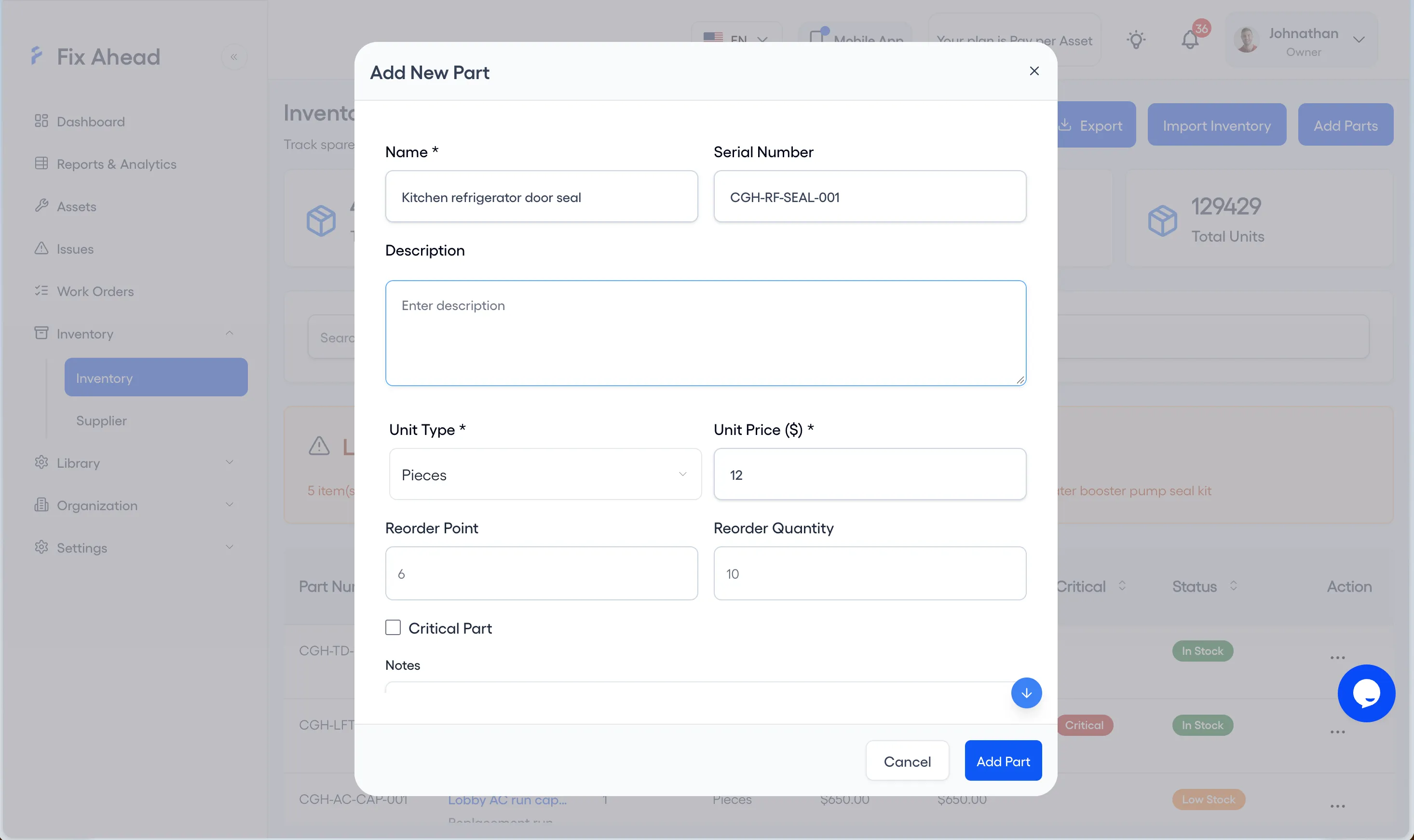
1. Set the Reorder Point and Critical Part on each part
Press Add Parts on the Inventory page, enter the Reorder Point and Reorder Quantity in Add New Part, check Critical Part for a spare that stops a repair, and press Add Part. For a part already listed, choose Edit Item from its Action menu.
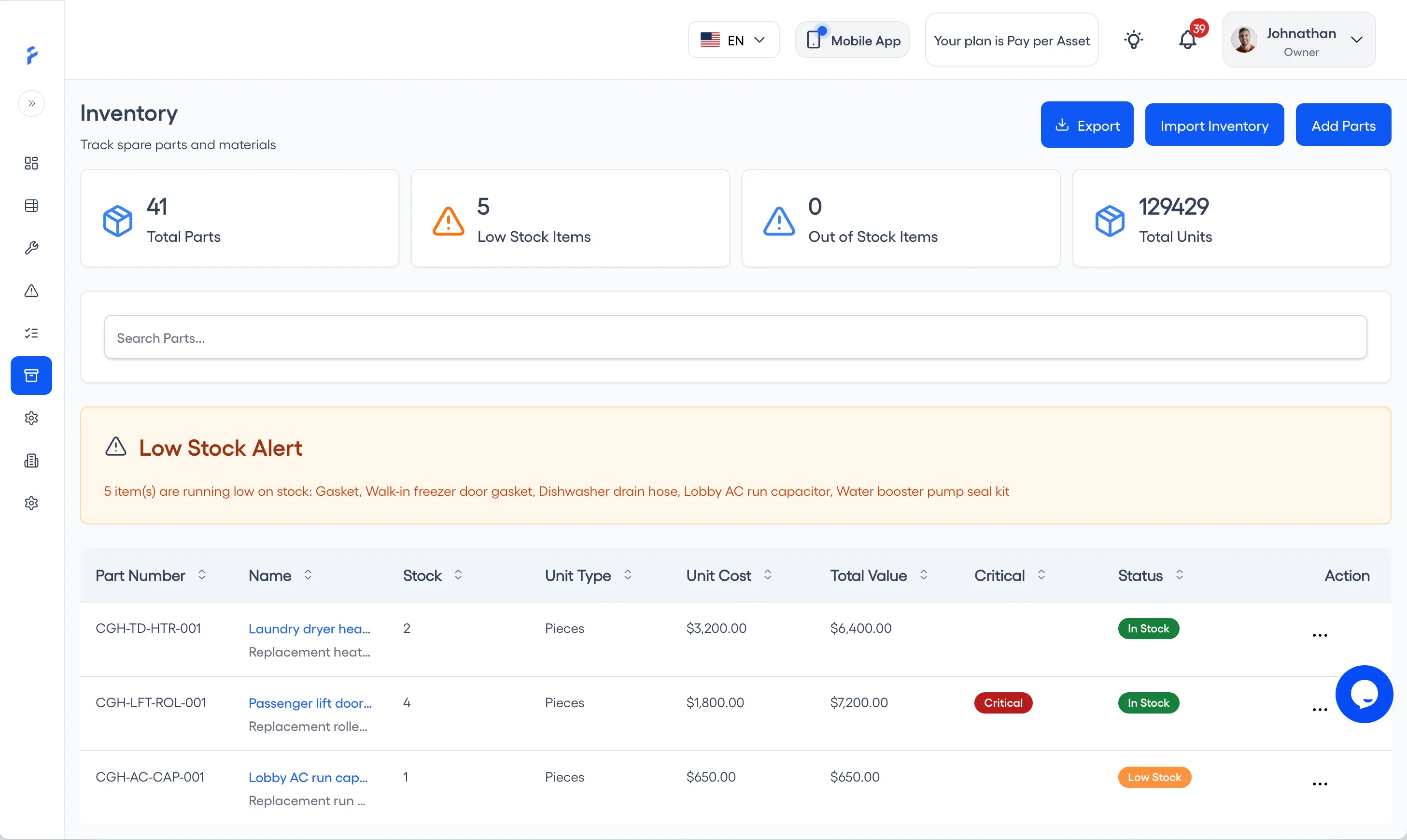
2. See the parts flagged Low Stock
The Low Stock Items card counts the parts at or below their minimum, and the Low Stock Alert names them. Each one shows Low Stock in its Status column, or Out of Stock when none is left.
Tie each critical spare to the assets it serves
For each critical spare, keep a list of every asset whose repair stops without it. Check that list when an asset is retired.
In FixAhead, add the parts each asset uses on the asset’s Parts tab; each part’s page then lists those assets under Compatible Assets.
A Reddit thread on r/MechanicalEngineering describes critical spares that run out while other shelves sit full.
Keep returns apart from stock
Give returned parts a labelled place of their own until they are checked. Count a returned part back into stock only when it is on its shelf.
A Reddit thread on r/IndustrialMaintenance describes an item that showed as in stock after it had been mixed in with returns.
Once a returned part is checked and on its shelf, record it in FixAhead through Adjust Stock, as Add Stock with the reason Returned from Maintenance (inventory).
Charge every part drawn to a work order
Every part that leaves the shelf goes onto a work order: planned before the job, and recorded as used on it. A part taken without a work order changes the count with no record of why.
In FixAhead, a job’s planned parts are reserved when its work order goes In Progress. Technicians record the parts used from the mobile app, up to the quantity reserved (mobile app). Parts come off stock only when a technician completes the work order in the mobile app, and only those recorded as used, each as a Work Order Issue (work orders).
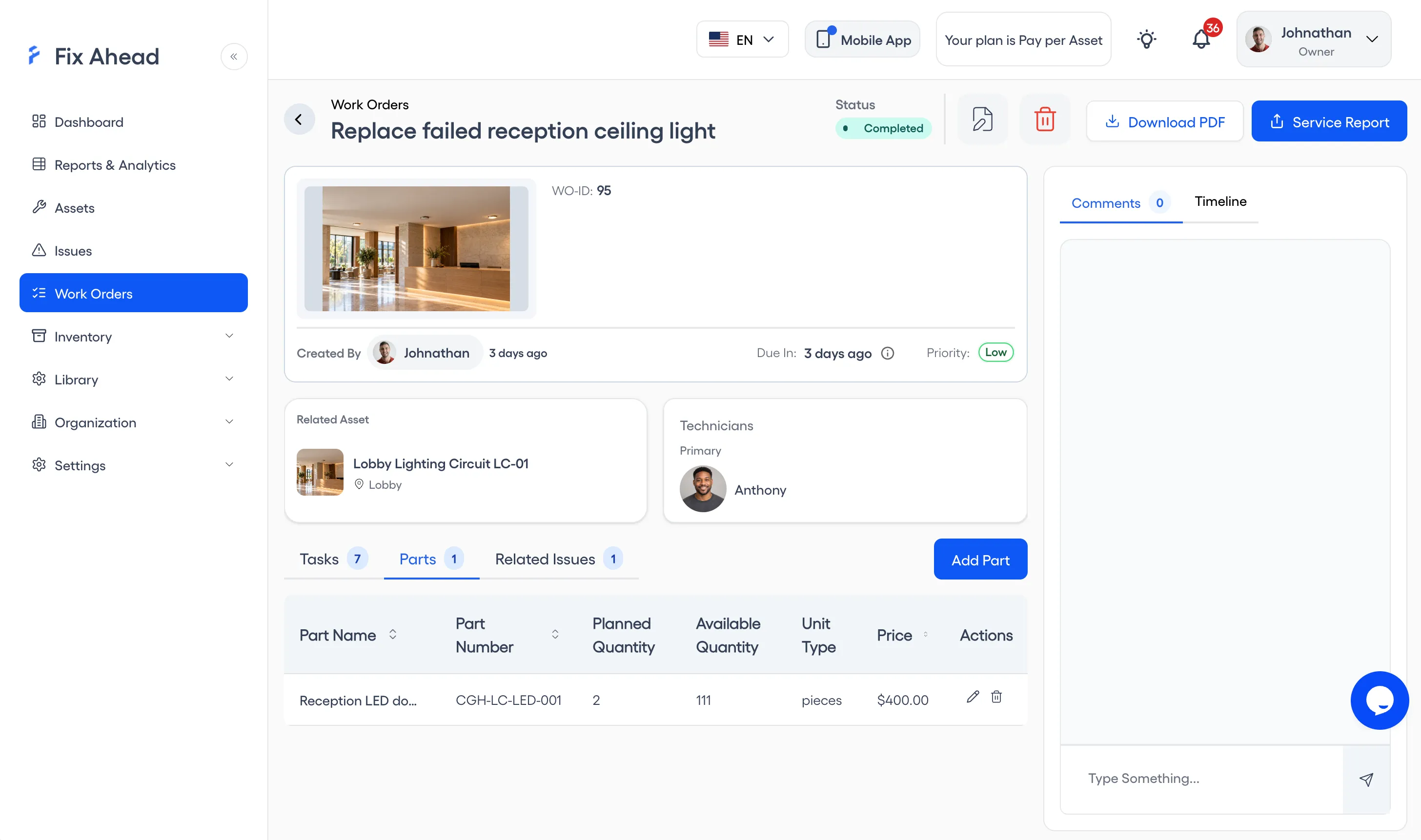
1. Plan the parts on the work order
Open the work order’s Parts tab, and add each part the job plans to use, with its planned quantity. A part can be added only when enough is in stock. FixAhead reserves the parts when the work order goes In Progress, and refuses that step if any part is short. When the job is completed, parts the technician did not record as used go back to available stock. Once the job is completed, each part recorded as used appears in that part’s Transaction History as a Work Order Issue.
Reconcile the books against the shelves each month
Once a month, count each part on its shelf and compare the count with the books. Where they differ, look first for the cause: a draw with no work order, a return booked as stock, or a part on the wrong shelf.
A Reddit thread on r/IndustrialMaintenance describes a CMMS that says two are on hand while the bin is empty.
Once a quarter, list the parts no work order has drawn for a year, and decide whether each one stays in stock.
In FixAhead, record each correction through Adjust Stock, as Add Stock or Remove Stock, with a reason such as Found Inventory or Manual Correction (inventory).
Inventory on the Pro plan
Inventory and parts tracking are on the Pro plan, with a 14-day free trial. Start with the critical spares: set each one’s Reorder Point, check its Critical Part box, and count it against its shelf.