How to Write PM Checklists for Hundreds of Machines With No Manuals
FixAhead Team · October 8, 2026
Writing a PM for every machine in a building is a large job, and it gets larger when half the machines have no manual. It does not have to mean hundreds of separate checklists. Write one checklist per category of equipment, and use it for every machine in that category.
Group the equipment by category
Sort the machines by what they do: pumps, air handlers, compressors, motors, and so on. Start from your asset list or a walk through the building, and put each machine in one category. A machine that fits no category gets a category of its own until you know more about it. If the list is a spreadsheet, you can fill FixAhead’s import template from it, and have each row checked before you import the file (asset management).
1. Add each category in the Library
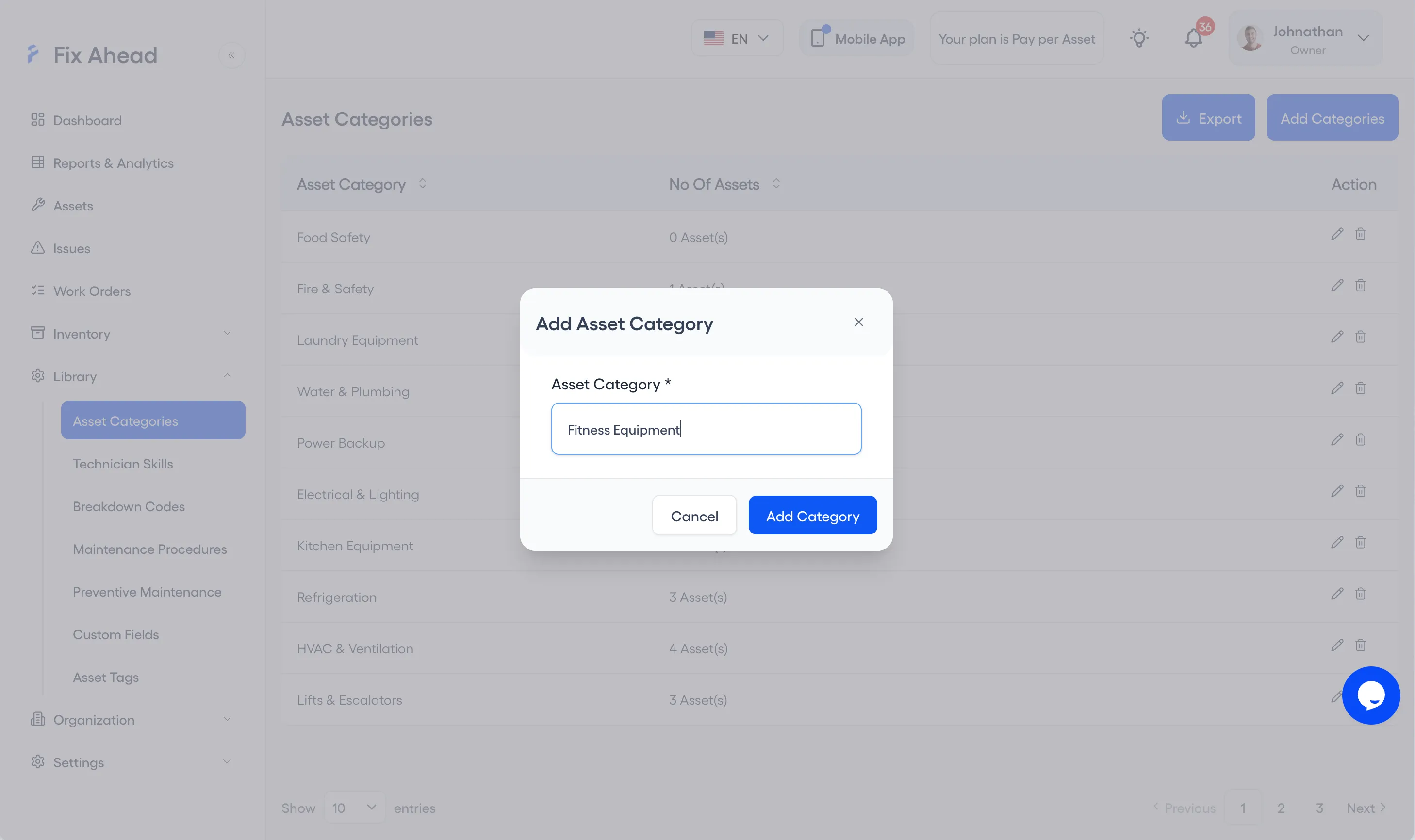
Library is open to the Owner and Managers. Open Library, then Asset Categories, and press Add Categories. Type the category’s name in Asset Category, and press Add Category.
Write one short checklist per category
Each category gets one generic checklist that describes the work for any machine in that group. Every step names three things:
- The part, as it is named on the machine.
- The check: what the technician looks at, listens for, or measures.
- What to record: the reading, or the condition found.
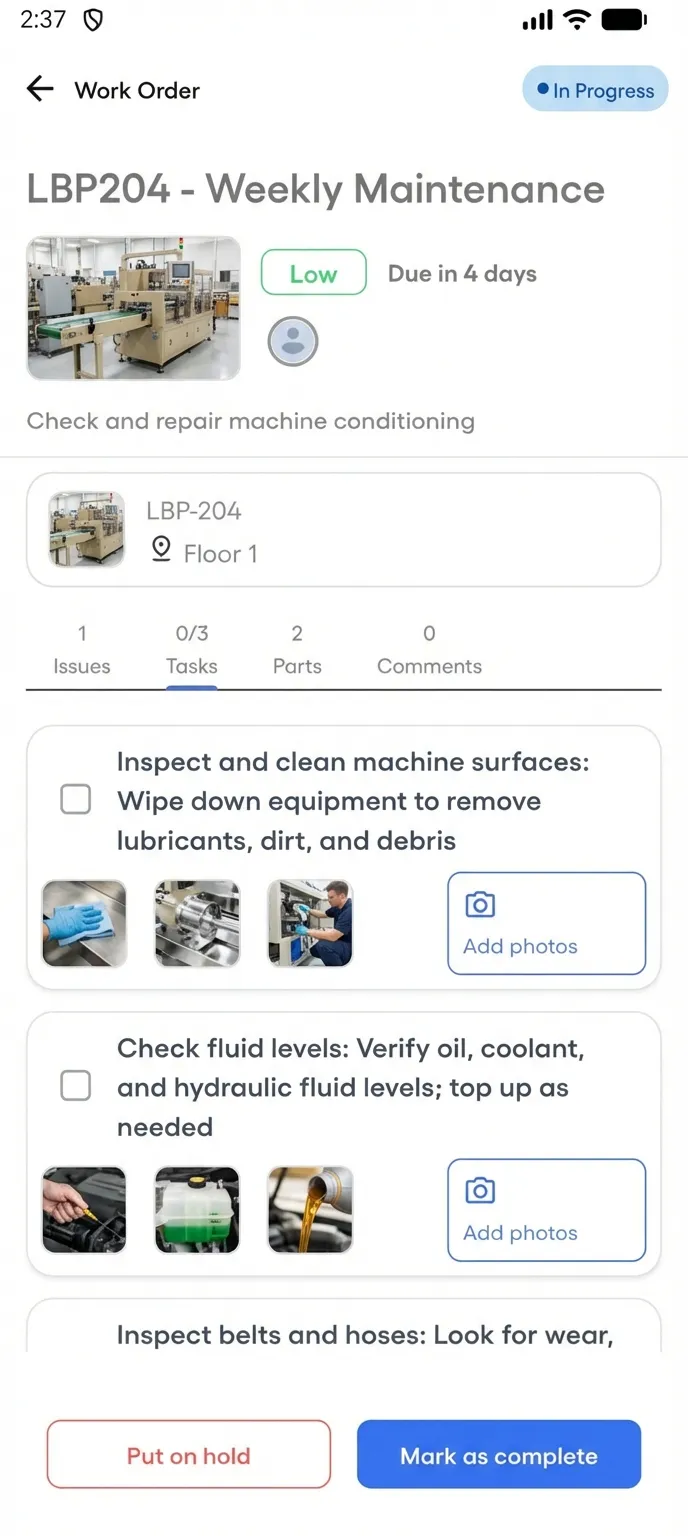
Keep the checklist to the steps a technician can finish in one visit. Every machine in the category gets this checklist. Its location, make, and serial number go on the machine’s own record, not into a new checklist. FixAhead offers reusable procedure templates with task steps (work orders).
1. Add each procedure in the Library
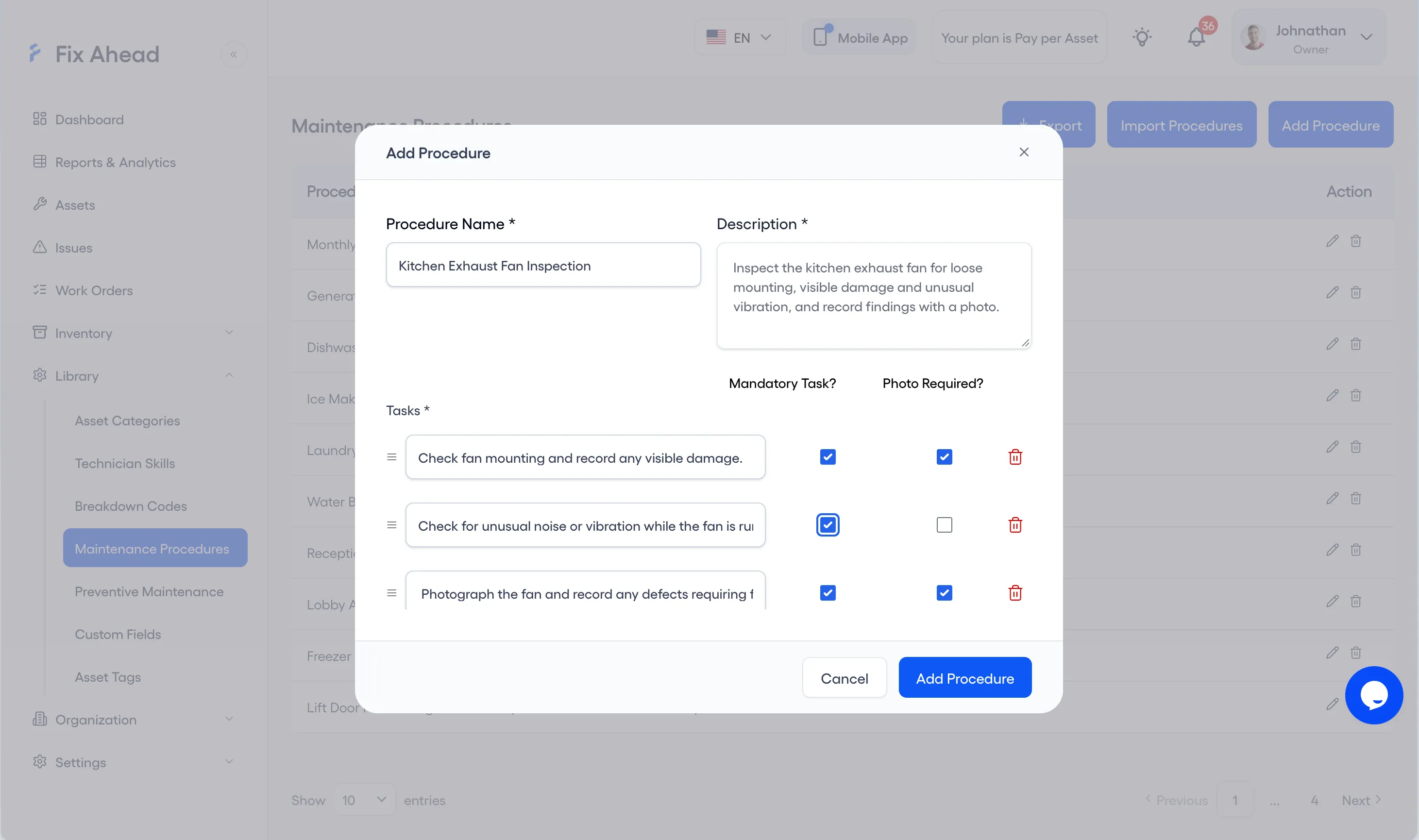
Open Library, then Maintenance Procedures, and press Add Procedure. Name and describe the procedure, write each task on its own row, and check Mandatory Task? or Photo Required? where a task needs it.
2. Or import several procedures from a file
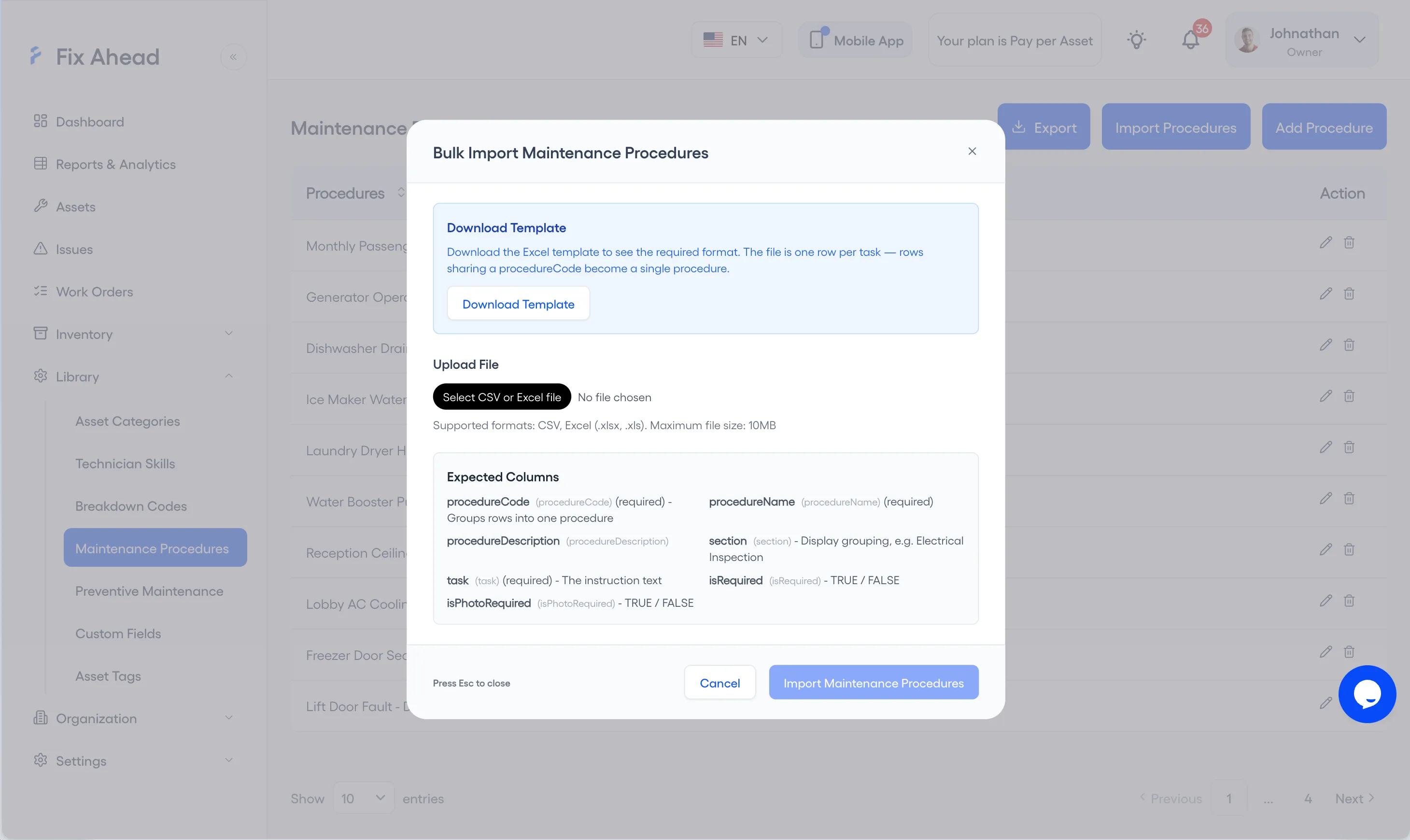
Press Import Procedures beside Add Procedure, then choose your file. It holds one row per task, and rows that share a procedureCode become one procedure.
Get the manuals you can
Send the make, model, and serial number to the manufacturer and ask for the maintenance manual. Where a manual comes back, take its service intervals for the machines it covers, and add any step the category checklist is missing. Attach each manual to its machine’s record. FixAhead attaches PDFs to any asset (asset management). Documents and file attachments are on the Pro plan.
1. Attach the manual to its asset
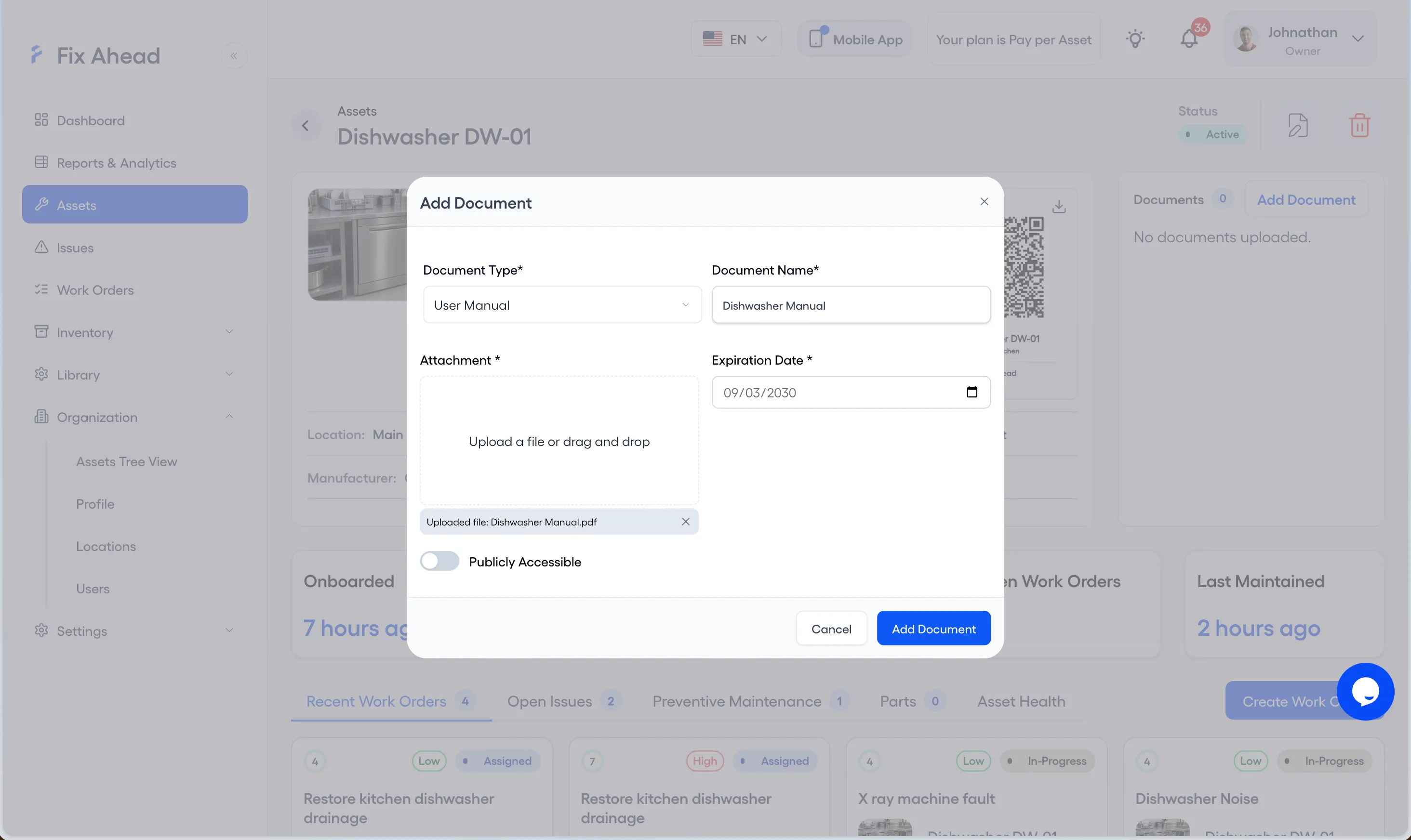
Open the asset, and press Add Document in its Documents panel. Choose the Document Type, name the document, attach its PDF, and set an expiration date, then press Add Document.
Ask the senior technicians which parts wear
Ask the technicians who have worked the equipment longest which parts wear first, which failures they see most, and what they check by hand. Add their answers to the matching category checklist.
Keep each checklist short, and refine it at every visit
A long procedure gets skimmed or skipped. Keep each one to the steps that matter for its category. At each PM visit, the technician notes any step that was unclear, missing, or never needed. Update the category checklist from those notes after the visit. FixAhead lets technicians mark a PM complete with notes from the field, once its required tasks are done (preventive maintenance).
Put the checklists on the schedules
Use the category names from the start as the tags. In FixAhead, you assign multiple assets per schedule using tags (preventive maintenance). Tag the machines in a category, and one schedule covers all of them. A new asset with the tag joins the schedule automatically (preventive maintenance). Procedures you reuse come with step-by-step checklists (preventive maintenance).
1. Add the tag in the Library
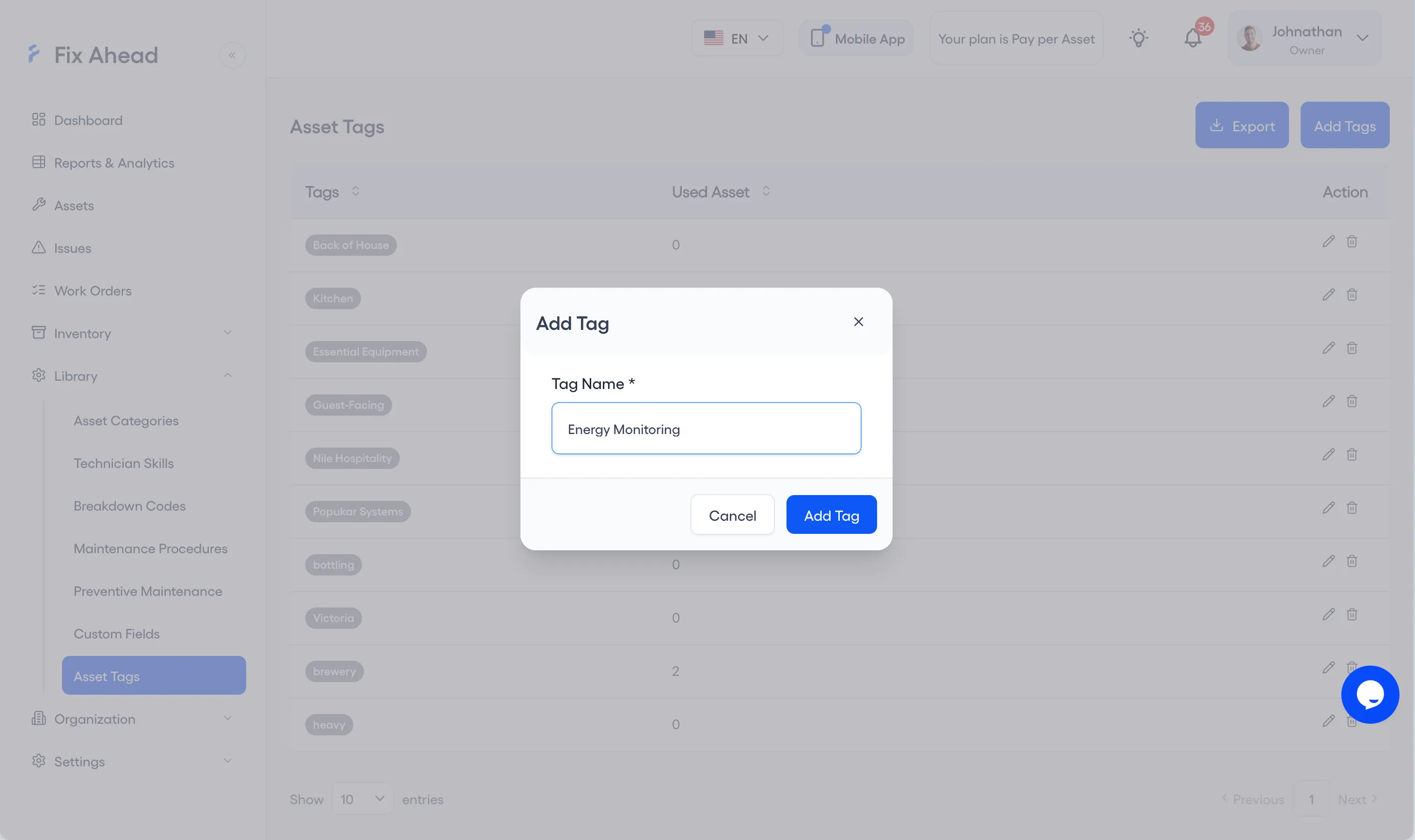
Open Library, then Asset Tags, and press Add Tags. Type the tag’s name, such as Pumps, and press Add Tag.
2. Give each machine its tag
Put the tag’s name in the tags column of the machine’s row in the asset import file, with commas between several tags. The tag must already exist, or the import drops it.
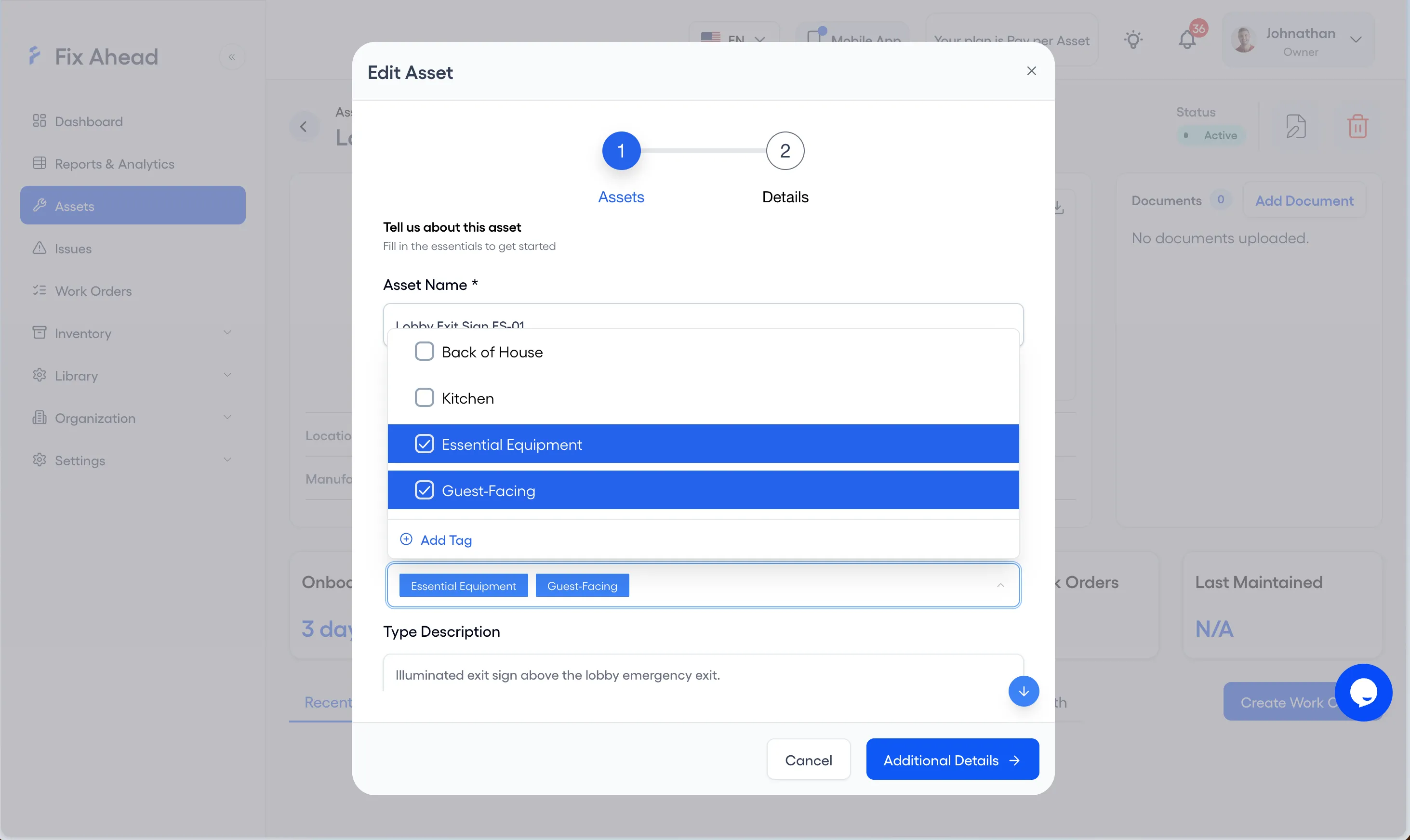
Or open the asset, press Edit, and pick the tag in the tags field.
3. Put the tag on a schedule
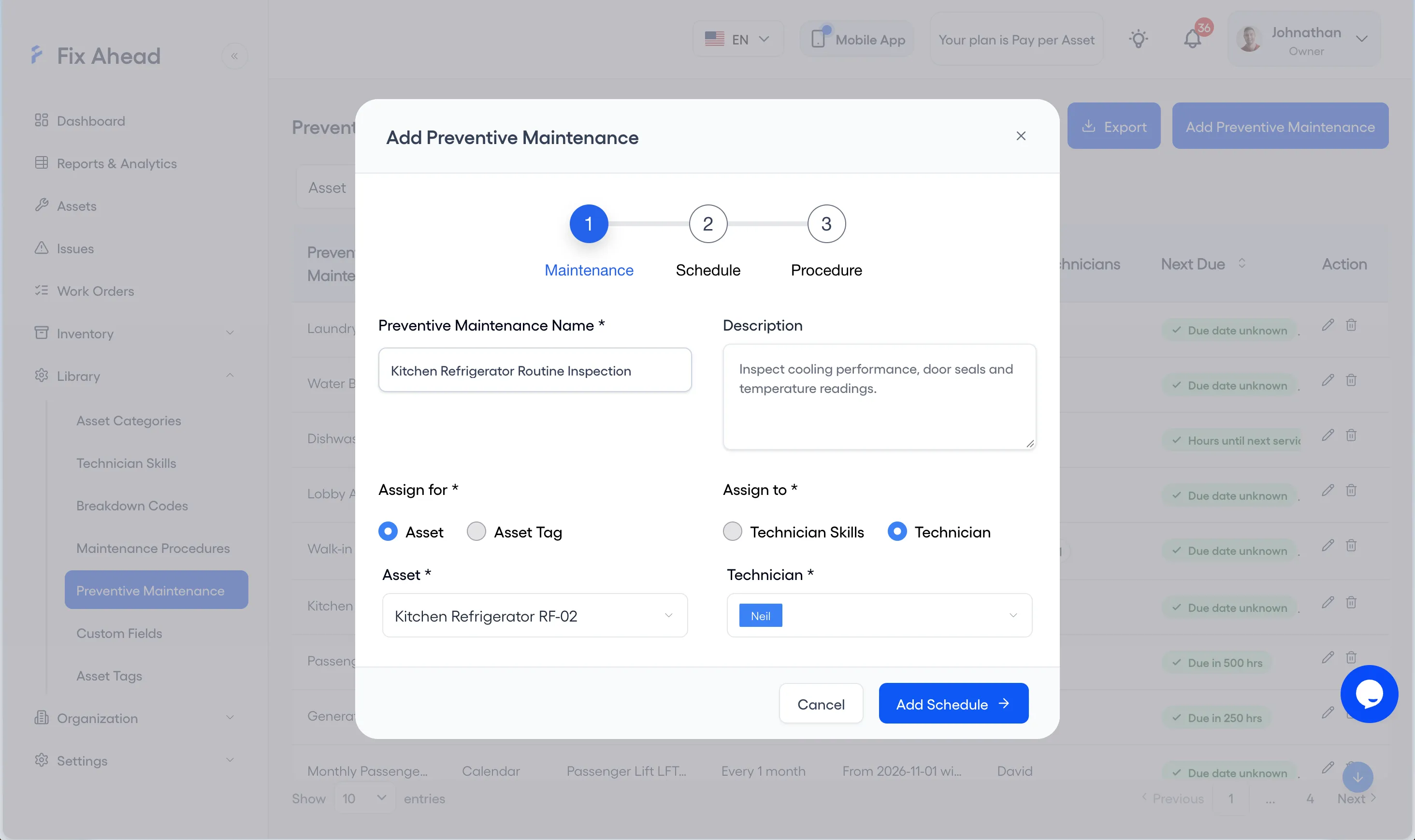
Open Library, then Preventive Maintenance, and press Add Preventive Maintenance. Name the schedule, choose Asset Tag under Assign for, pick the tag, and press Add Schedule to set how often it runs.
Each asset category has its own custom fields (asset management). On the Pro plan, you get 9 custom field types per category.
Checklists on the Pro plan
Maintenance procedures and checklists are included in the Pro plan. Start with one category: write its checklist from the preventive maintenance checklist template, and tag its machines to one schedule.