Work Order Management in the Field: A Complete Guide
FixAhead Team · February 12, 2026
In a mobile CMMS, a field work order runs from assignment to completion in one system. The technician gets the job with its context, follows its procedure, records photos and parts on the work order, and completes it on site. The record is made as the work is done.
The Modern Field Work Order Lifecycle
Here’s how it should work with a proper mobile CMMS:
1. Assignment with Full Context
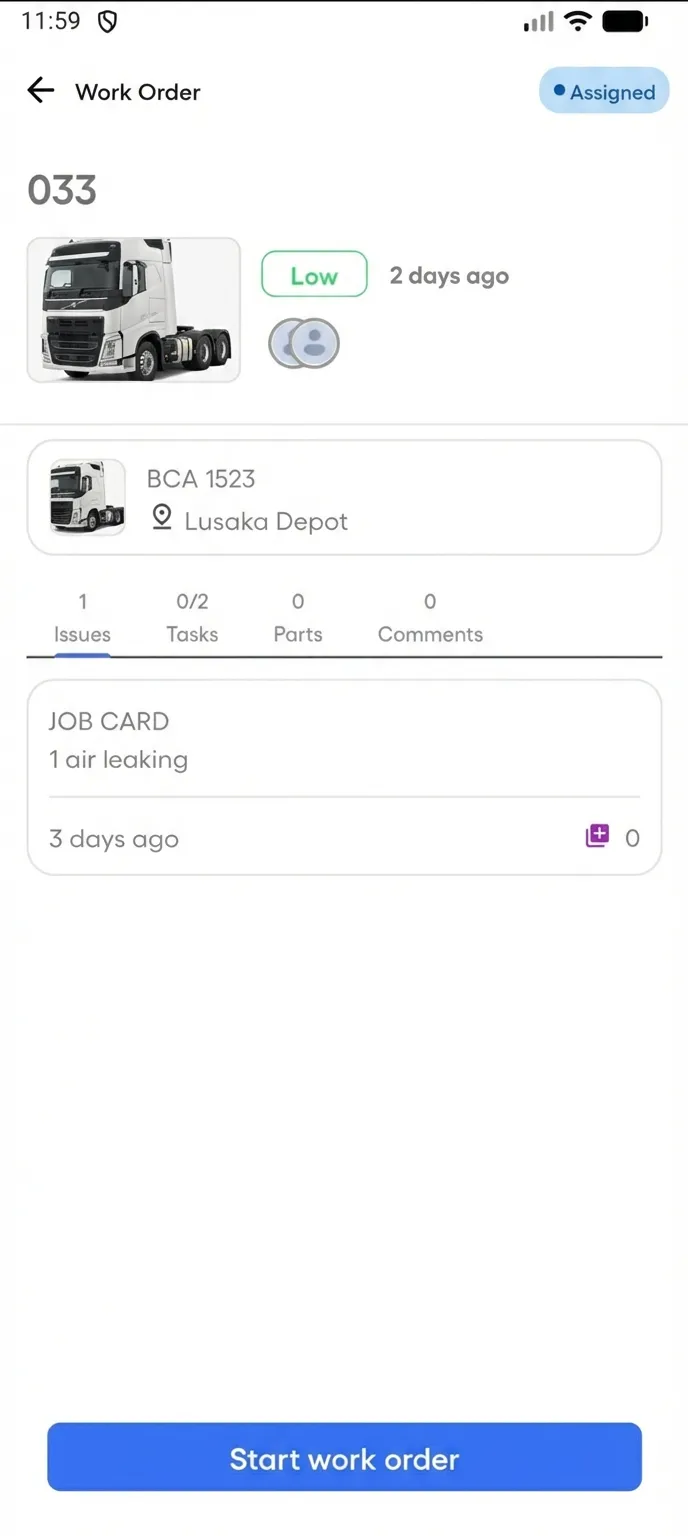
The technician receives a push notification: new work order assigned. Tapping it opens the work order list in the app. Opening a work order shows:
- Asset details: name and location
- Description: written on the work order
- Priority: is this urgent or routine?
- Due date: when does this need to be done?
- Task list: step-by-step procedure with required tasks marked
- Parts: what parts are planned for this job?
No phone call needed. No vague text message. The technician knows exactly what they’re walking into.
2. Starting the Job
When the technician arrives on-site, they tap “Start Work Order.” The status changes from Assigned to In Progress — visible to the manager in real time. The start is recorded.
3. Following the Procedure
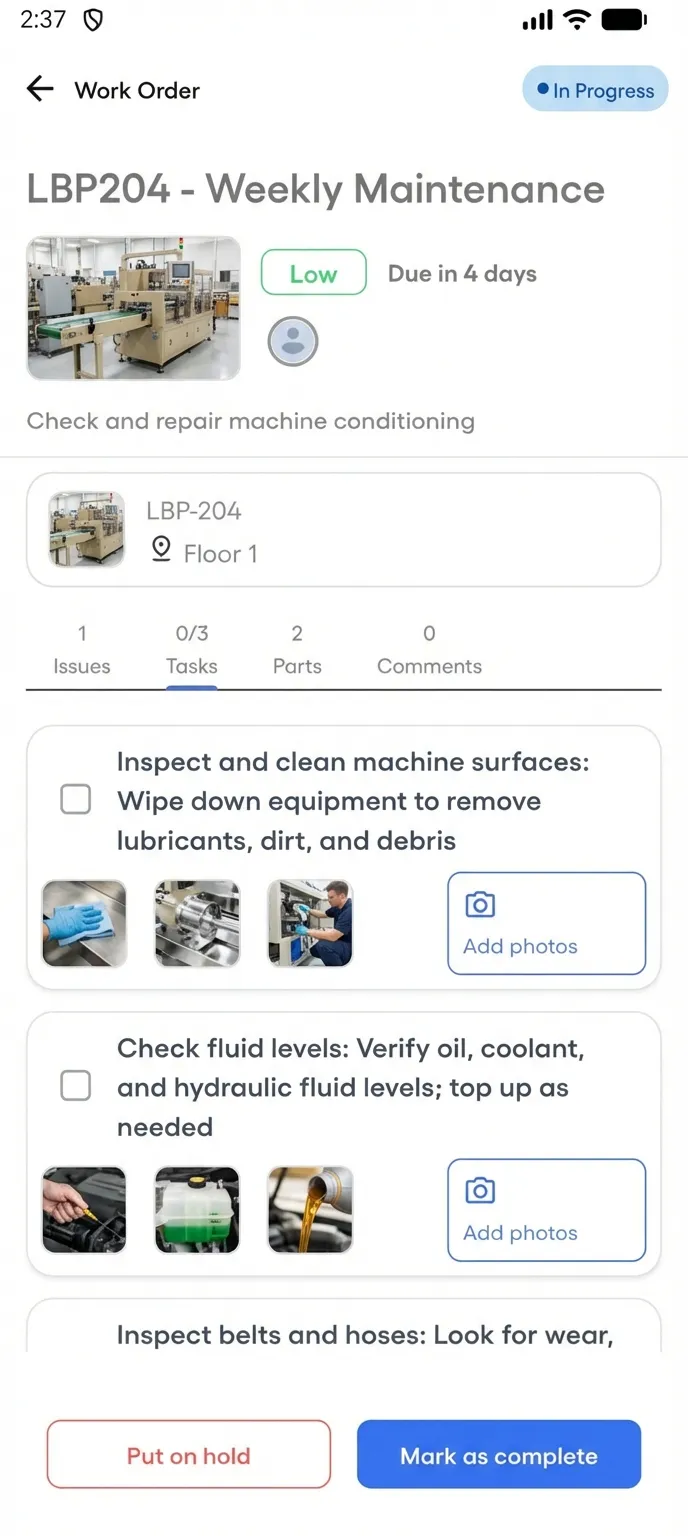
If the work order has an attached procedure, the technician sees a task list, with required tasks marked:
- Required tasks: must be done before the work order can be marked complete
- Photo-required tasks: a photo is needed before marking complete
The technician works through each task. The Tasks tab shows 4/7. There’s no ambiguity about what’s done and what’s left.
4. Capturing Photo Evidence
At each photo-required task, the technician captures images directly from their phone camera or adds them from the gallery. At completion, the technician adds images from the gallery. Each photo attaches to its task or to the completion. The work order shows when each task and the completion were done.
This documentation serves three purposes:
- Quality assurance: proves the work was actually done, not just checked off
- Accountability: when questions arise about completed work, you have evidence
- History: the next technician on this asset can see what was done before
5. Recording Parts Used
If parts were reserved for the job, the technician sees the list with planned quantities. They record the quantities used, up to the quantity reserved — maybe they used 2 filters of the 3 reserved.
Stock updates when the job is marked complete.
6. Handling Holds and Delays
Sometimes the job can’t be completed. A specialty part is needed. Access is blocked. The customer isn’t available.
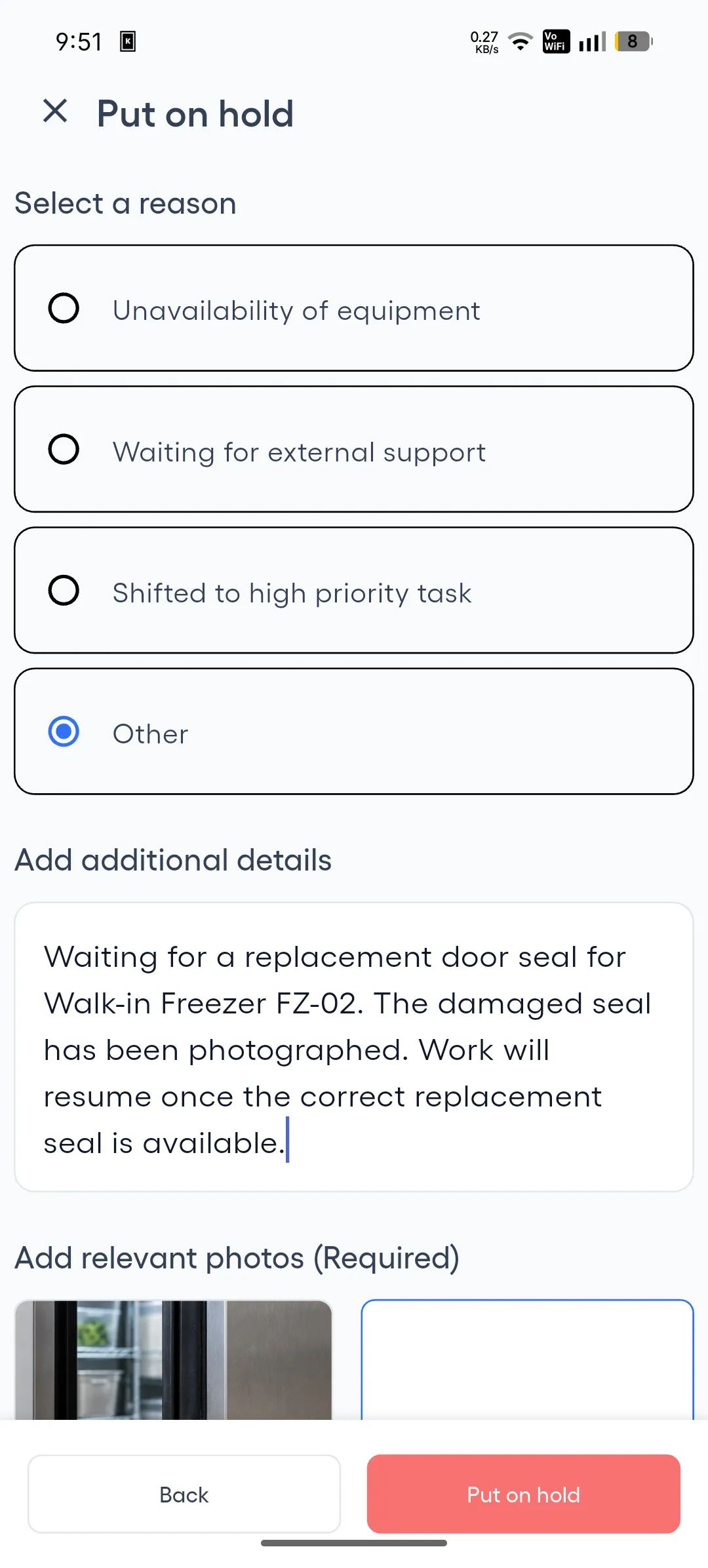
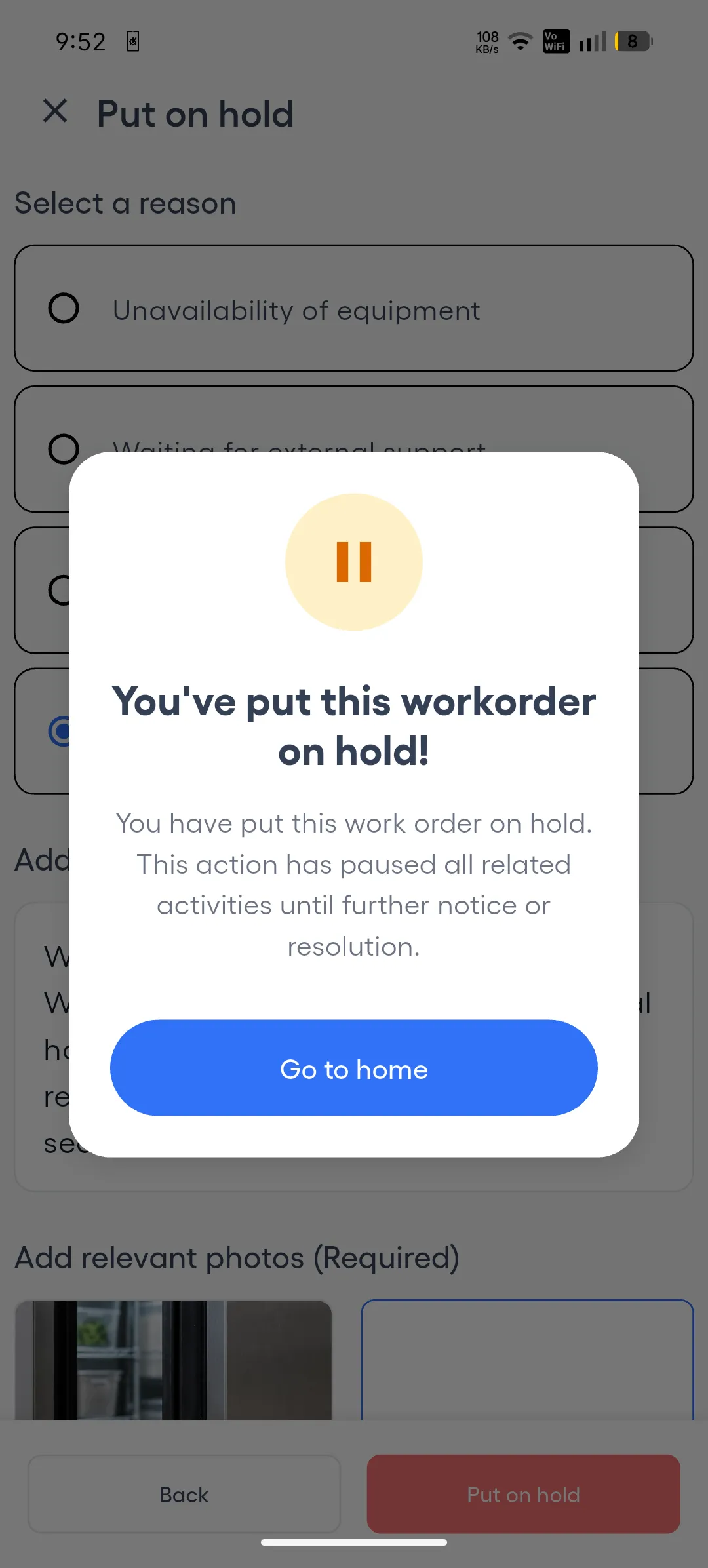
Instead of a phone call or text saying “couldn’t finish,” the technician puts the work order on hold with a reason, notes, and photos. It stays In Progress, and the hold is saved at once. The manager can arrange the next steps.
7. Completing the Work Order
When all required tasks are done, the technician taps “Mark as Complete.” They add completion notes and at least one photo. The status changes to Completed at once.
No driving back to the office. No end-of-day data entry. No paper forms to transcribe.
8. Communication in Context
Throughout the process, the technician can post comments directly on the work order. Questions, updates, and notes are all in one place, each with its time and author. The manager sees them in the web platform. Other technicians see them if the job is reassigned.
This replaces scattered text messages and phone calls with comments kept on the work order.
How Field Work Orders Fail Today
The typical workflow looks like this:
- Manager creates a work order in the CMMS
- Sends a text or email to the technician: “Go to Building 4, Room 201, the AC unit is making noise”
- Technician arrives, realizes they need more context, calls the office
- Technician does the work, takes photos on their personal phone
- Writes notes on paper or in a text message
- Back at the office (maybe the next day), someone updates the work order
Every step in this chain loses information. The work order exists in the system, but the work itself happens outside of it.
Metrics That Improve with Mobile Work Orders
When field work is recorded digitally as it happens, your maintenance metrics improve:
- Mean Time to Repair (MTTR): completion times recorded when the job is marked complete, not estimated
- First-time fix rate: photo-documented checklists reduce incomplete work
- PM compliance: automated scheduling and work done in the mobile app help PMs happen on time
- Parts accuracy: parts used are recorded up to the quantity reserved, and stock updates when the job is marked complete
What to Look for in Field Work Order Software
If you’re evaluating a CMMS for field teams, prioritize these capabilities:
- Native mobile app: not a mobile-responsive website — a real app your technicians install
- Push notifications: instant alerts for new assignments, not email-based
- Procedure checklists: guided task lists with photo requirements
- Parts tracking on mobile: record parts used from the field
- In-app comments: replace phone calls and text messages
- On-hold workflow: document delays with reasons and photos
Getting Started
FixAhead provides a complete web + mobile CMMS platform (features). Managers plan, schedule, and report on the web. Technicians do the work in the field with the native Android app (iOS coming soon) (mobile app). The mobile app is included free on every plan (pricing).
The result: every work order is created, assigned, done, and documented in one system — from request to resolution.
Try FixAhead free — start managing field work orders today.