Moving from Paper or Spreadsheets to a CMMS: A Guide for Maintenance Teams
How to move a maintenance team off paper and spreadsheets: when it is time, how to set up the asset structure, how to map the import, and how to build PMs.
Most of a move from paper or spreadsheets is data and habit work. Make the decisions below before you load anything. FixAhead’s asset import checks each row before anything is imported (asset management).
Check whether it is time to move
Look for these signs that the current method has stopped working: preventive maintenance gets missed, nobody can say when an asset was last serviced, parts wait or nobody knows where they are, and records sit in several places.
If a spreadsheet still covers the work, FixAhead vs spreadsheets sets out when it stops being enough.
Set up the hierarchy before you load anything
- Stop the hierarchy where the maintenance strategy stops. Give each motor, gearbox, and pump its own asset number. Do not list PLC I/O cards as assets.
- Use equipment classes. They are among the most useful search and sort fields.
- Use ISO 14224:2016 as the minimum reference for the hierarchy.
- Avoid smart asset numbers. They box you in when the plant expands.
There are two ways this goes wrong. A hierarchy that is too flat puts a SAG mill at the same level as an M20 bolt. The other is spending too long on naming.
Catalog each spare once, not six identical oil filters under six stock numbers.
Clean the data before the import
- Remove retired assets before the upload. When equipment is replaced, decommission its record rather than reusing it.
- Put the equipment tree in order, and record every inventory part in the system before the load.
Map your columns to the import
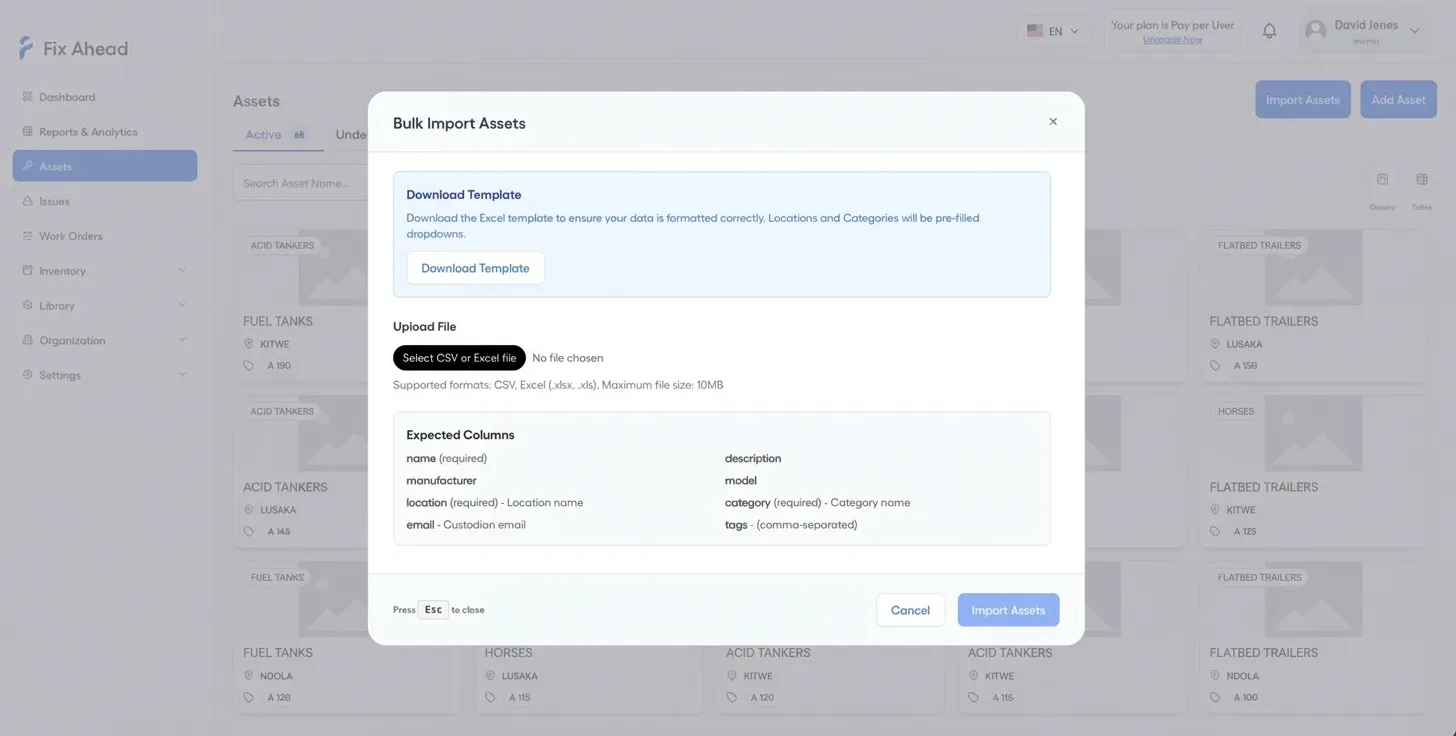
Map each spreadsheet column to an import column before you upload. FixAhead’s import takes a CSV or Excel file, with a template for clean imports.
| Your spreadsheet column | Import column | Must be filled |
|---|---|---|
| Equipment name | name | Yes |
| Area or building | location | Yes. The template offers your locations as a dropdown |
| Equipment type | category | Yes. The template offers your categories as a dropdown |
| Make | manufacturer | No |
| Model | model | No |
| Description or notes | description | No |
| Custodian’s email | No | |
| Labels | tags | No. Separate several with commas |
| Serial number | none | Not applicable |
The expected columns have no serial number field. Ask a vendor where serial numbers go before you start.
Build each PM as its own task list
Build each PM as its own task list, rather than copying a master schedule. A copied master schedule is faster to set up, and it can backfire when the equipment is upgraded.
Choose the scope on purpose: one work order for six identical fountains by location, or one work order per asset.
Tag each asset so its record is at the machine
Put a code on each asset that opens its record. Choose labels that sanitation cannot wash off.
What the move costs
Budget the data hours before the move, not after it. In a mid-2000s survey of 299 industrial maintenance professionals, more than one in four respondents spent 100 to 200 hours on data collection, nearly one in four spent more than 500 hours, and three in five used clerical support for data entry, averaging 20 hours a week.
What to ask a vendor about the move
Put these questions to each vendor before you sign.
- Do you provide import templates for assets, locations, PM schedules, parts, and work-order history? Who fills them in, and who loads them?
- Does the import map our columns to your fields, check values before loading, and keep a record of what was loaded?
- Can we run the import again after corrections, with the mapping written down?
- Can existing PM schedules and past work orders come in, or only assets?
- How many levels does the hierarchy allow, and can one asset serve several others, such as a condenser with several heads?
- Are equipment classes and failure codes lists you configure, or free text?
- Can labels be printed for assets and parts, and opened from a phone?
- What happens when a technician has no signal or no device? Can a checklist be printed and closed out later?
- Can we export everything later, in a standard format?
Load locations and categories before the assets
Load locations and categories first, since the asset template offers them as dropdowns. Write the column mapping down, then run the first import of assets.
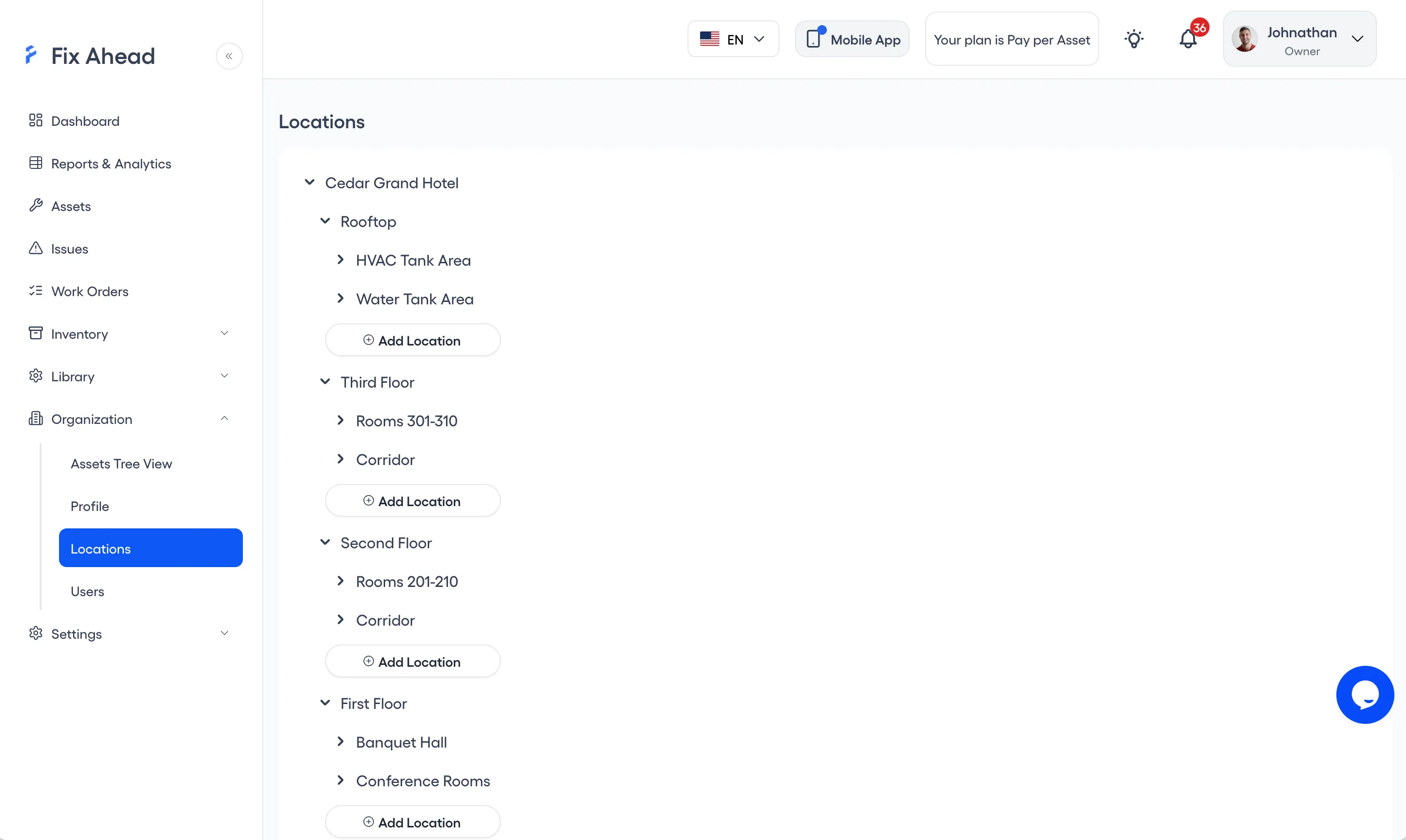
1. Add a location under Organization
Choose Organization, then Locations. Press Add Location beneath a location to add one inside it, or at the foot of the tree for a top-level location.
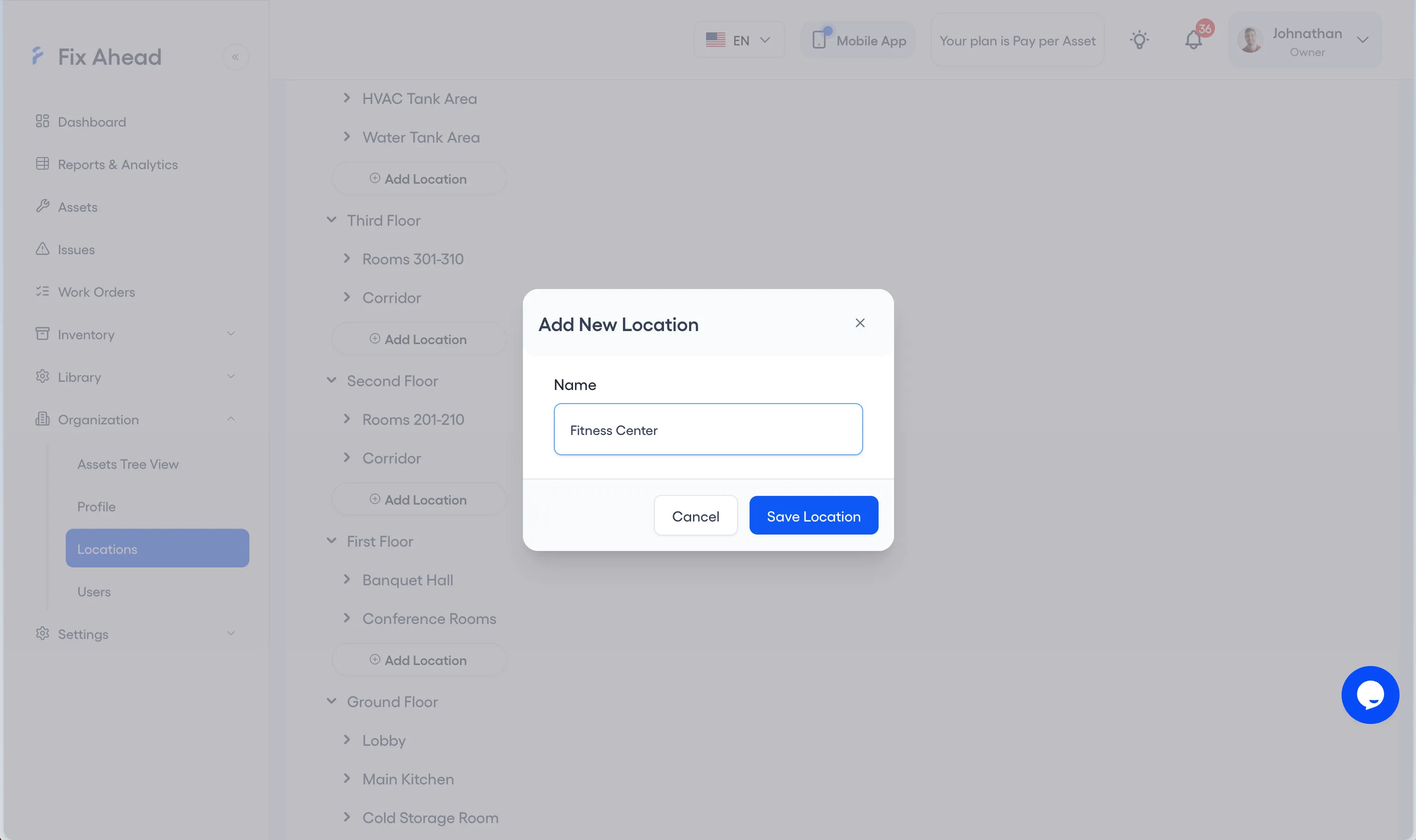
2. Name the location
Enter the location’s name in Add New Location, then press Save Location.
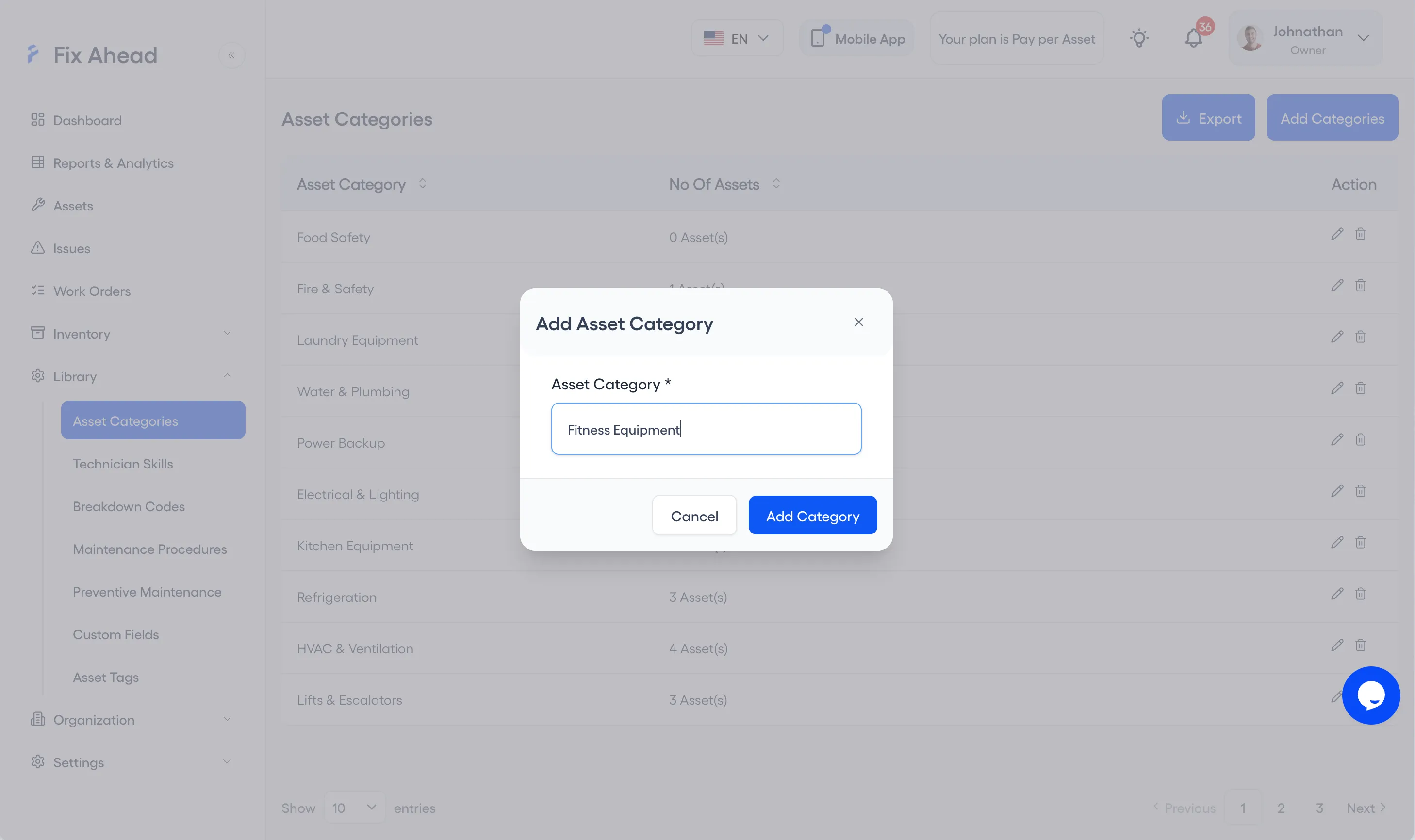
3. Add each asset category
Choose Library, then Asset Categories, and press Add Categories. In Add Asset Category, enter the category’s name and press Add Category.
4. Download the import template
On Assets, press Import Assets, then Download Template in the Bulk Import Assets dialog. The template offers your locations and categories as pre-filled dropdowns.
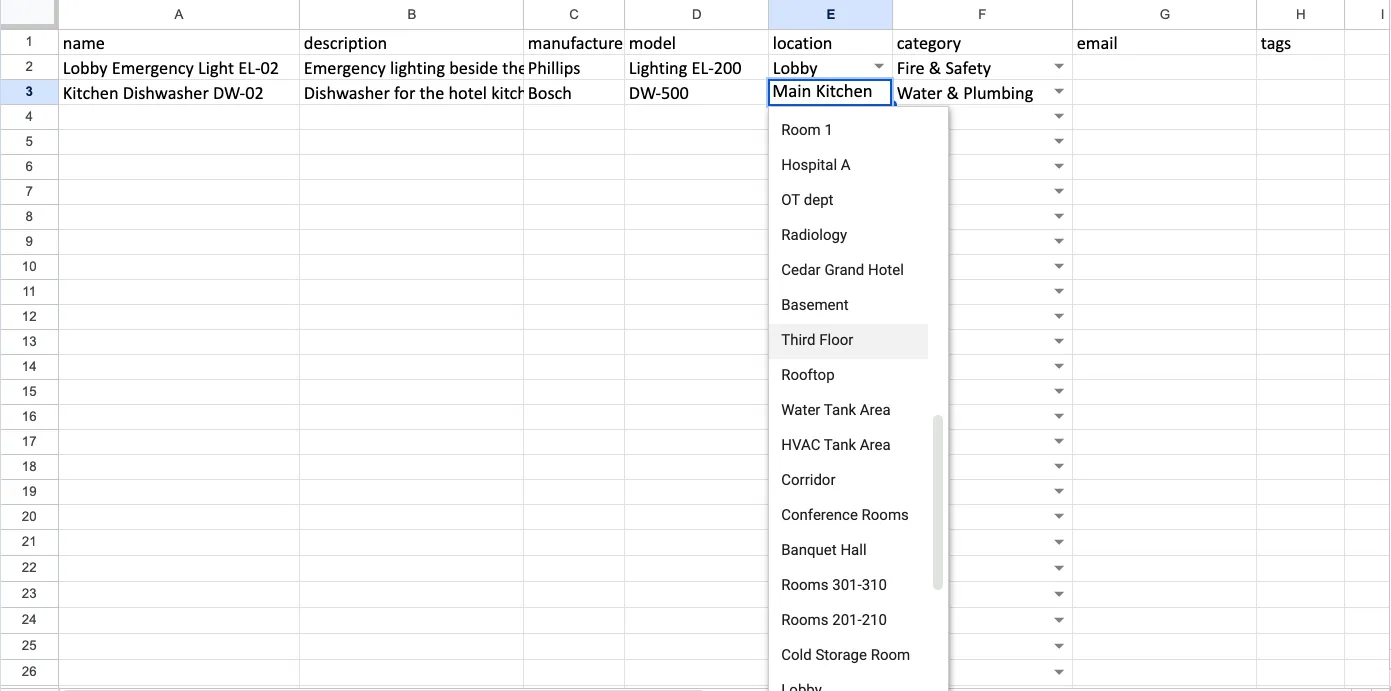
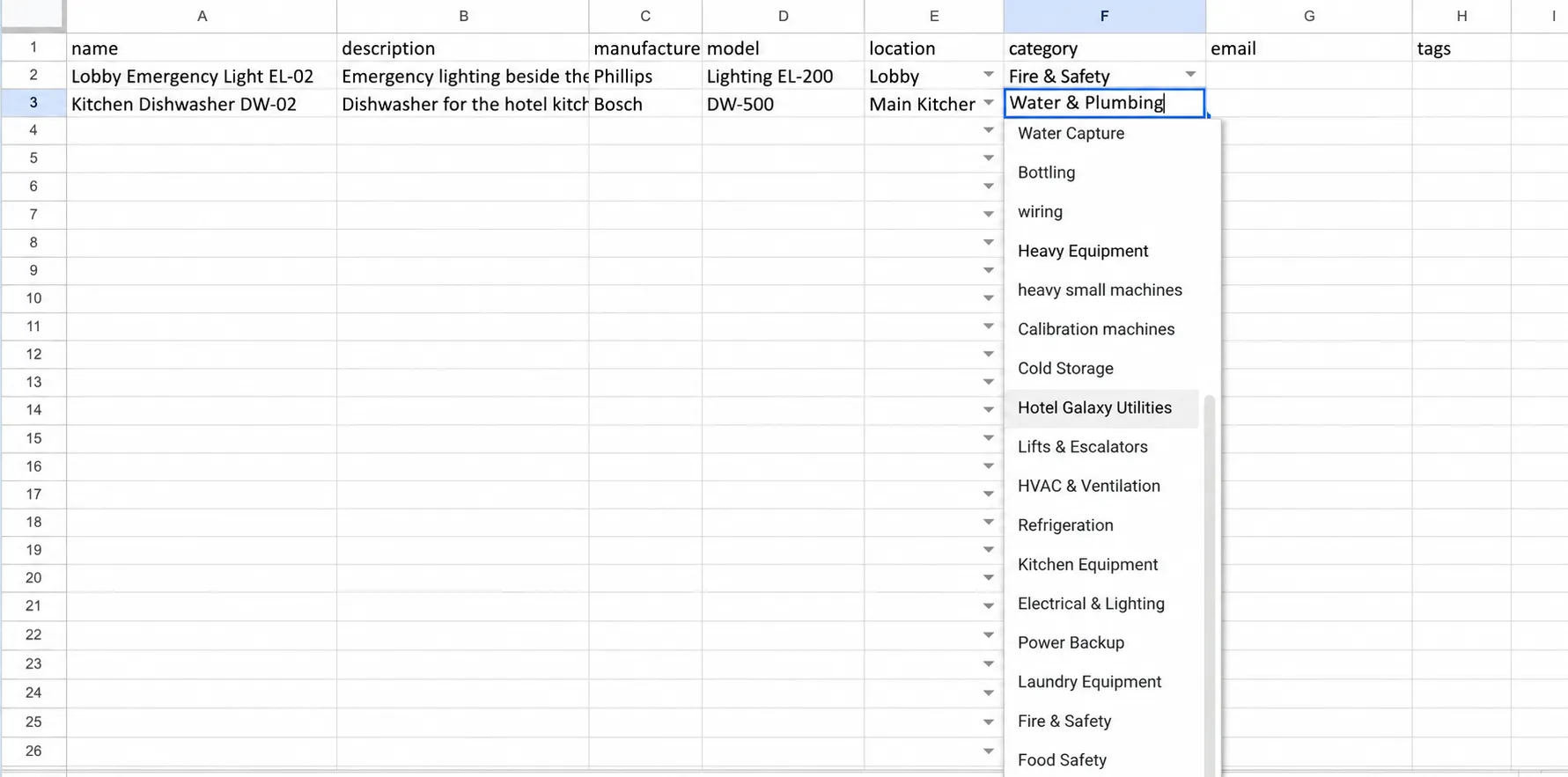
5. Fill in the template
Enter one row for each asset. Name, location, and category are required, and the location and category are picked from the dropdowns.
6. Upload the file
In the dialog, press Select CSV or Excel file and choose your file. The file must be CSV or Excel (.xlsx or .xls), up to 10MB.
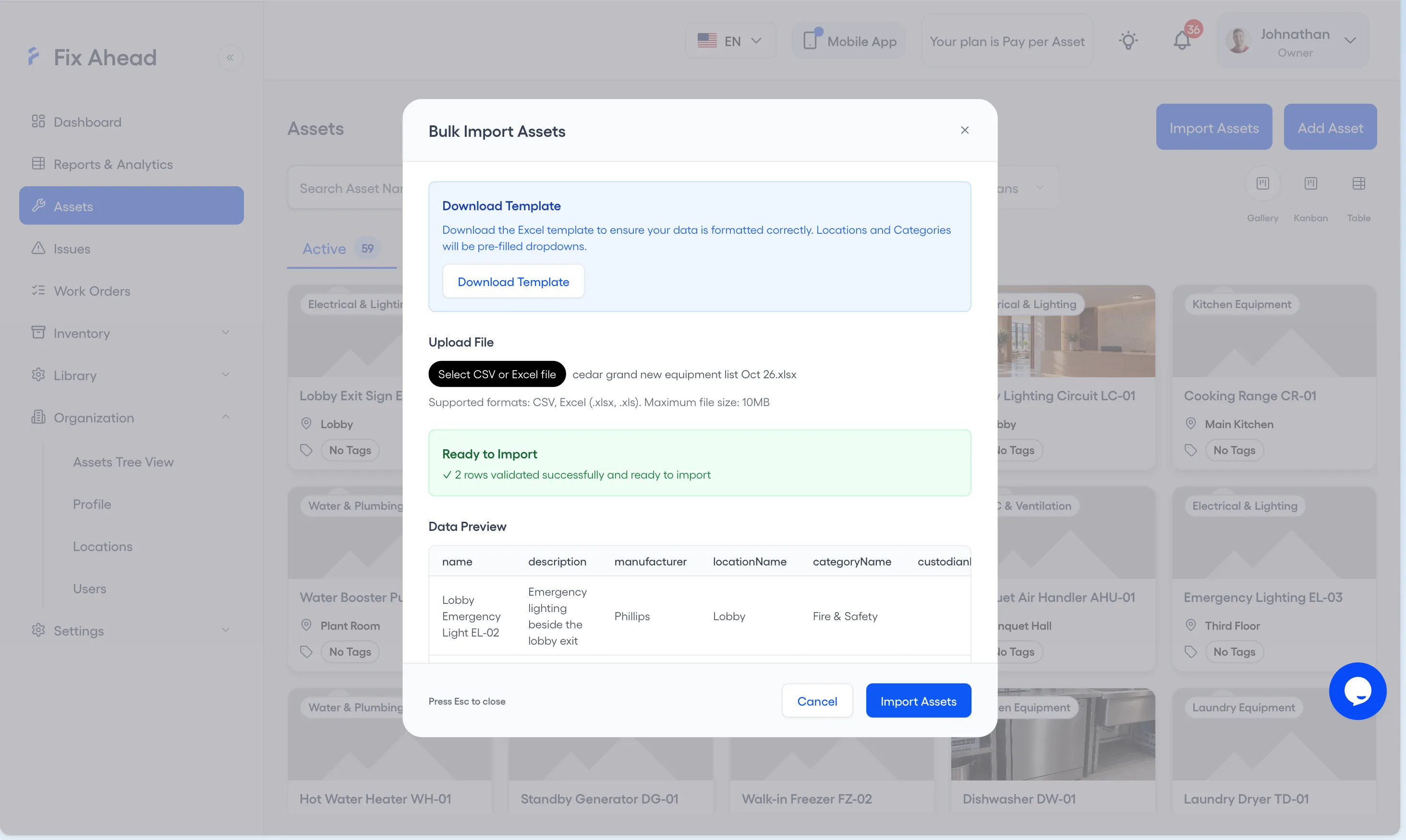
7. Check Ready to Import and Validation Errors
Ready to Import says how many rows will be imported and how many will be skipped. Each row with an error is listed under Validation Errors with its row number and is skipped; fix those rows in your file and upload it again.
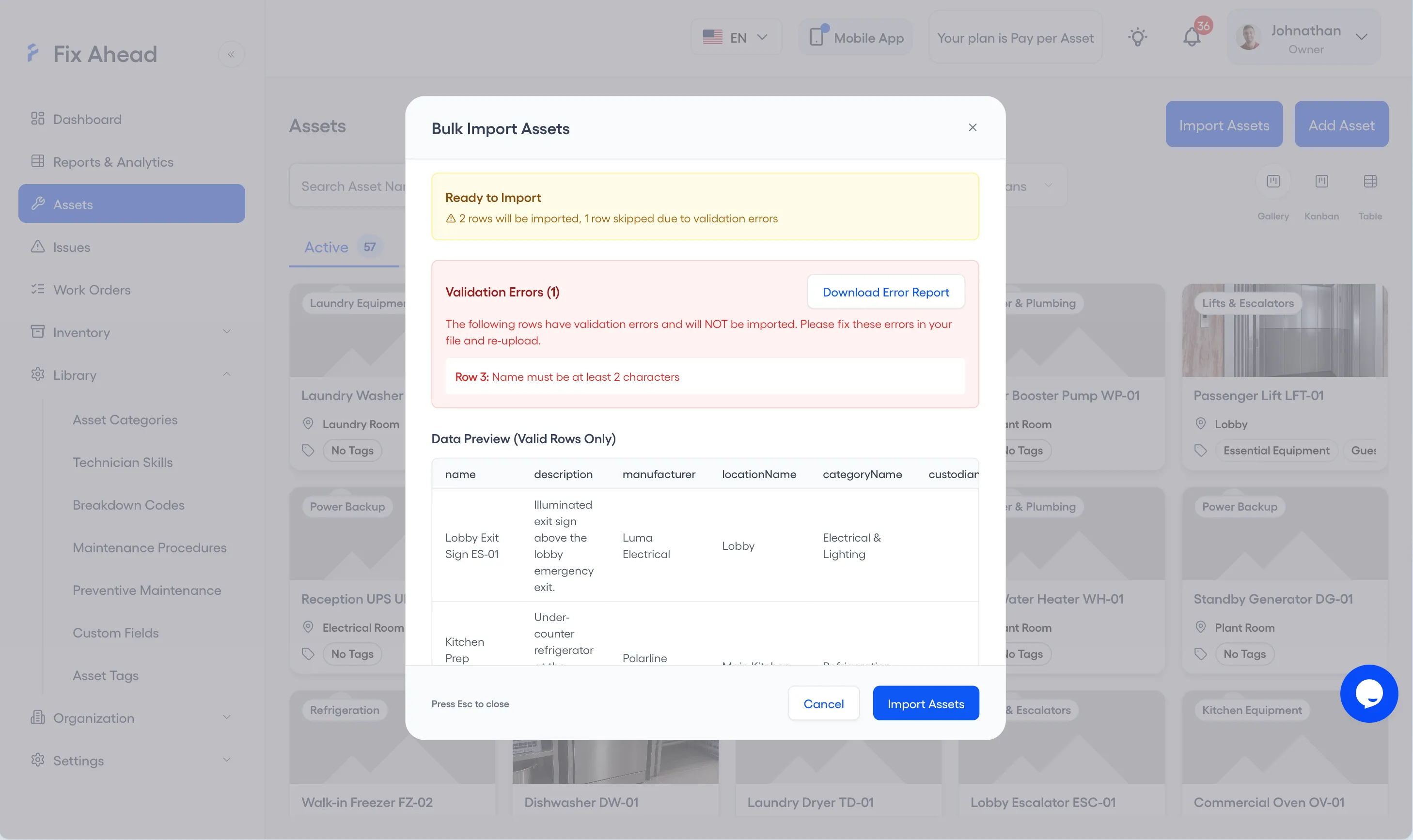
8. Import the valid rows
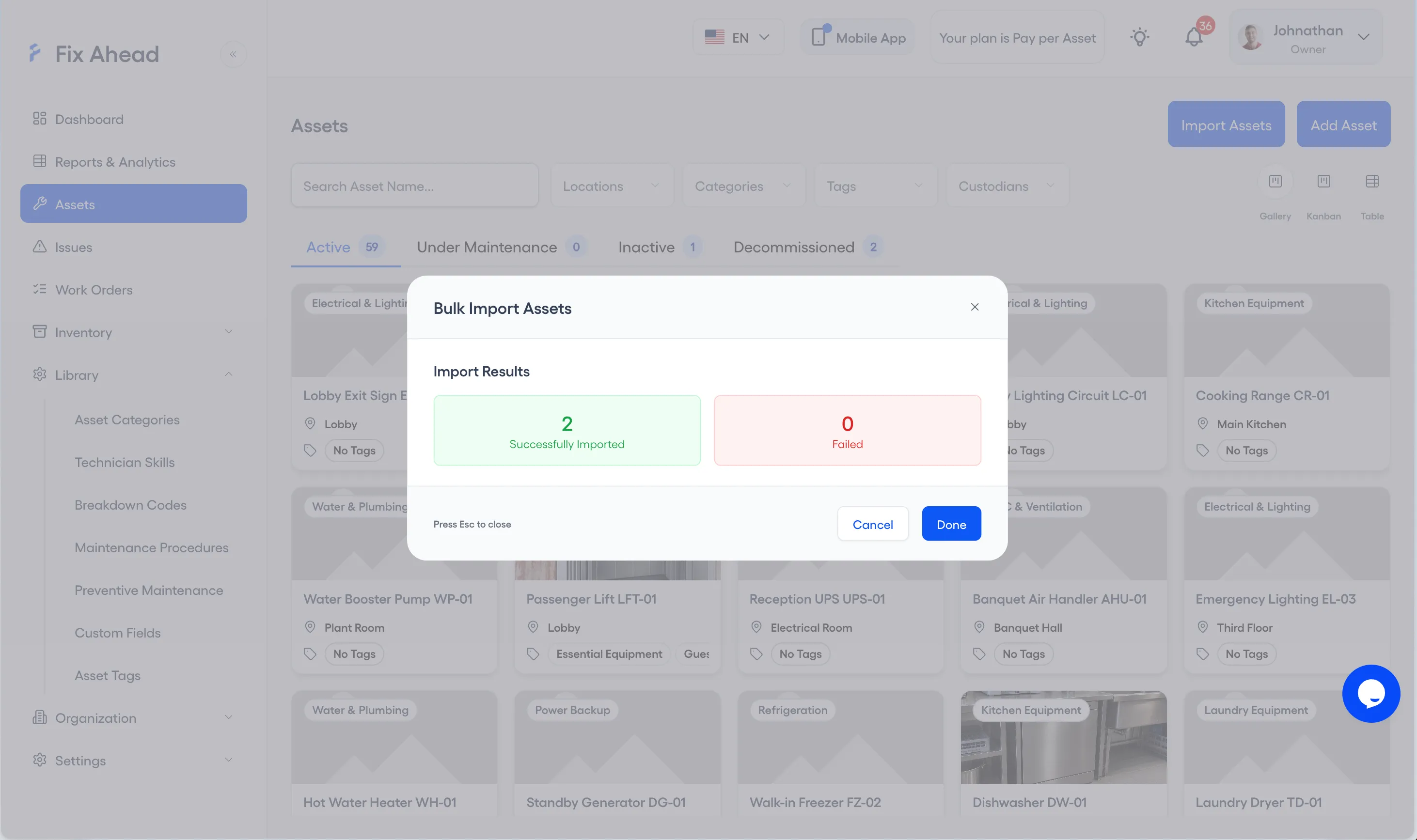
Press Import Assets to import the valid rows. Import Results shows how many rows were imported and how many failed; press Done to close.