FixAhead vs Spreadsheets
A spreadsheet is fine for fewer than 10 assets at one location with one person responsible. Past that, you need a system built for maintenance.
Where spreadsheets stop working
Add a second technician, a second location, or a preventive schedule, and you need accountability, automation, and a timestamped timeline on every work order that spreadsheets can't provide.
Feature-by-feature comparison
See exactly where spreadsheets fall short for maintenance management.
| Feature | FixAhead | Spreadsheets |
|---|---|---|
| Preventive maintenance schedulingCreates work orders before they are due | ||
| Work orders tracked through each status | ||
| MTBF / MTTR reliability analytics | ||
| QR code public issue reportingAnyone scans to report — no account needed | ||
| Four user roles, each with its own permissions | ||
| Inventory and parts tracking | ||
| Multiple locationsUnlimited depth. Filter by the full location path. | ||
| Real-time notifications | ||
| 11 built-in report types | ||
| Custom fields (9 types per category) | ||
| Procedure checklists with photo evidence | ||
| Technician skill matching | ||
| Bulk import from CSV or ExcelFixAhead checks every row and reports each error | ||
| Export to PDF, Excel, CSV | ||
| Free to start | ||
| Native mobile app (Android)Technicians manage work orders from the field. iOS coming soon | ||
| Zero learning curveFixAhead setup takes under 5 minutes |
Preventive maintenance generates its own work orders
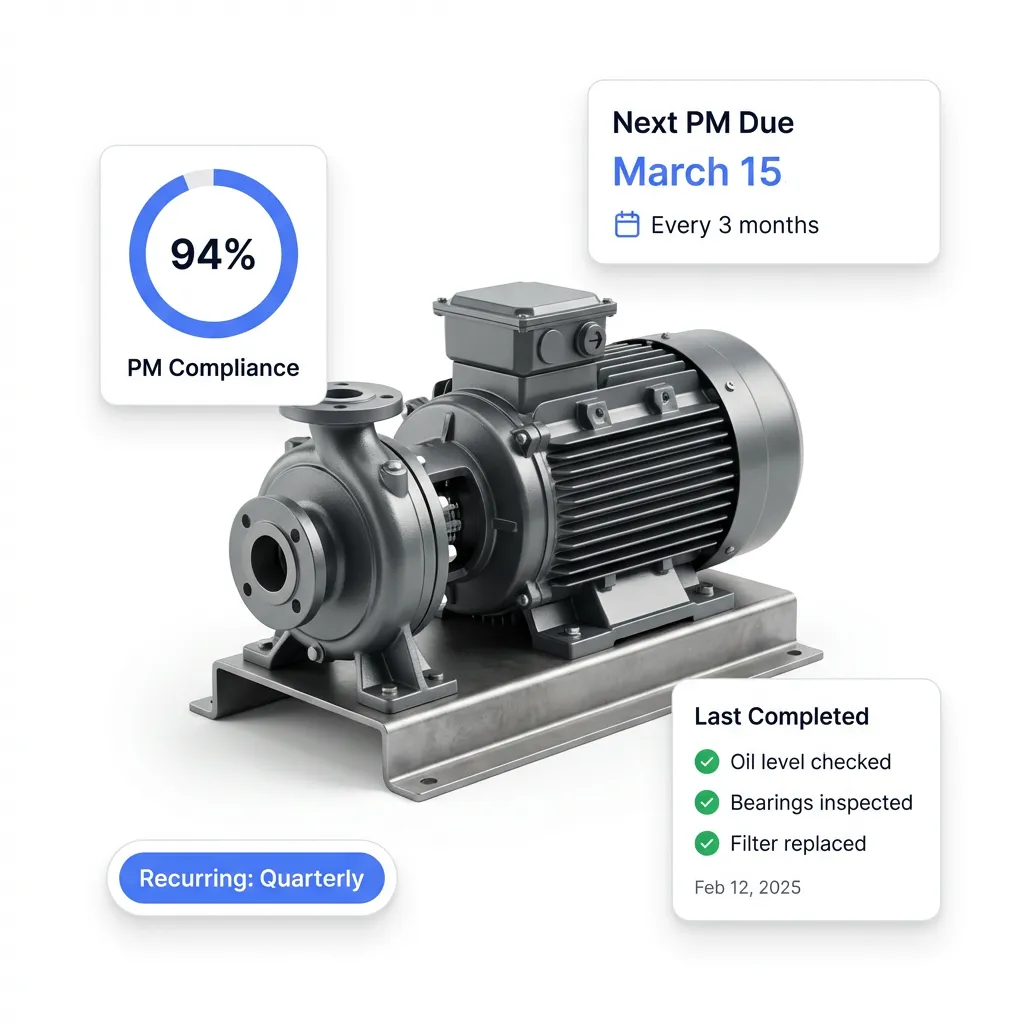
Spreadsheets can't remind you when a PM is due. FixAhead creates work orders on recurring schedules — daily, weekly, monthly, or yearly — so equipment gets serviced before it breaks.
- Recurring schedules, daily, weekly, monthly, or yearly
- Work orders created days before the due date
- Procedure checklists (Pro) ensure consistent execution
- PM compliance tracked per asset
Every work order tracked from start to finish
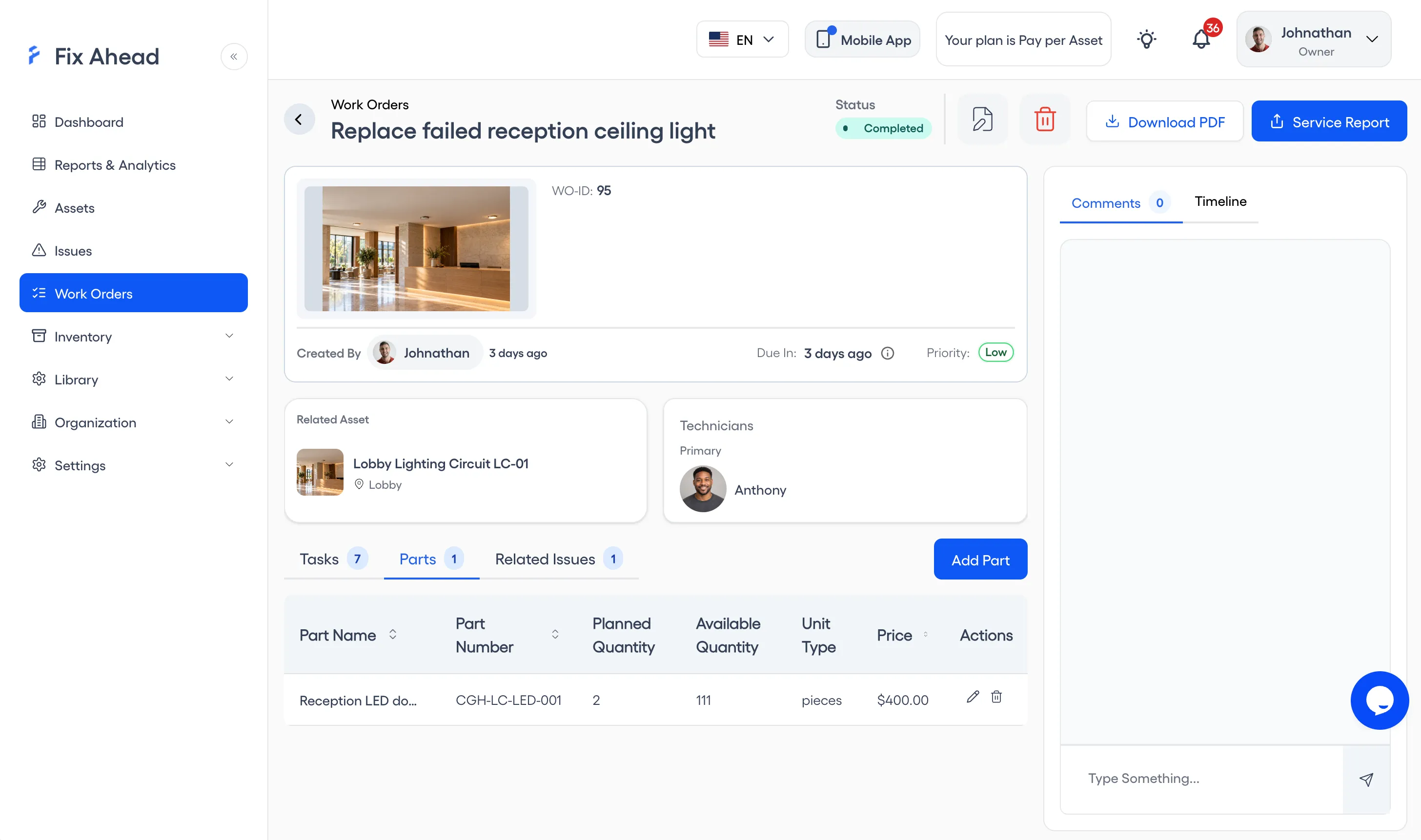
Spreadsheets lose work orders between tabs and email threads. FixAhead tracks every job through a clear workflow — assigned, in progress, completed, closed — with a timestamped timeline for each job.
- Status timeline shows each status change and timestamp
- Assign technicians by skill (Pro) and availability
- Attach procedure checklists with photo evidence
- Parts used and costs recorded per work order
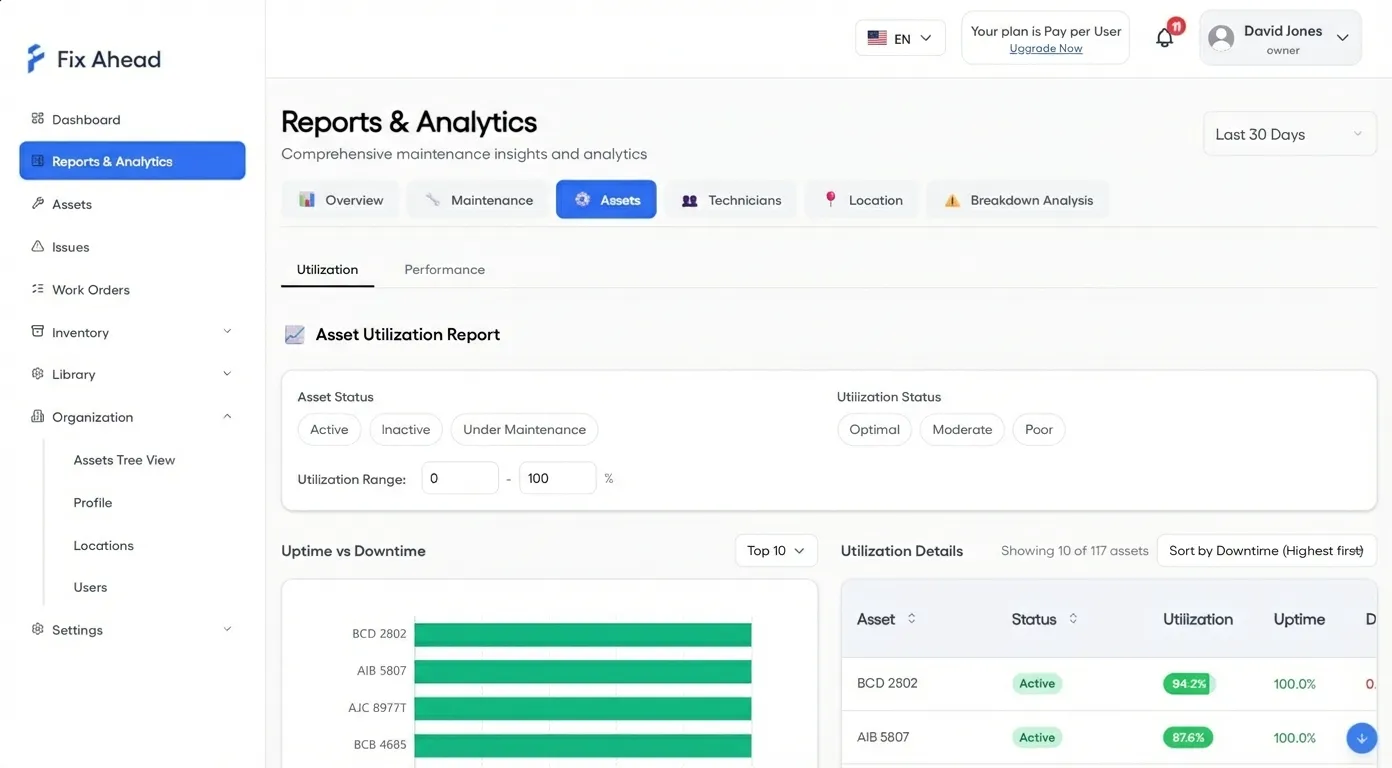
What the 11 built-in reports (Pro) tell you
Spreadsheets store data. FixAhead turns it into answers. 11 built-in reports show you which assets fail most, what maintenance costs, whether PMs are on track, and how your team's workload is distributed.
- MTBF and MTTR reliability metrics per asset
- PM compliance tracking per asset
- Cost analysis by asset, location, or time period
- Export any report to PDF, Excel, or CSV
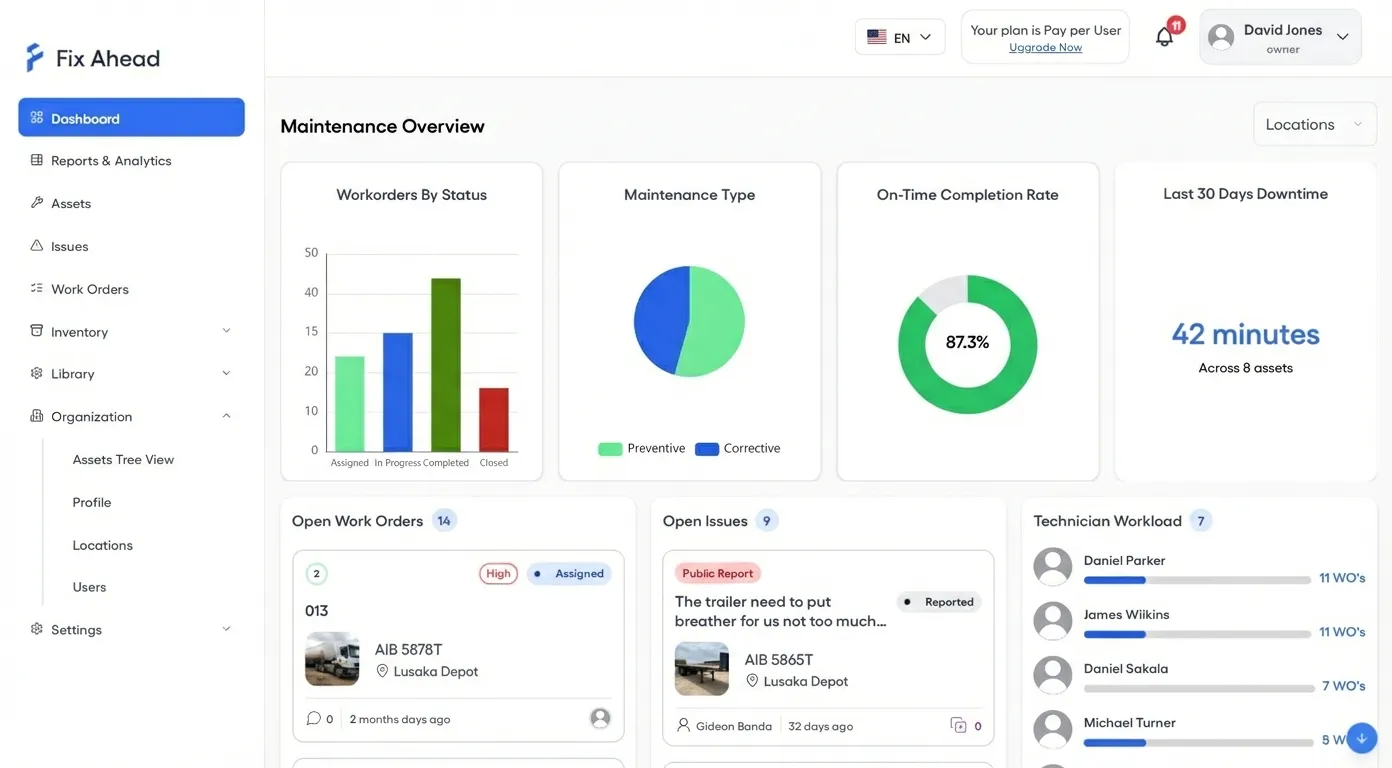
Who created, was assigned, and completed each job
No more wondering who created each job, who was assigned it, or who completed it. Every work order is assigned, tracked, and timestamped. Your dashboard shows status across the entire operation — no manual updates needed.
- Work order status visible at a glance
- Technician workload and completion rates
- On-time maintenance rate tracked automatically
- Filter everything by location for multi-site ops
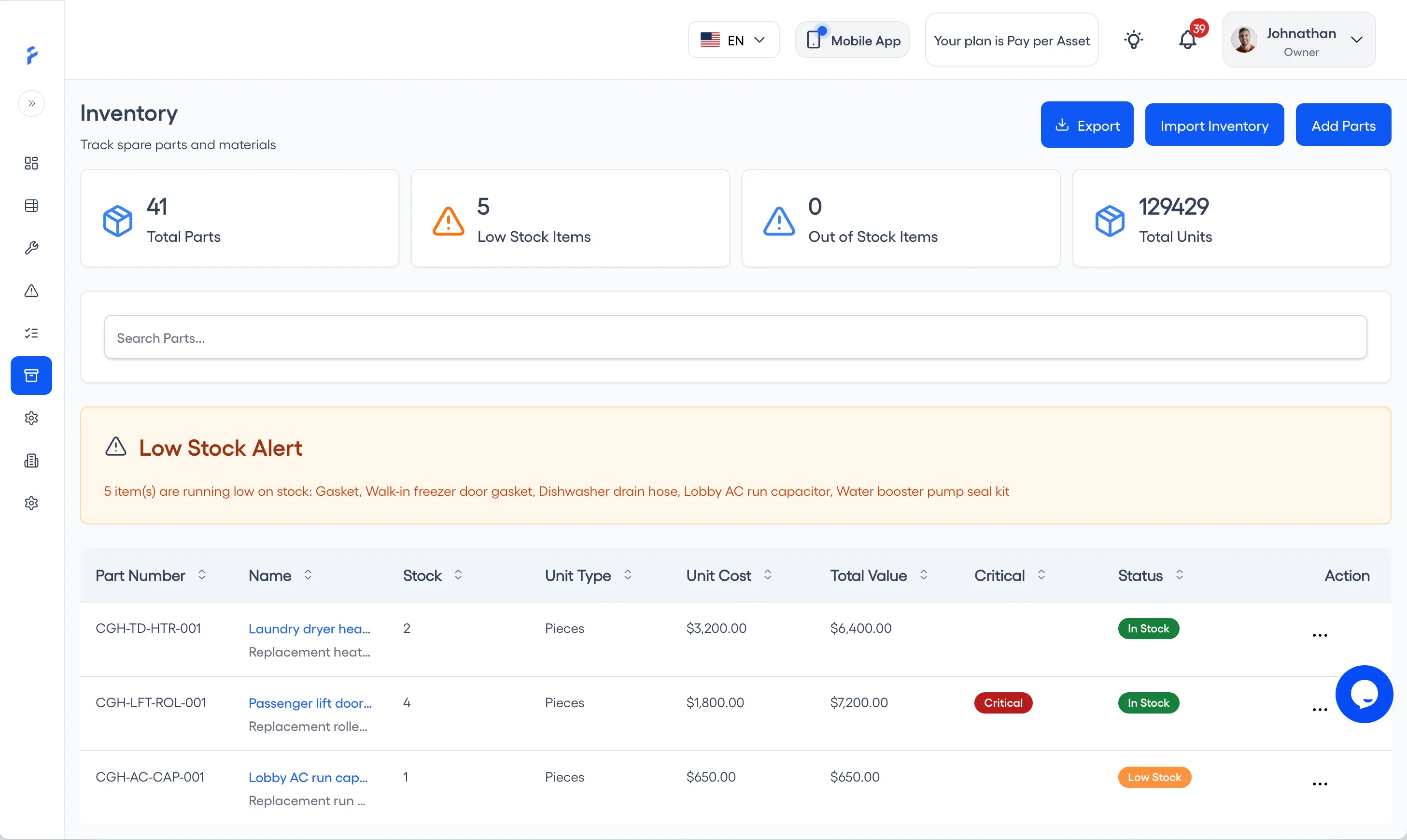
Track every spare part and supplier (Pro)
A spreadsheet can't alert you when stock runs low. FixAhead tracks parts with 25 unit types, links suppliers, logs every transaction, and ties parts used directly to work orders — so you know exactly what maintenance costs.
- Real-time stock levels with low-stock alerts
- Full transaction history per part
- Supplier management with contact details
- Parts automatically linked to work order costs
Anyone can report problems
With spreadsheets, only people with access can log issues. With FixAhead, anyone — tenants, guests, floor workers — scans a QR code and submits a report. No login, no friction.
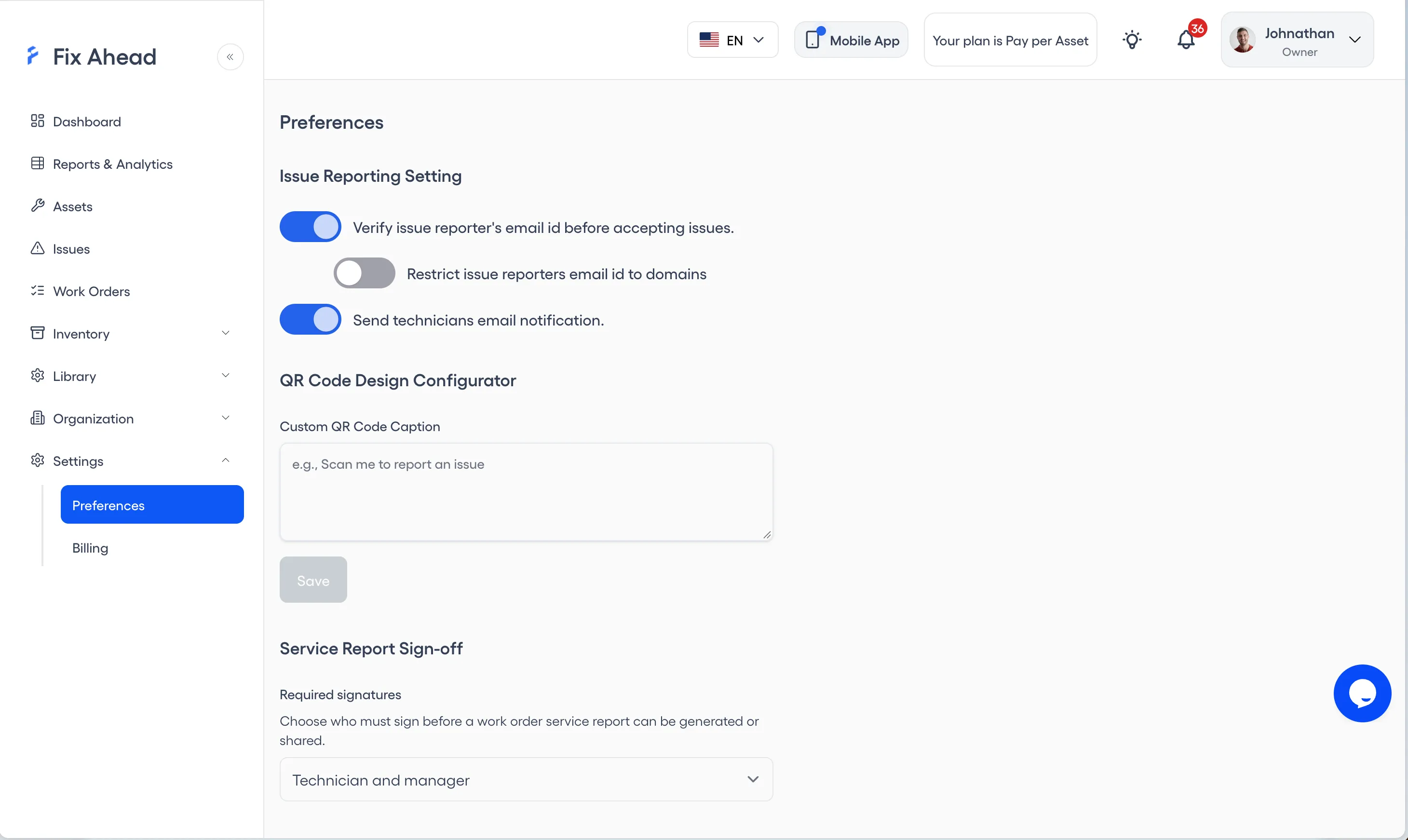
- Scan a QR code to report an issue
- Email verification and domain restriction for control
- Turn an issue into a work order from its card menu with Create Work Order
- Configure the public form
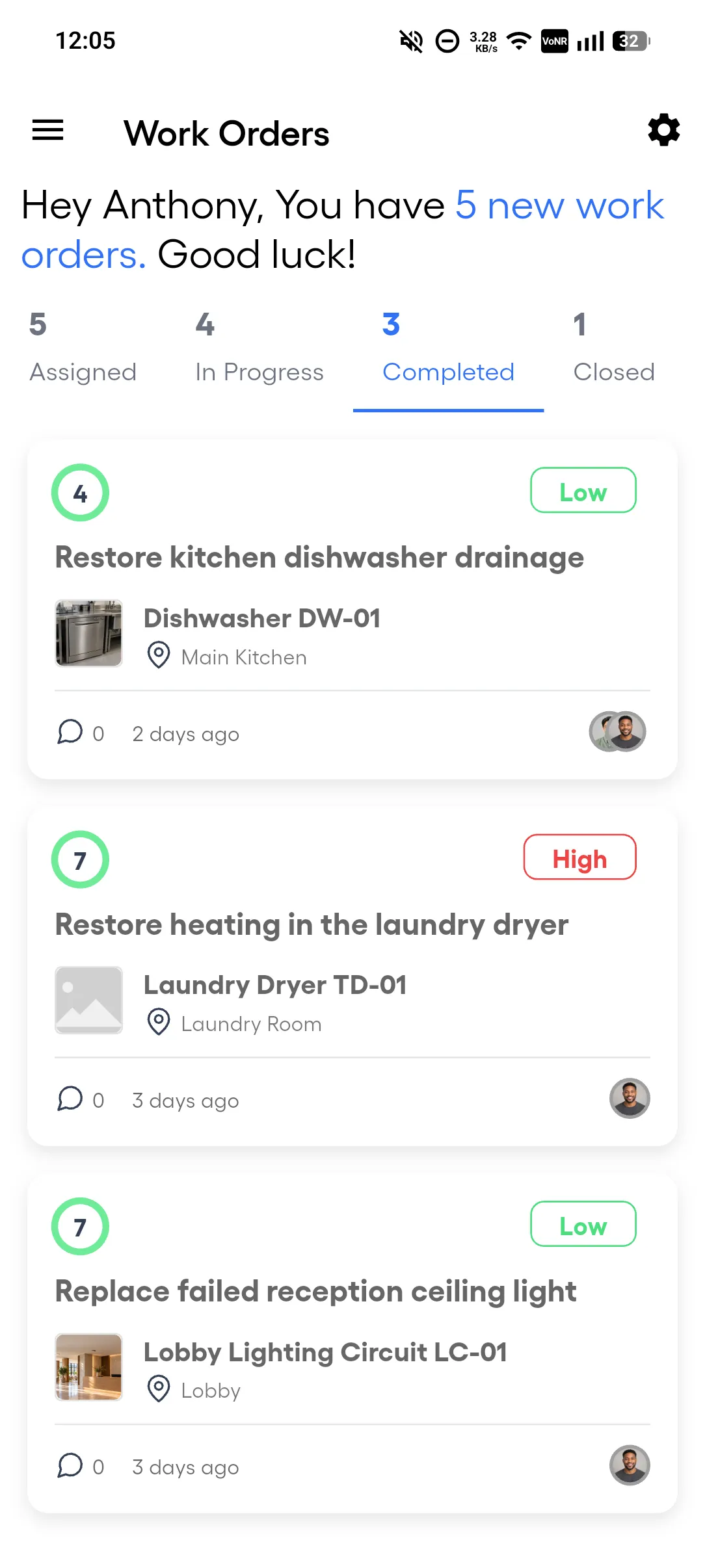
What technicians do from their phones
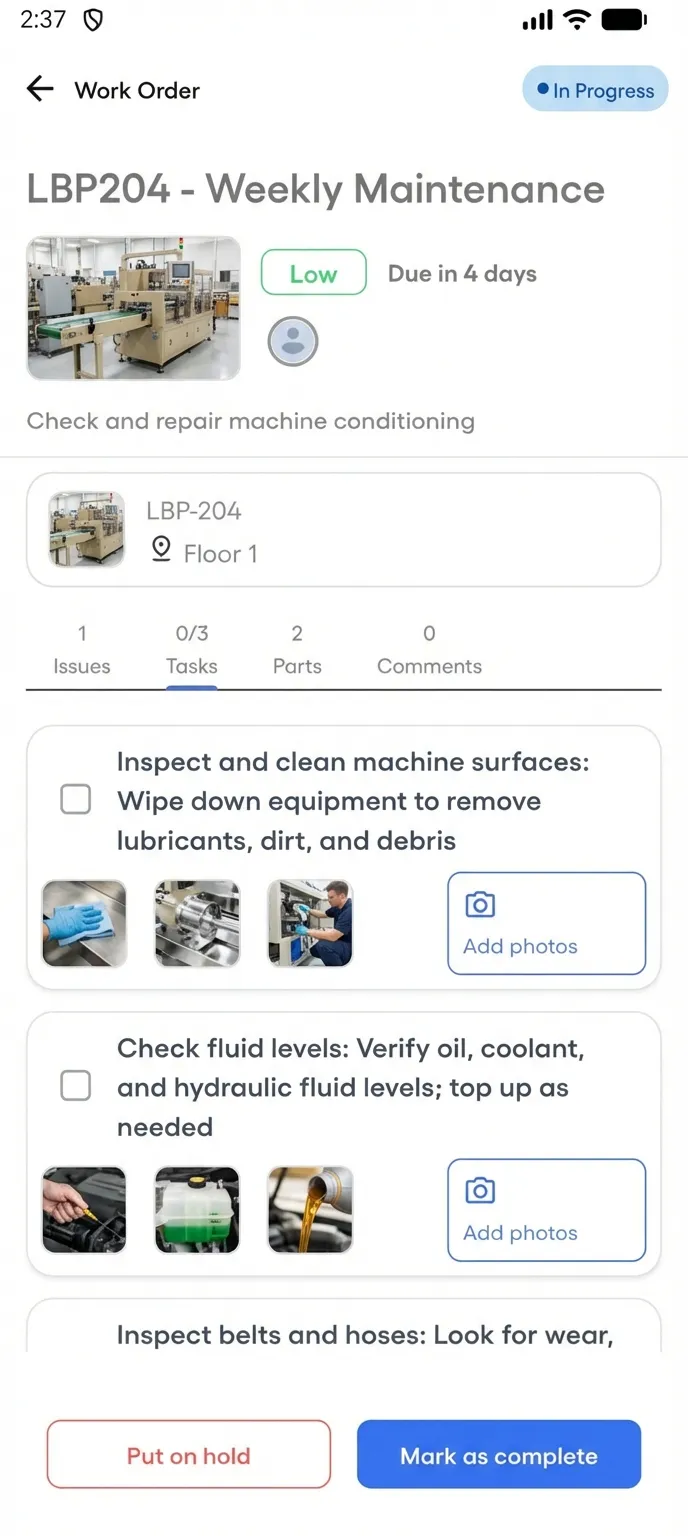
Your spreadsheet stays on the desktop. FixAhead goes where your technicians go. The native mobile app lets your team receive assignments, follow checklists, capture photo evidence, and mark work orders complete — all from their phone.
- Push notifications the moment a job is assigned
- Procedure checklists with photo evidence capture
- Update status from the field, and the change applies at once
- Works on Android — free with every plan, iOS coming soon
- The Android app works offline for assigned work orders, and the work syncs when the connection returns
Import your assets into FixAhead
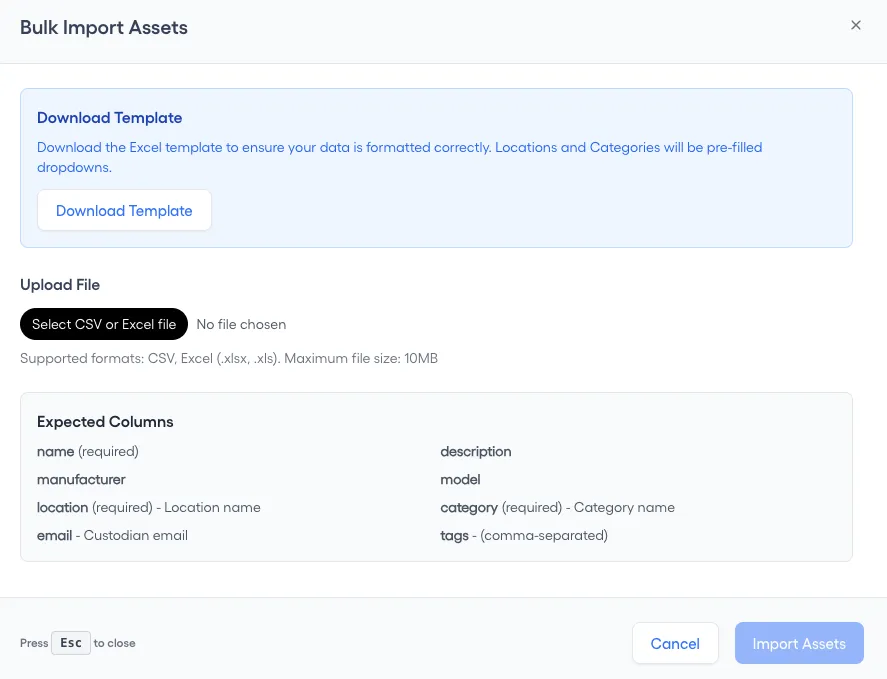
FixAhead imports assets in bulk from CSV and Excel files and checks every row, flagging errors. Match your export to the columns of the asset register template.
1. Export your assets from your spreadsheet
Save the assets as a CSV or Excel file, with one row for each asset. Every asset needs a name, a location and a category.
2. Match your file to the import columns
On the Assets page, press Import Assets, then match your file to Expected Columns: name, location and category are required. Download Template gives you the Excel file to fill in.
3. Create the locations your file names
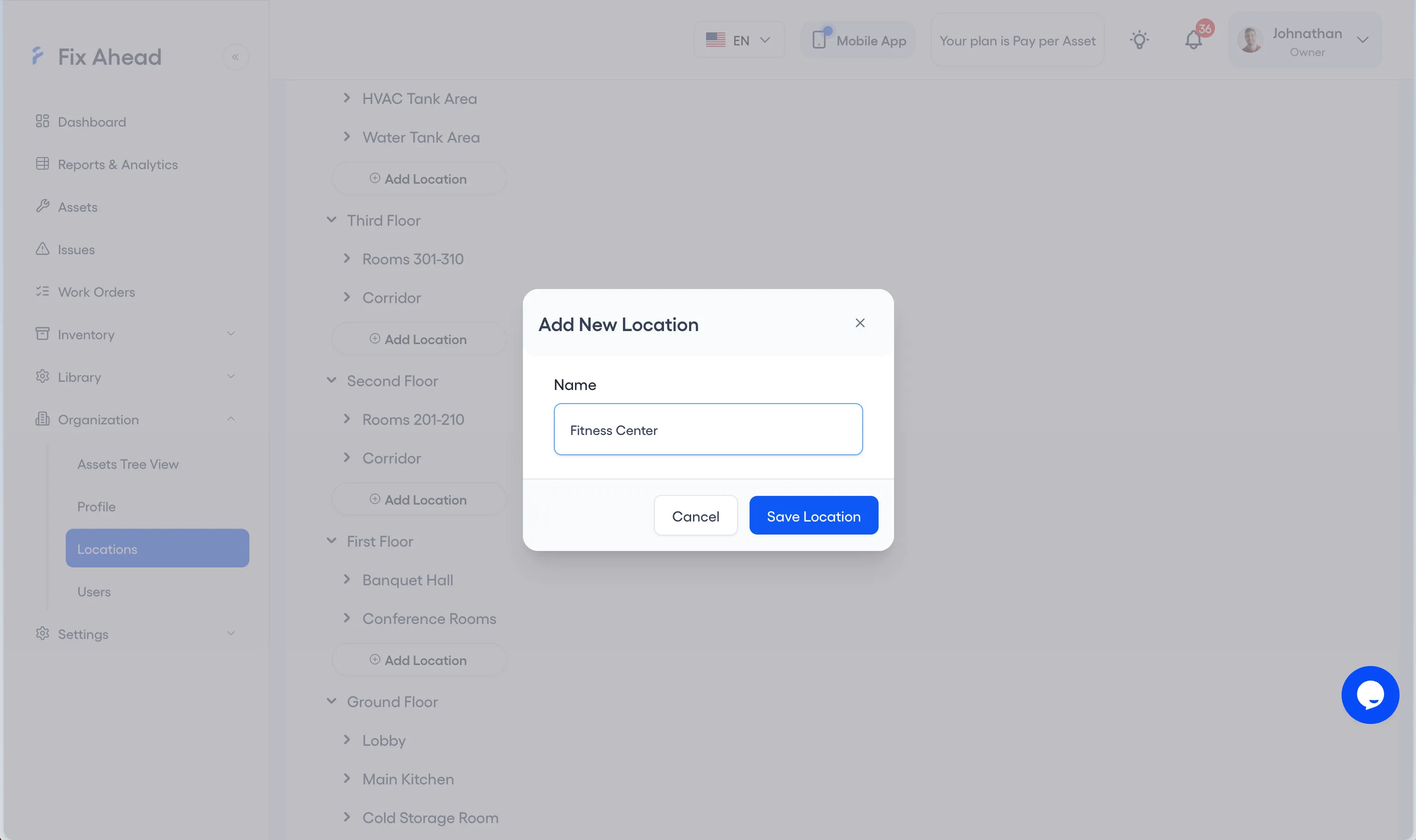
Each location in your file must exist in FixAhead first. Under Organization, Locations, press Add Location, enter the Name and press Save Location.
4. Create the categories your file names
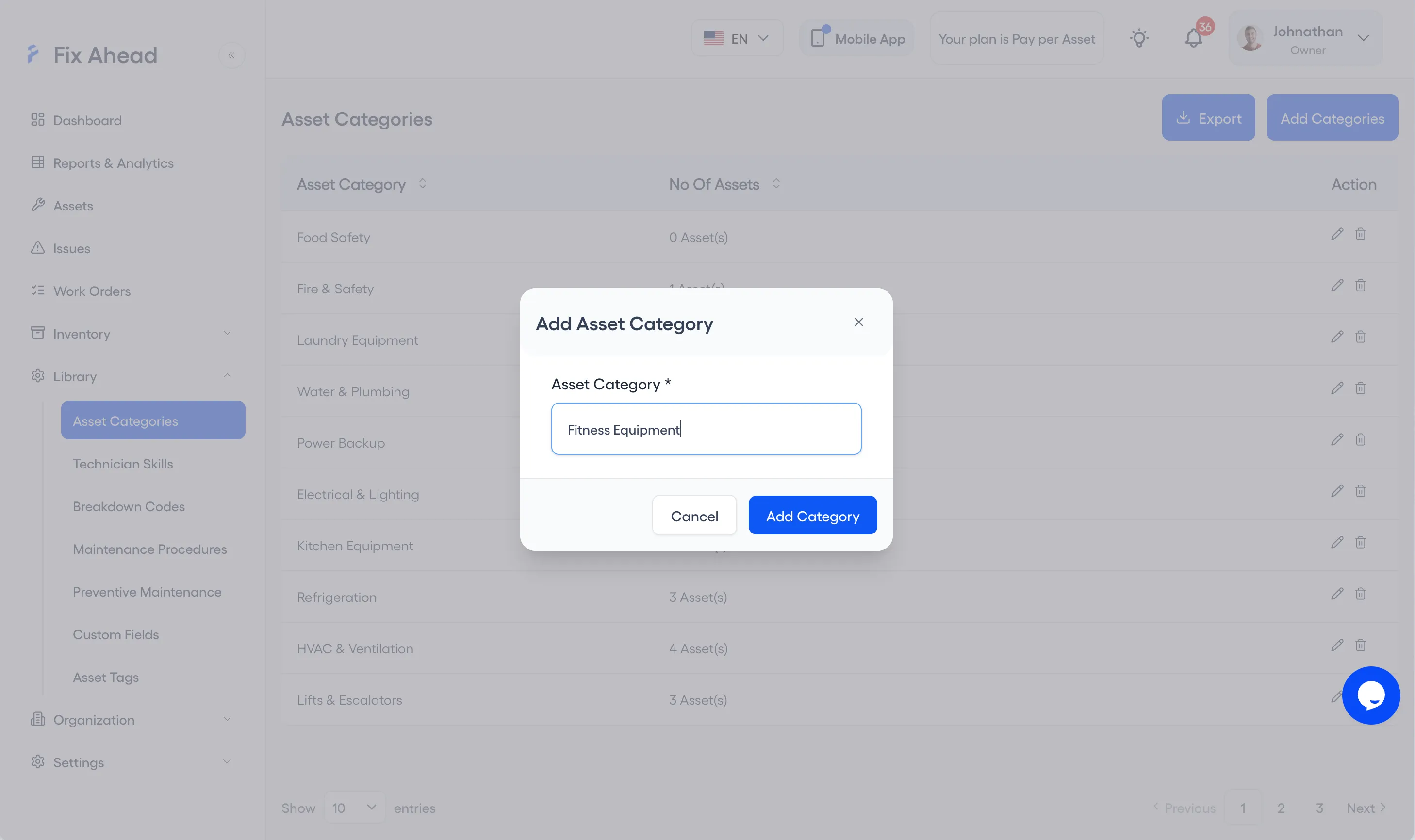
Each category in your file must exist too. Under Library, Asset Categories, press Add Categories, enter the Asset Category and press Add Category.
5. Upload your file
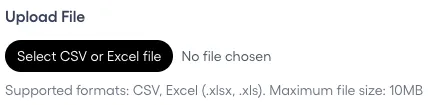
In Import Assets, press Select CSV or Excel file and choose your file. FixAhead reads CSV, .xlsx and .xls files up to 10MB.
6. Fix the flagged rows
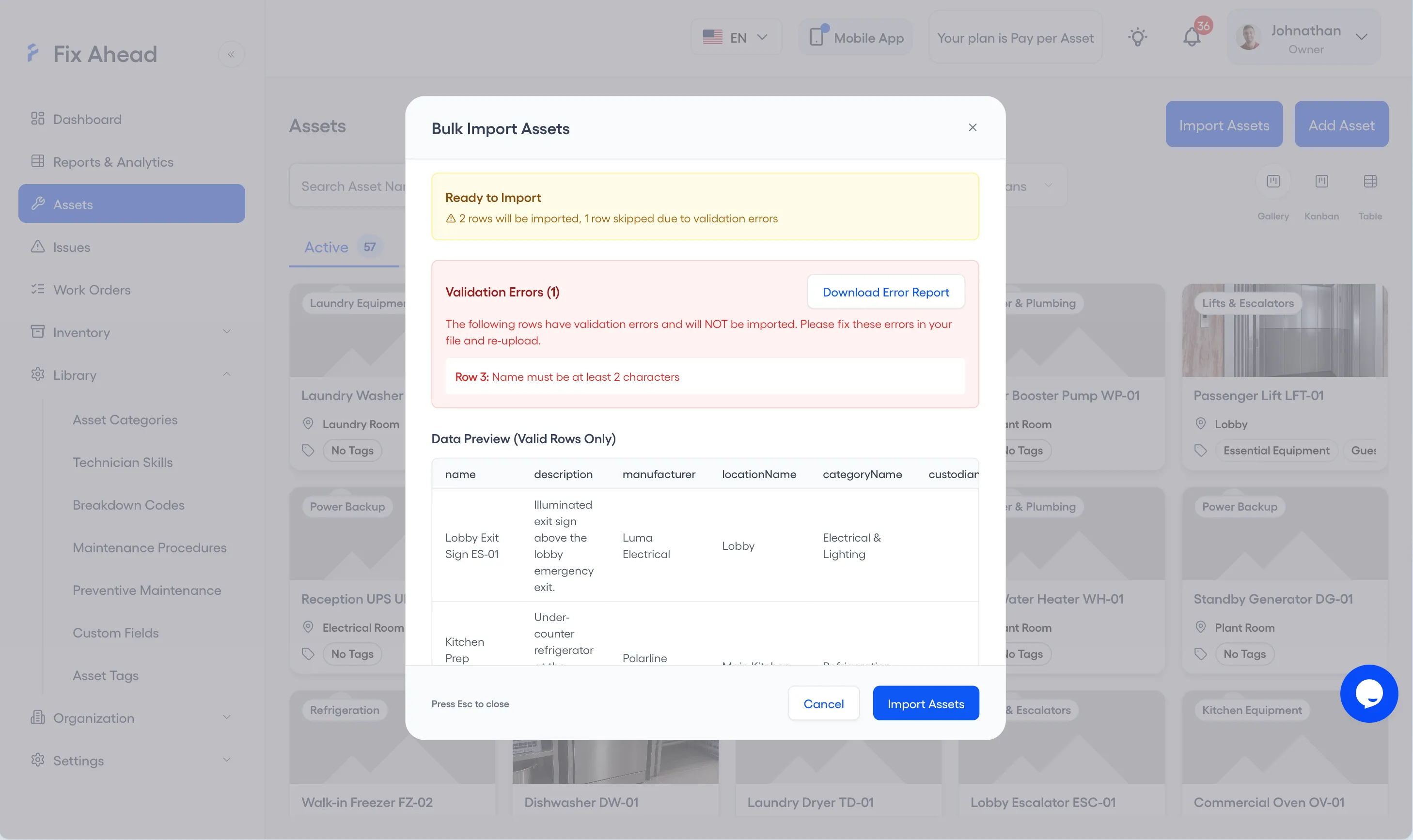
Ready to Import counts the rows that will be imported and the rows skipped for errors. Validation Errors lists each flagged row, and Download Error Report saves them so you can correct them in your file.
7. Confirm the import
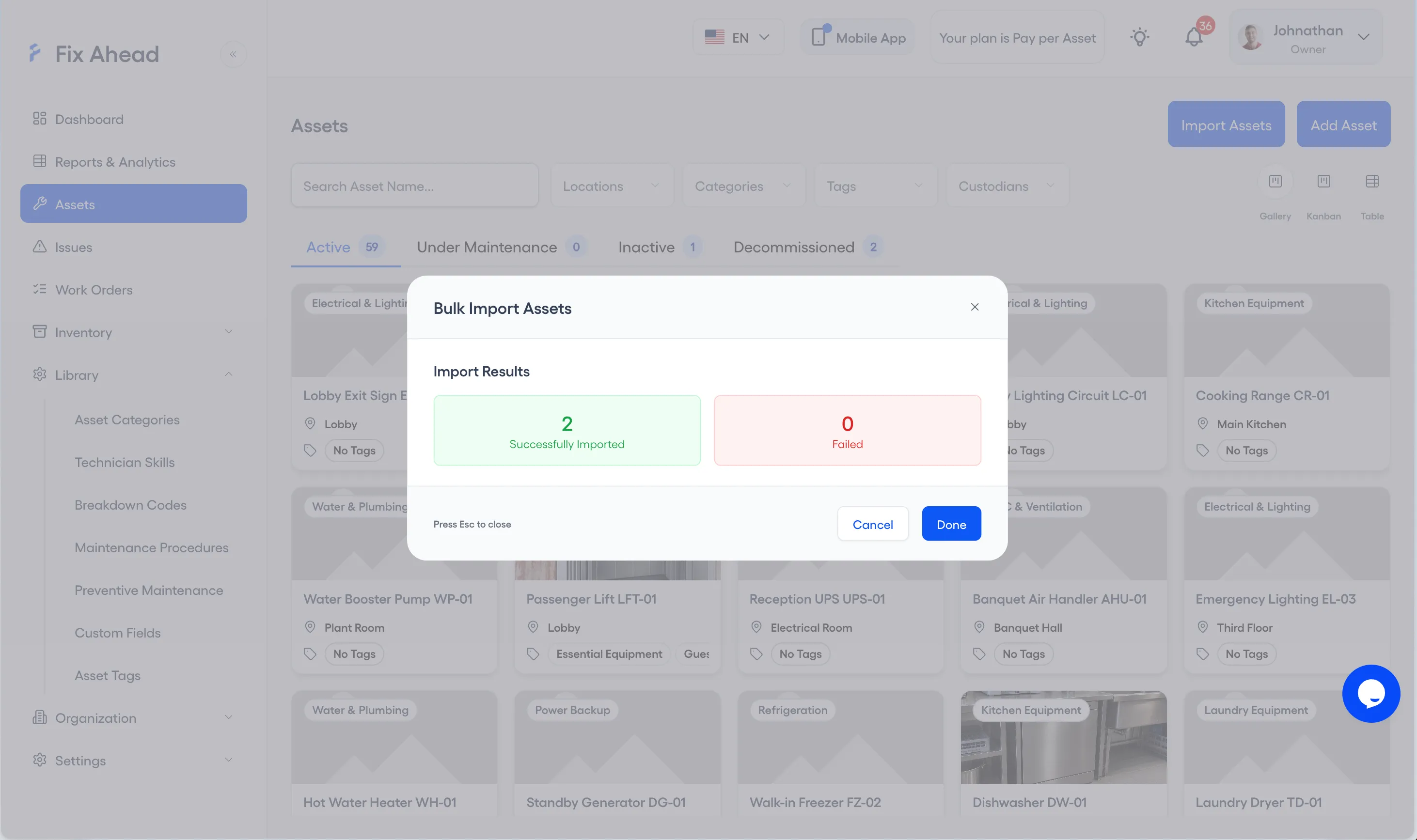
Press Import Assets. Import Results shows how many assets were Successfully Imported and how many Failed; press Done to close it.
See what FixAhead connects to on the integrations page.
Frequently asked questions
Common questions when switching from spreadsheets to FixAhead.
How steep is the learning curve compared to spreadsheets?+
The interface is designed for maintenance professionals, not IT specialists. Work orders, assets, and PM schedules follow intuitive workflows — no formulas or macros required.
Is FixAhead worth it for a small team?+
The Free plan includes 2 users with unlimited assets, or 50 assets with unlimited users, and unlimited work orders — with no time limit. Small teams get preventive maintenance scheduling, issue reporting, and a real dashboard at zero cost.
Can I still export data to Excel?+
Absolutely. Every report, asset list, and work order summary can be exported to Excel, CSV, or PDF. Your data is never locked in.
How does FixAhead compare to Google Sheets or Airtable?+
Google Sheets and Airtable are general-purpose tools. FixAhead is built specifically for maintenance: PM scheduling, work order workflows, reliability analytics, and QR-based issue reporting are built in — not bolted on with formulas and add-ons.