How Do I Get the Maintenance Team to Buy In and Really Use CMMS Software?
FixAhead Team · October 8, 2026
A CMMS is only as useful as what technicians enter in it. When entry takes too long, they stop. The reports that still come in are half written or copied from the last job, so the system describes the last job, not this one.
Keep entry fast, put a QR code on each machine, give technicians something back, put phones on the floor, and make the CMMS the only route. Each one removes a reason to skip the system.
Make entry fast
The minutes each work order takes decide whether technicians keep using the system. Time how long a technician takes to close one work order, and remove every field nobody reads after it is saved. Completion should be one step: a tap, with notes and photos where the job needs them. In FixAhead’s Android app, a technician marks the job complete once required tasks are done, with completion notes and at least one photo; the app asks for both on every job.
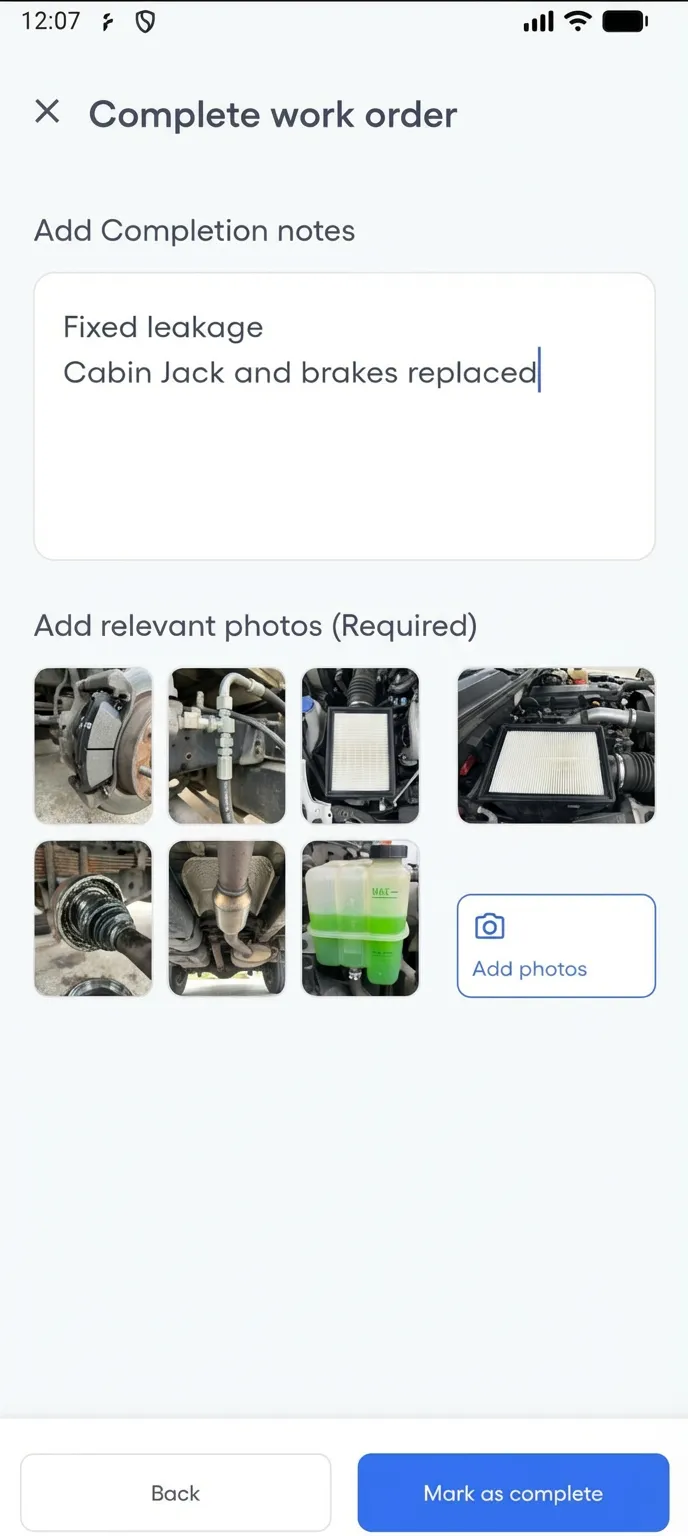
A technician should not need a course before the first job.
Put a QR code on every machine
A technician who has to search for the asset record will skip it. Put a QR code on each machine, so one scan reaches the right asset. FixAhead gives every asset a QR code (asset management), and scanning it opens the Report an issue form with the asset’s name and location at its head. Anyone who scans the code can report a problem, with no account and no app download (issue reporting).
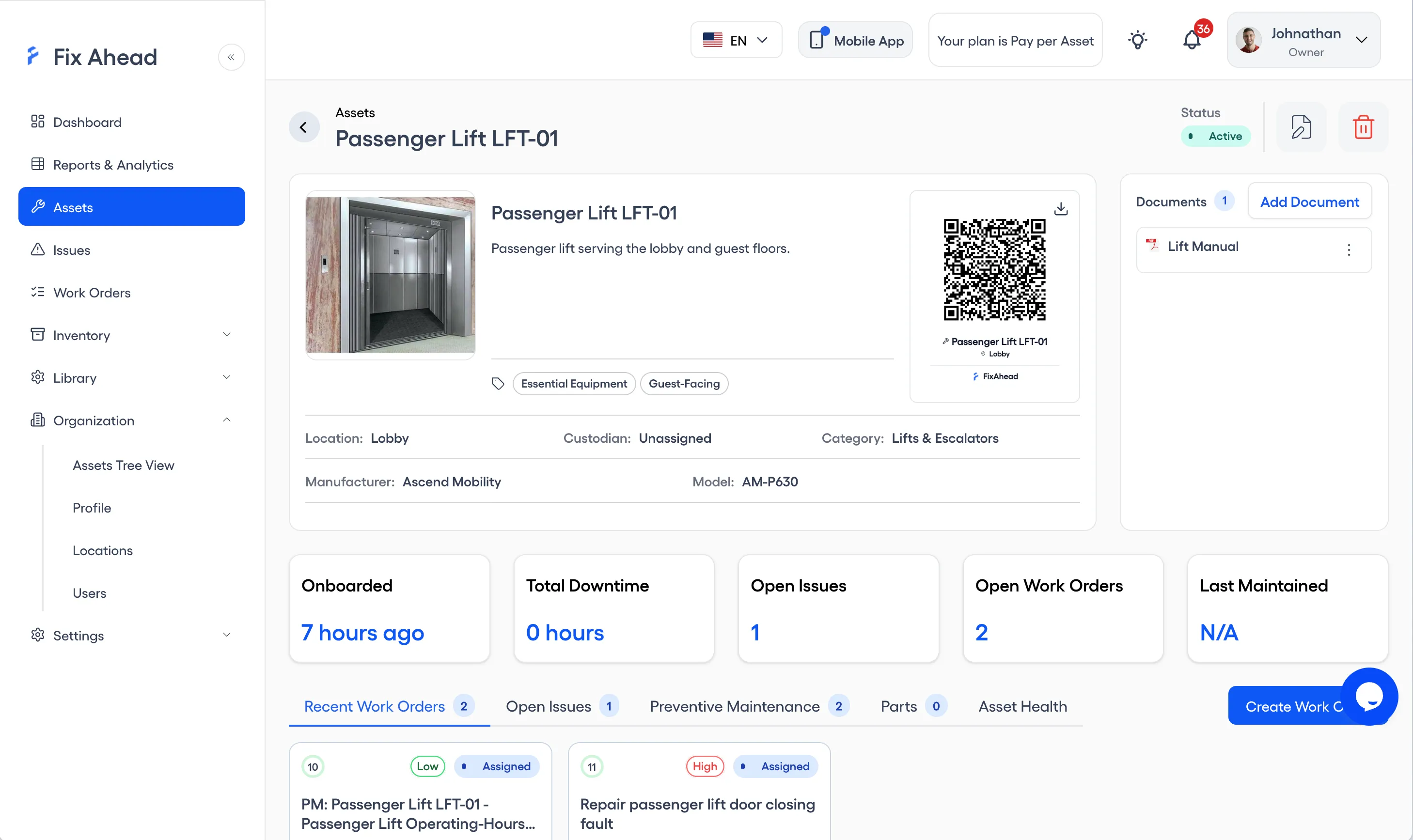
1. Open the asset and press Download on its QR label
The asset’s page shows its QR label beside its details. Press Download, the arrow above the label’s top right corner, to save the label as a PNG file.
2. Select the assets in the Assets table
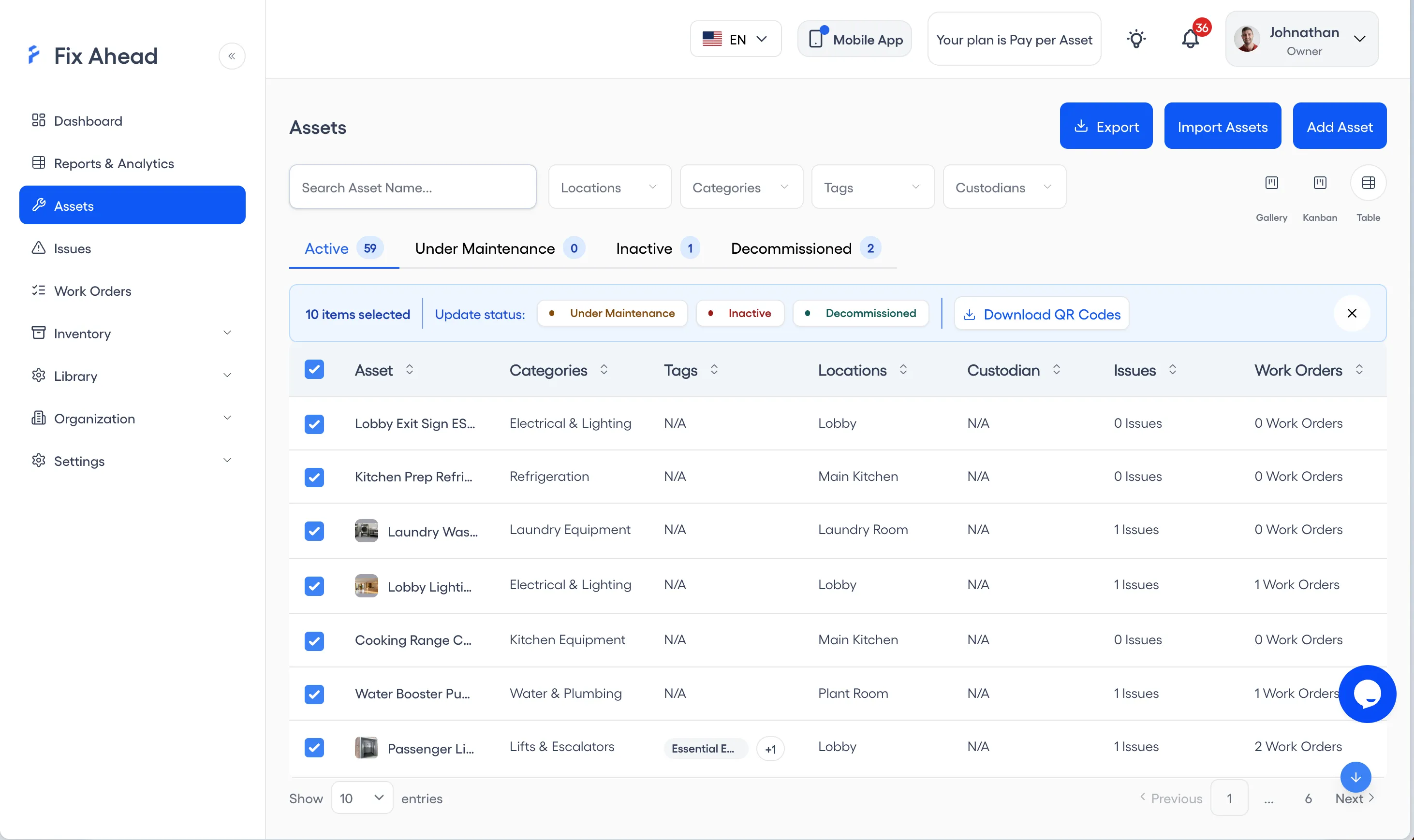
On the Assets page in table view, select the rows of the assets whose labels you need.
3. Press Download QR Codes
The bar that appears with the selected rows holds Download QR Codes. It saves an A4 PDF sheet with a label for each selected asset.
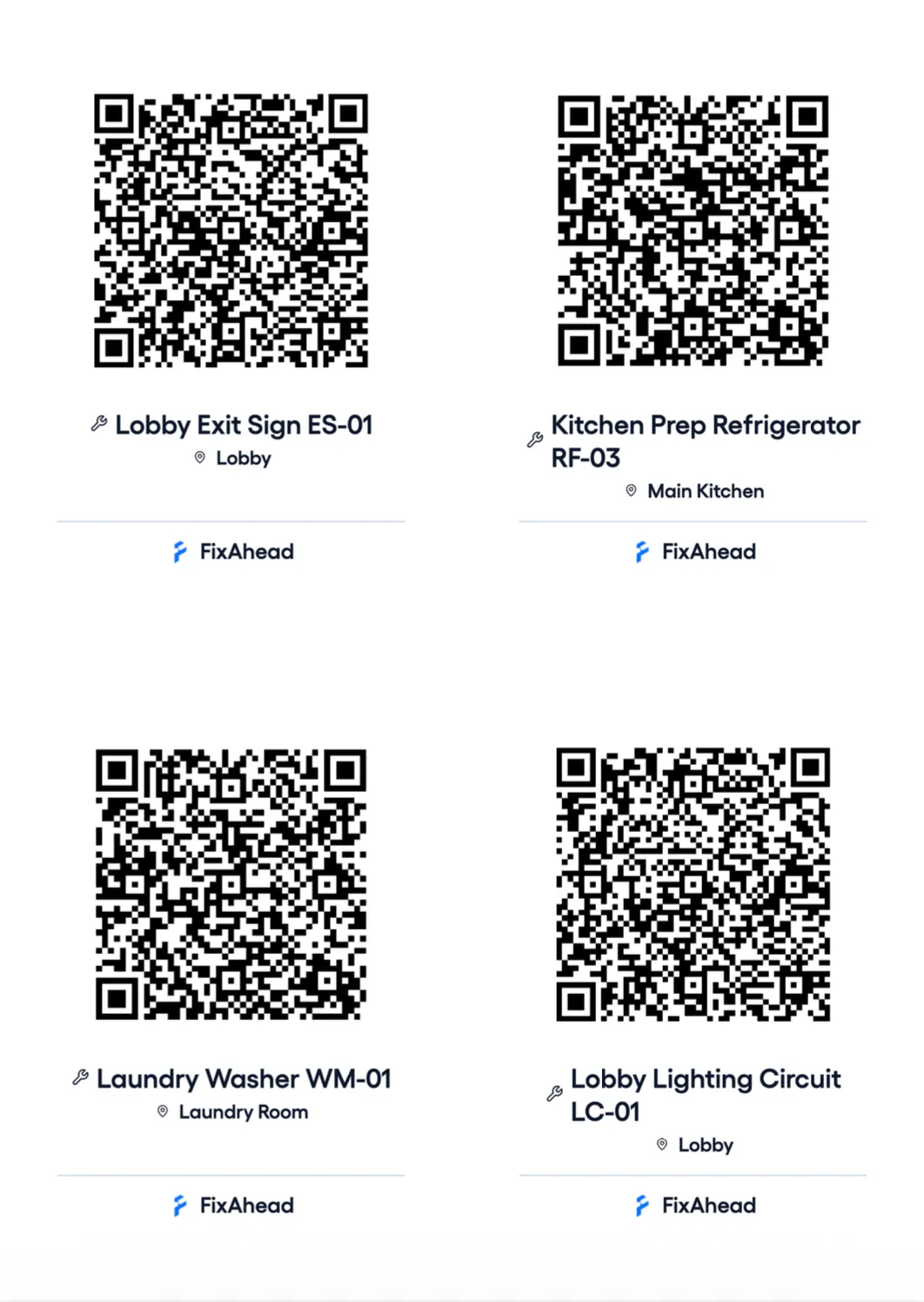
Print the PNG or the PDF, and put each label on its machine.
Give technicians something back
Technicians use the system when it helps them do the job. Give them what they need in it: equipment drawings (prints), parts stock that matches the shelf, and the procedures and documents for each machine. A system that only asks for data gives them no reason to use it.
Put phones and tablets on the floor
Technicians finish jobs at the machine, not at a desk. Keep a phone or tablet with the CMMS on it where the work happens, so the record is made when the job is done. FixAhead’s pages adjust to the screen of any device (about). FixAhead’s native Android app is included in every plan, Free and Pro, with iOS coming soon (pricing). In FixAhead’s Android app, a technician marks the job complete once required tasks are done, with completion notes and at least one photo; the app asks for both on every job.
Make the CMMS the only route
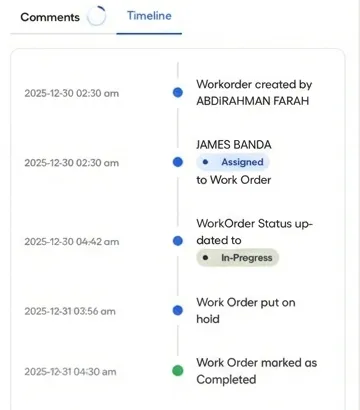
Every PM, work order, and part goes into the system. A PM done on paper and typed in later, or a part taken from a bin with no record, leaves the system wrong. Once the CMMS is the only route, there is no second record to drift out of step with it. In FixAhead, every work order has a timeline, with a date and time on each entry (work orders).
Never close open work orders to protect the numbers
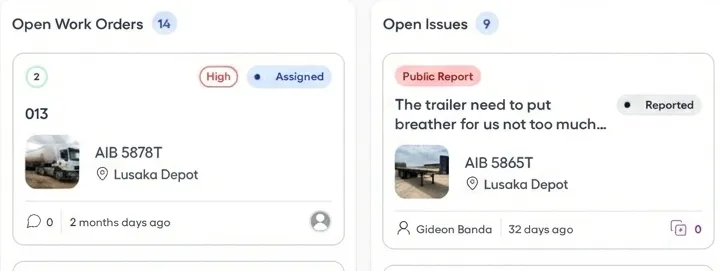
Closing open work orders makes every figure built on them wrong. Leave open work open until it is done, and report the backlog as it stands. The dashboard shows work order status, on-time completion rate, and open issues (reporting).
Where to go next
To put these practices in place on the floor, start with FixAhead’s mobile app. The Free plan has no credit card and no time limit. If your team has used a system before, compare FixAhead with legacy CMMS.