FixAhead vs Limble
Limble fits teams that want unlimited Standard features and accept a price estimate; FixAhead fits teams that want the price on the page.
Which one fits
If you want unlimited assets, work orders, and PMs on the Standard plan, automatic downtime reporting, and 24/7 support on every plan, and you are ready to answer two questions for a price estimate, Limble fits. If you want the price on the page before any sales call, and one bill for the whole team, FixAhead fits. Free is US$0/month for 2 users with unlimited assets, or 50 assets with unlimited users. Pro is US$99/month for your whole team, with 10 users or 100 assets included.
| Feature | FixAhead | Limble | Source |
|---|---|---|---|
| Native iOS appLimble: App Store and Google Play. FixAhead: Android app in every plan. It works offline for assigned work orders, and the work syncs when the connection returns. iOS coming soon. | limble.com/products/mobile-app | ||
| Open REST APILimble: Premium+ and Enterprise. | limble.com/pricing | ||
| ERP integrationLimble: Enterprise, additional costs may apply. FixAhead: deep ERP integration not offered. | limble.com/pricing | ||
| Bulk data importLimble: Bulk Data Importing. FixAhead: CSV and Excel, with each row checked. | limble.com/pricing | ||
| QR code issue reportingLimble: Work Request QR Codes. FixAhead: no account needed to report. | limble.com/pricing | ||
| Preventive maintenance schedulingLimble: unlimited work orders and PMs on Standard. FixAhead: daily, weekly, monthly, or yearly. | limble.com/pricing | ||
| Parts and inventory trackingLimble: unlimited spare parts from Premium+. FixAhead: 25 unit types, reorder alerts, supplier linking (Pro). | limble.com/pricing | ||
| Multiple sitesLimble: multi-location tools and reporting on Enterprise. FixAhead: hierarchical locations, unlimited depth. | limble.com/pricing | ||
| Price shown without a sales callLimble: price on request; each plan shows Calculate my price. FixAhead: Free US$0/month, 2 users with unlimited assets or 50 assets with unlimited users; Pro US$99/month for your whole team, 10 users or 100 assets included; enterprise by quote. | limble.com/pricing | ||
| Free planLimble: no free plan or trial on the pricing page. FixAhead: free, no card needed. | limble.com/pricing |
Limble’s strengths are unlimited assets, work orders, and PMs on its Standard plan, and automatic downtime reporting, as Limble pricing lists them. Limble pricing shows no price, only a price calculator on each plan.
How Limble prices its plans
Answer Limble’s two questions to get a price estimate before you compare. Limble price calculator asks two simple questions and then gives a price estimate for a plan that works for you.
Limble pricing does not say how it bills.
What Standard includes
Check the Standard features against your team before you consider a higher plan. Limble pricing lists the Limble Mobile App, unlimited assets and custom fields, unlimited work orders and PMs, unlimited work requesters, unlimited custom dashboards, and automatic downtime reporting in Standard.
What Premium+ and Enterprise add
Check the features you need against Premium+ and Enterprise before you set a budget. Limble pricing adds offline mode in the mobile app, unlimited spare parts, vendor and purchase order management, meter and threshold-based scheduling, open REST API access, and a Customer Success Manager to Premium+.
On Enterprise, Limble pricing adds multi-location tools and reporting, custom roles and approval workflows, inventory cycle counts, US FDA 21 CFR compliance, and single sign-on. Limble pricing also adds ERP, IoT, and business system integrations, which it marks as having additional costs.
Which systems Limble connects to
Check each system you must connect against Limble’s integrations list. Limble integrations names Okta, Google SSO, Azure Active Directory, Microsoft 365 Calendar, QuickBooks Online, Oracle NetSuite, SAP S/4HANA, Samsara, and Slack.
Where the app runs and which plans include offline mode
Check whether your technicians need offline use before you choose a plan. Limble mobile says the app is on both the Apple App Store and Google Play.
Limble pricing includes offline mode in Premium+ and Enterprise. Standard does not have it.
Support on every plan
Check the support hours against your shifts before you rely on them. Limble implementation says there are no plan restrictions: all Limble customers receive premium support, with 24/7 access by chat, email, or phone in every time zone.
Set Limble’s price estimate beside FixAhead’s plans.
Import your assets into FixAhead
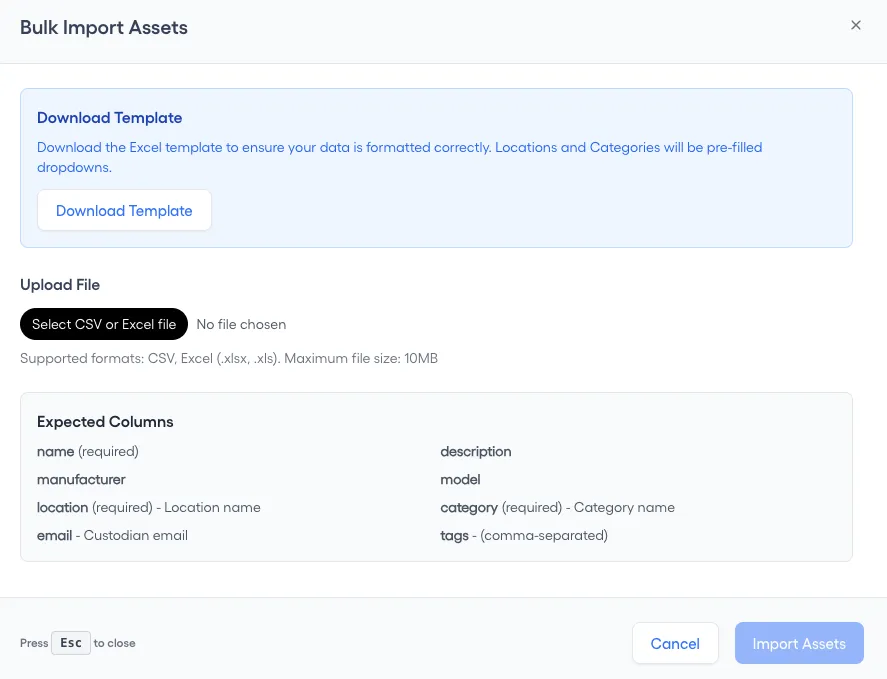
FixAhead imports assets in bulk from CSV and Excel files and checks every row, flagging errors. Match your export to the columns of the asset register template.
1. Export your assets from Limble
Save the assets as a CSV or Excel file, with one row for each asset. Every asset needs a name, a location and a category.
2. Match your file to the import columns
On the Assets page, press Import Assets, then match your file to Expected Columns: name, location and category are required. Download Template gives you the Excel file to fill in.
3. Create the locations your file names
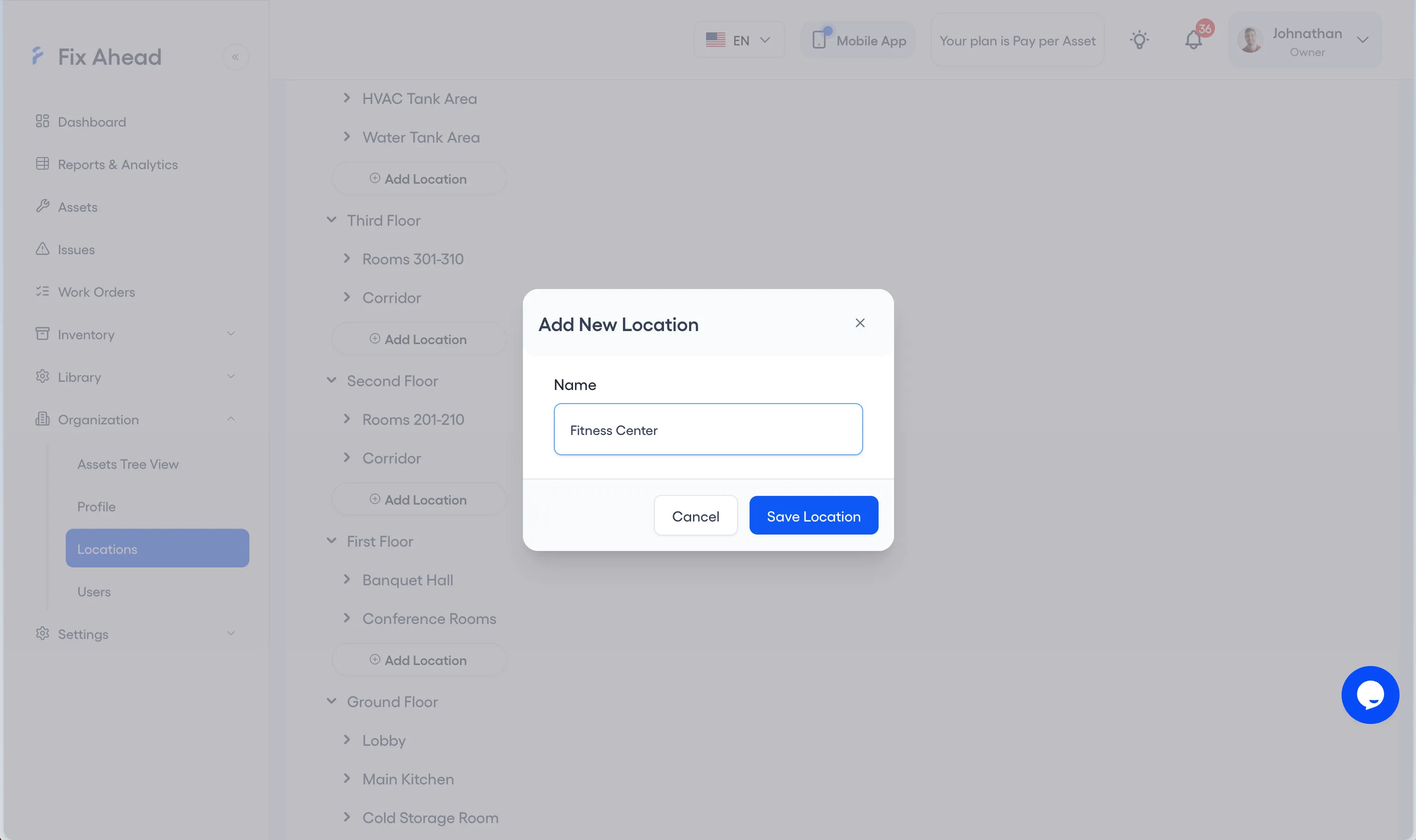
Each location in your file must exist in FixAhead first. Under Organization, Locations, press Add Location, enter the Name and press Save Location.
4. Create the categories your file names
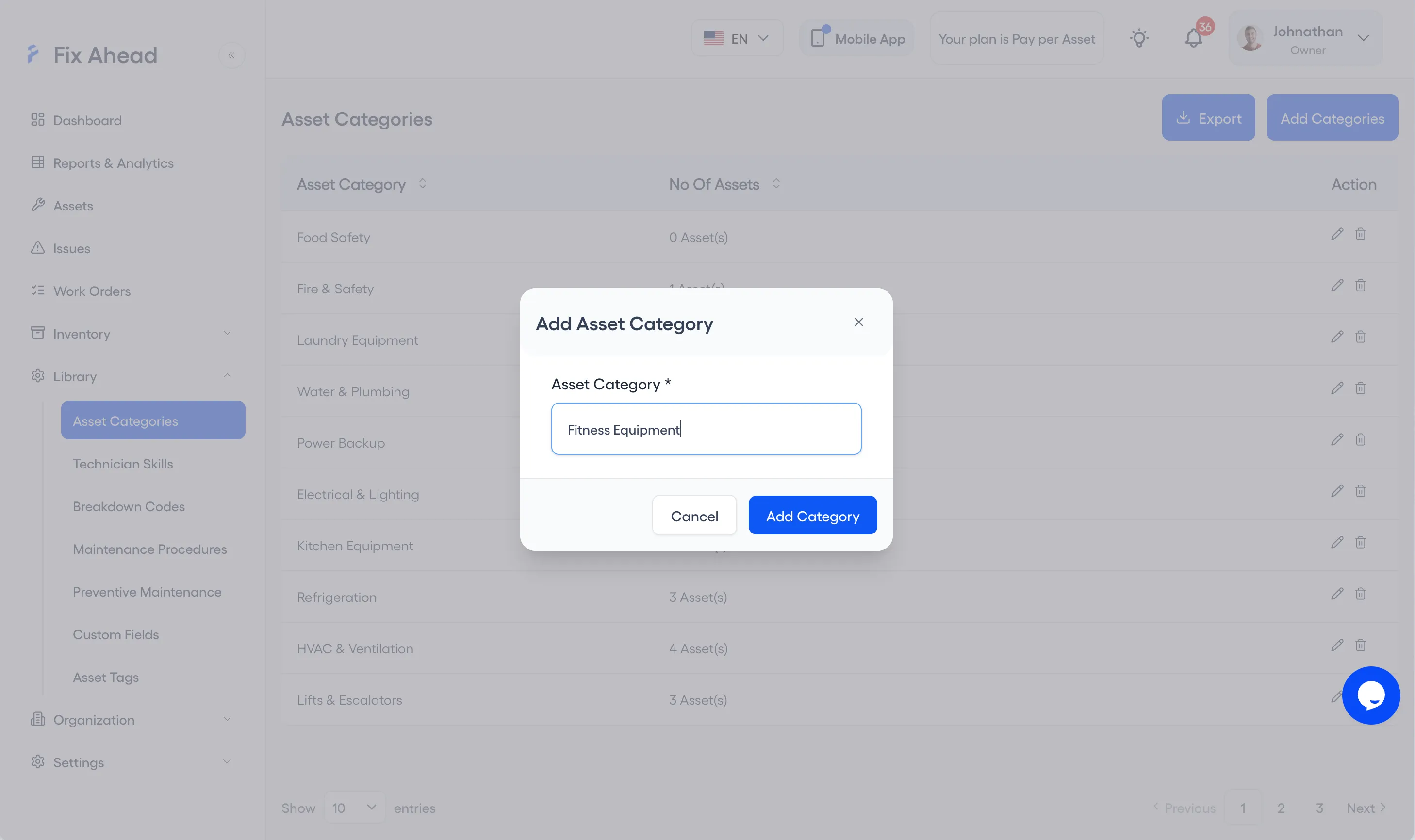
Each category in your file must exist too. Under Library, Asset Categories, press Add Categories, enter the Asset Category and press Add Category.
5. Upload your file
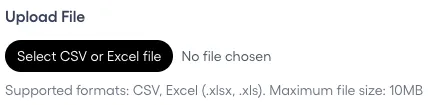
In Import Assets, press Select CSV or Excel file and choose your file. FixAhead reads CSV, .xlsx and .xls files up to 10MB.
6. Fix the flagged rows
Ready to Import counts the rows that will be imported and the rows skipped for errors. Validation Errors lists each flagged row, and Download Error Report saves them so you can correct them in your file.
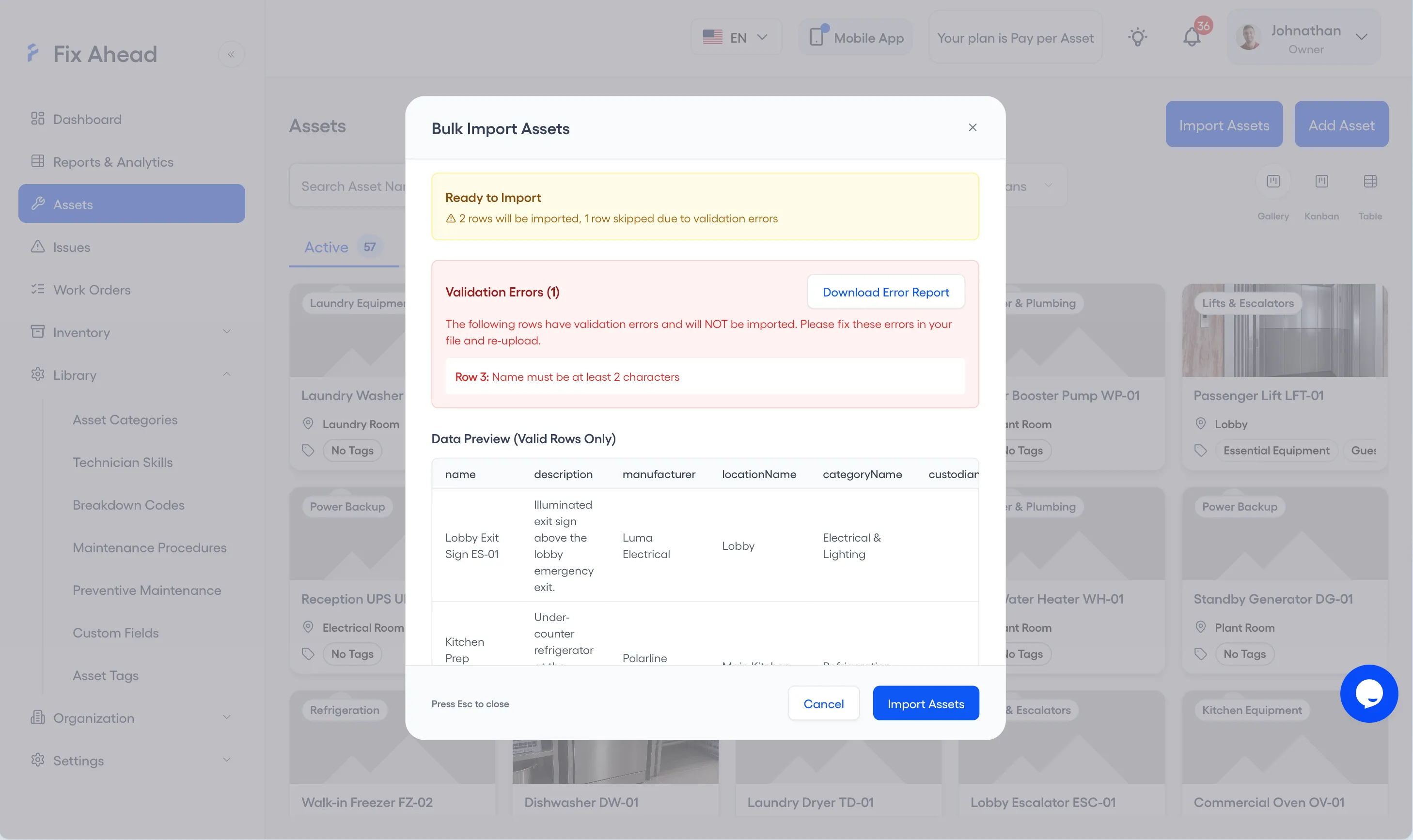
7. Confirm the import
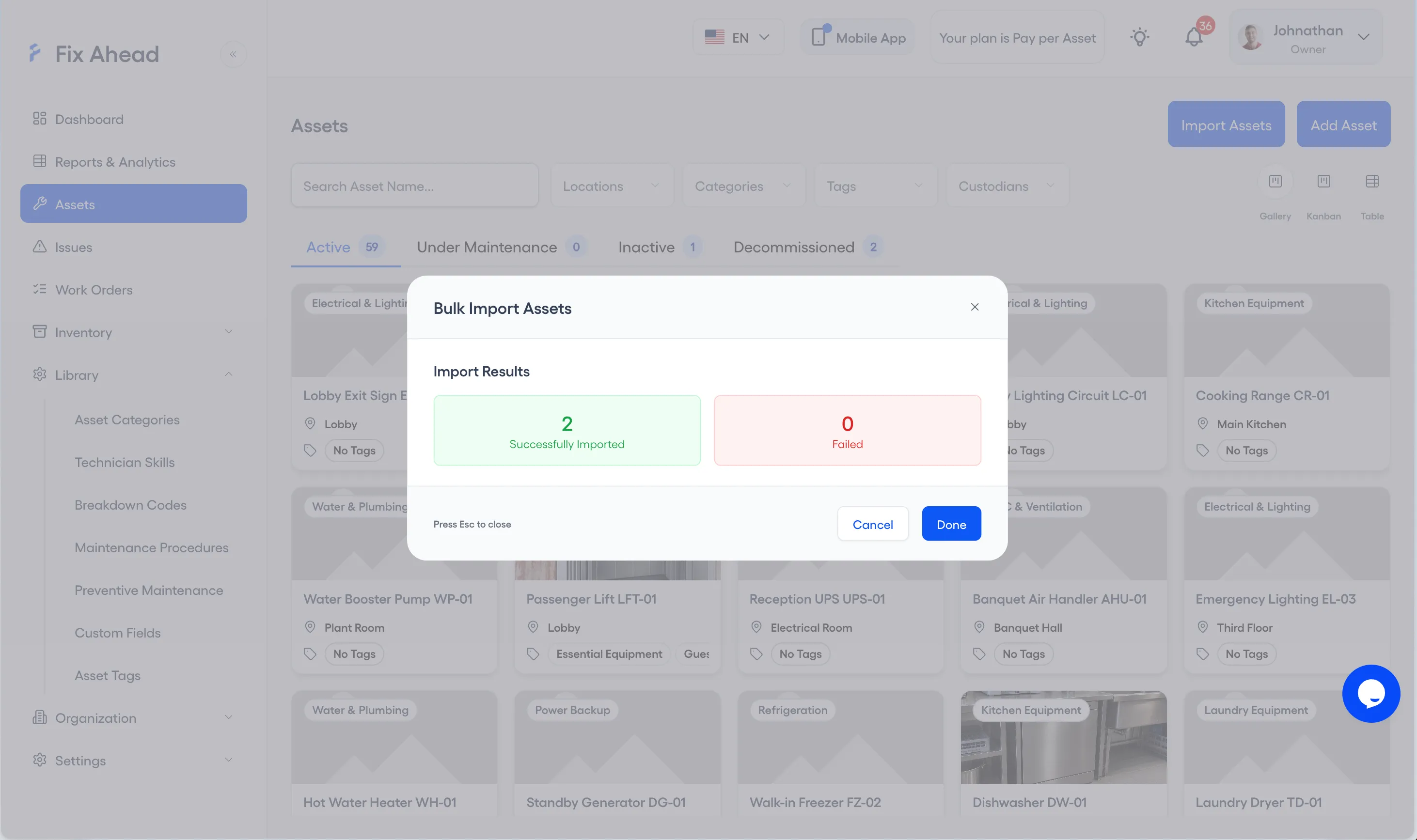
Press Import Assets. Import Results shows how many assets were Successfully Imported and how many Failed; press Done to close it.
See what FixAhead connects to on the integrations page.